Page 72Aviom A640 Personal Mixer User Guide
existing mix channel and will not appear as a separate entry in the channel list when creating a
custom Aux Mix.
When using Custom mode, the Favorite channel is replaced with a fully-assignable channel #17
which will be available for inclusion in the Aux Mix.
To create a custom set of channels for the Aux Mix output:
• Select the Aux Mix option as the source (see the steps above).
• From the Aux Mix Setup menu choose Aux Mix Channel Settings.
• Press either encoder button to activate it.
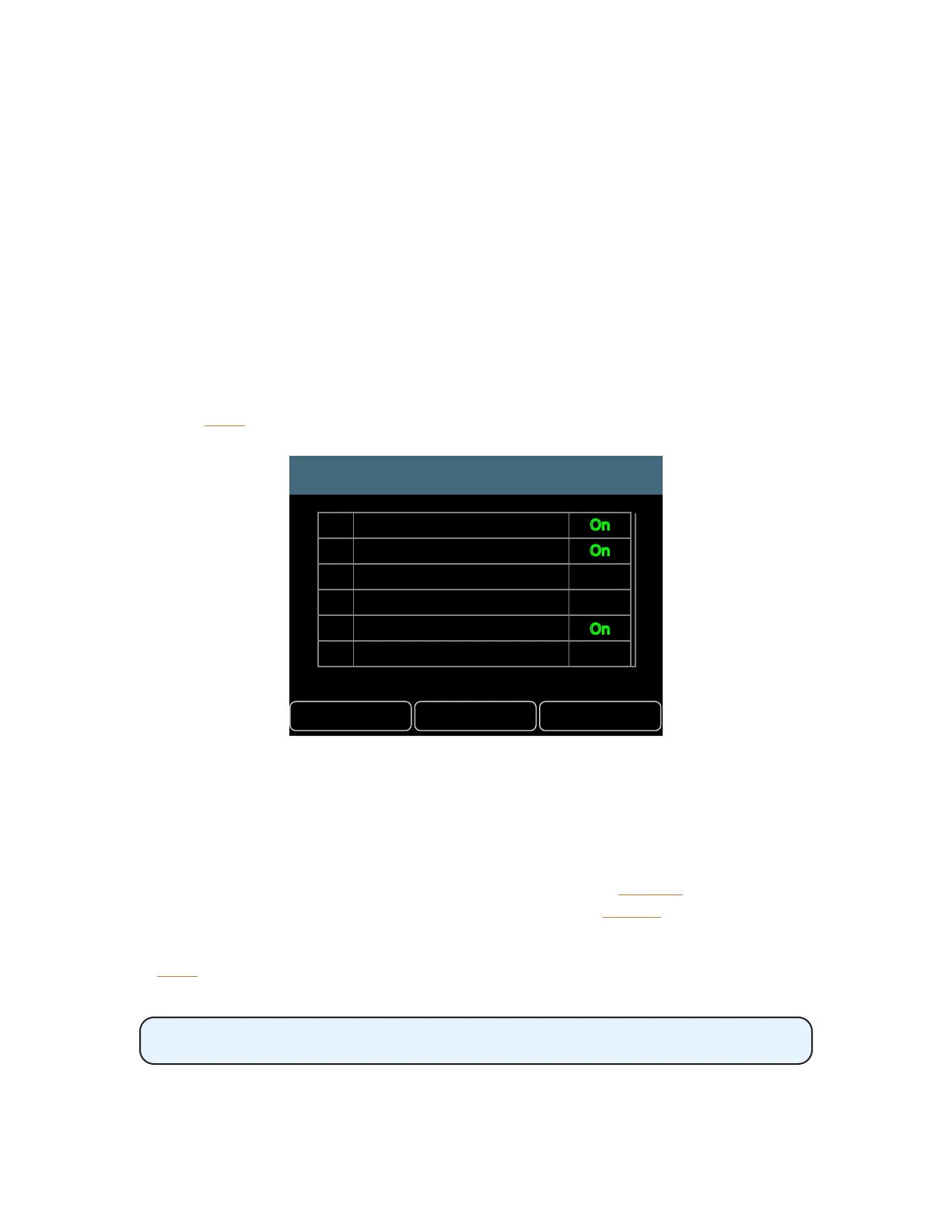
• A list of all available mix channels is displayed
• Scroll with either encoder to select a channel
• Press either encoder to activate a channel and make it part of the Aux Mix
• The text in the on-screen table is set to On in green for each active channel.
• Repeat the process for any other channels you want to add to the custom Aux Mix.
• Press back to exit when done assigning channels to the Aux Mix.
Aux Mix Channel Select
Back All O All On
Kick
Snare
Hats
Toms
Bass
Piano
1
2
3
4
5
6
On
On
O
O
On
O
Any combination of channels may be sent to the Aux Mix
When using stereo channels in Pro16 mode, note that each side of the stereo signal may be added to
or removed from the Aux Mix individually. For example, if channels 1 and 2 are stereo linked, you can
decide to include channel 1 but not channel 2 in the Aux Mix output.
Two handy utility functions are also available while editing. Press the all oFF soft button to set
all mix channels to O, removing them from the Aux Mix. Press the all on soft button to add all
channels to the Aux Mix.
Press the back soft button to return to the Aux Mix Setup menu when done editing.
Muting a channel in the main stereo mix also mutes the channel in the Aux Mix.
The Aux Mix settings are saved and recalled as part of a conguration.


 To Next Page