Page 306 of 479
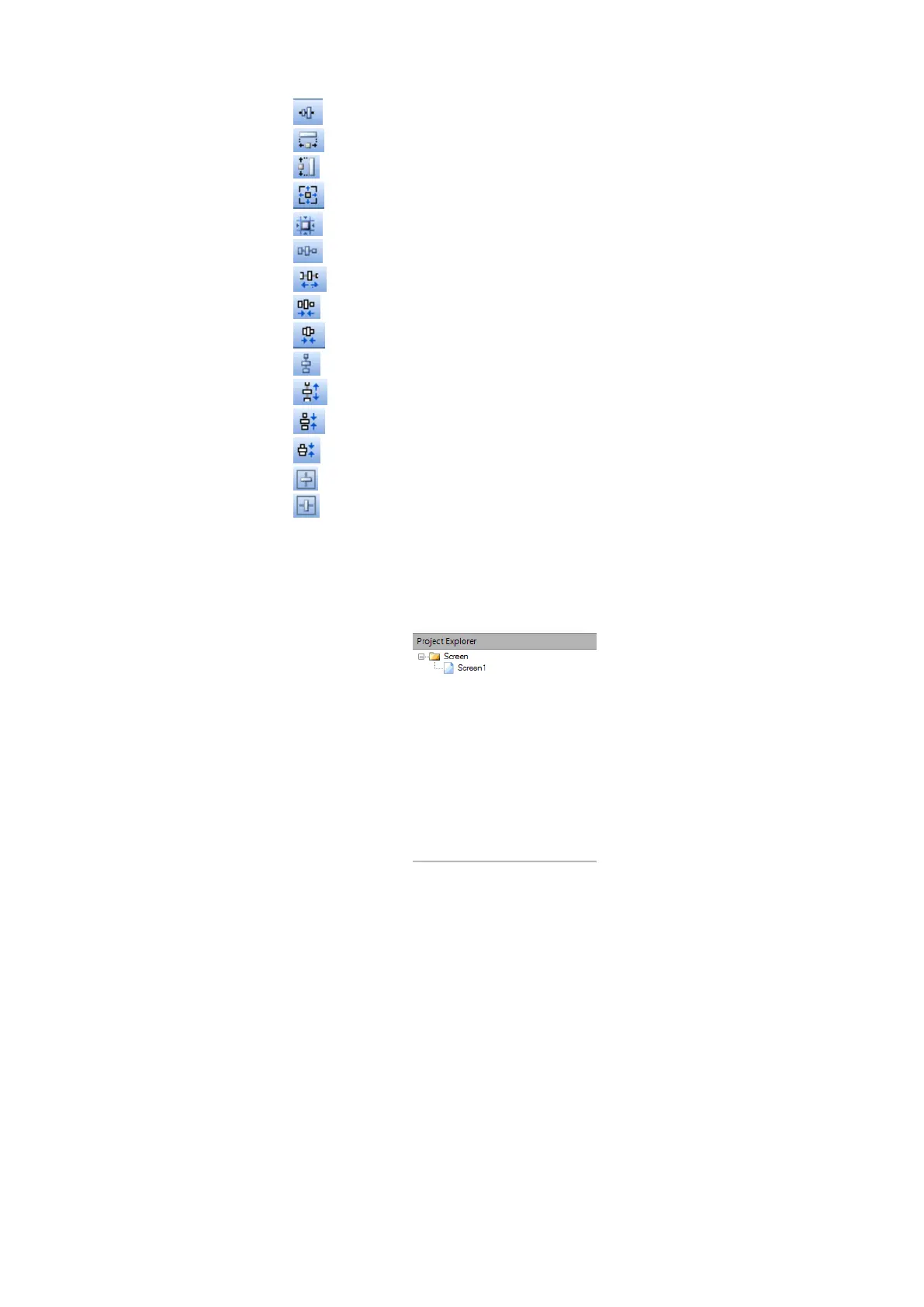
✓ Align middle
✓ Make same width
✓ Make same height
✓ Make same size
✓ Size to grid
✓ Make horizontal spacing equal
✓ Increase horizontal spacing
✓ Decrease horizontal spacing
✓ Remove horizontal spacing
✓ Make vertical spacing equal
✓ Increase vertical spacing
✓ Decrease vertical spacing
✓ Remove vertical spacing
✓ Center vertically
✓ Center Horizontally
6.3.8 Project Explorer
The project explorer has the below options on the right side of the screen in software.
6.3.8.1 Screen
This is to add new screen to the project. It is possible to set screen into the following types
1. Page
2. Template
3. Popup
When a new project is created, screen1 (Page type) is created by default. It is not possible to
change screen1 to either template or popup. Screen1 (start page) should be “Page” type only.
How to add a new page
In Project Explorer, select “Screen1”, then right click your mouse. It will show the screen below.
Click “Add”, and Screen2 will be created and will appear as shown below.


 To Next Page