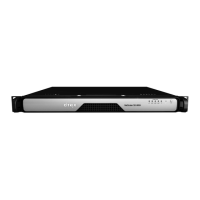
Citrix SD-WAN Platforms
2. Perform the initial configuration of the appliance, as described in Initial Configuration. Log on
to the default IP address by using a web browser, or connect to the serial console by using a
console cable, to perform the initial configuration.
3. Upload a platform license and any optional feature licenses, including universal licenses, to the
Citrix SD-WAN appliance.
4. Once the correct Citrix SD-WAN soware version is loaded, you can restore the working config-
uration.
Hard disk drive
A hard disk drive (HDD) stores logs and other data files. Files stored on the HDD include the newnslog
files, dmesg and messages files, and any core/crash files. The HDD comes in various capacities, de-
pending on the Citrix SD-WAN platform. Hard drives are used for storing files required at runtime. An
HDD is mounted as /var.
Replace a hard disk drive
A hard disk drive (HDD) stores log files and other user files. Collection of new log files begins upon
boot-up with the new HDD.
To install a hard disk drive:
1. At the Citrix SD-WAN command prompt, exit to the shell prompt. Type:
shell
2. Shut down the Citrix SD-WAN appliance by typing one of the following commands at the shell
prompt.
shutdown –p now
3. Locate the hard disk drive on the back panel of the appliance.
4. Verify that the replacement hard disk drive is the correct type for the Citrix SD-WAN platform.
5. Disengage the hard disk drive by pushing the safety latch of the drive cover to the right or down,
depending on the platform, while pulling out on the drive handle to disengage. Pull out the
faulty drive.
6. Pick up the new disk drive, open the drive handle fully to the le, and insert the new drive into
the slot as far as possible. To seat the drive, close the handle flush with the rear of the appliance
so that the hard drive locks securely into the slot.
Important: When you insert the drive, make sure that the Citrix product label is at the top.
7. Turn on the Citrix SD-WAN appliance. The appliance starts the Citrix SD-WAN soware and reads
the configuration file.
© 1999-2021 Citrix Systems, Inc. All rights reserved. 410


 To Next Page
 Loading...