8 Working with Volume Snapshots
94 CTERA C-Series User Guide
Viewing Snapshot Information
You can view the snapshot information for each volume. For information on viewing snapshot
contents, see Viewing Snapshot Contents (on page 96).
To view snapshot information
1 In the Configuration tab's navigation pane, click Storage > Snapshots.
The Storage > Snapshots page appears.
The upper pane displays snapshot information for each volume. For information on the
fields displayed, see Volume Snapshots Upper Pane Fields (page 94).
2 In the workspace's upper pane, select the desired volume.
Snapshots for the volume appear in the lower pane. Deleted snapshots that have not yet
been compacted appear in gray.
For information on the fields displayed, see Volume Snapshots Lower Pane Fields (page
95).
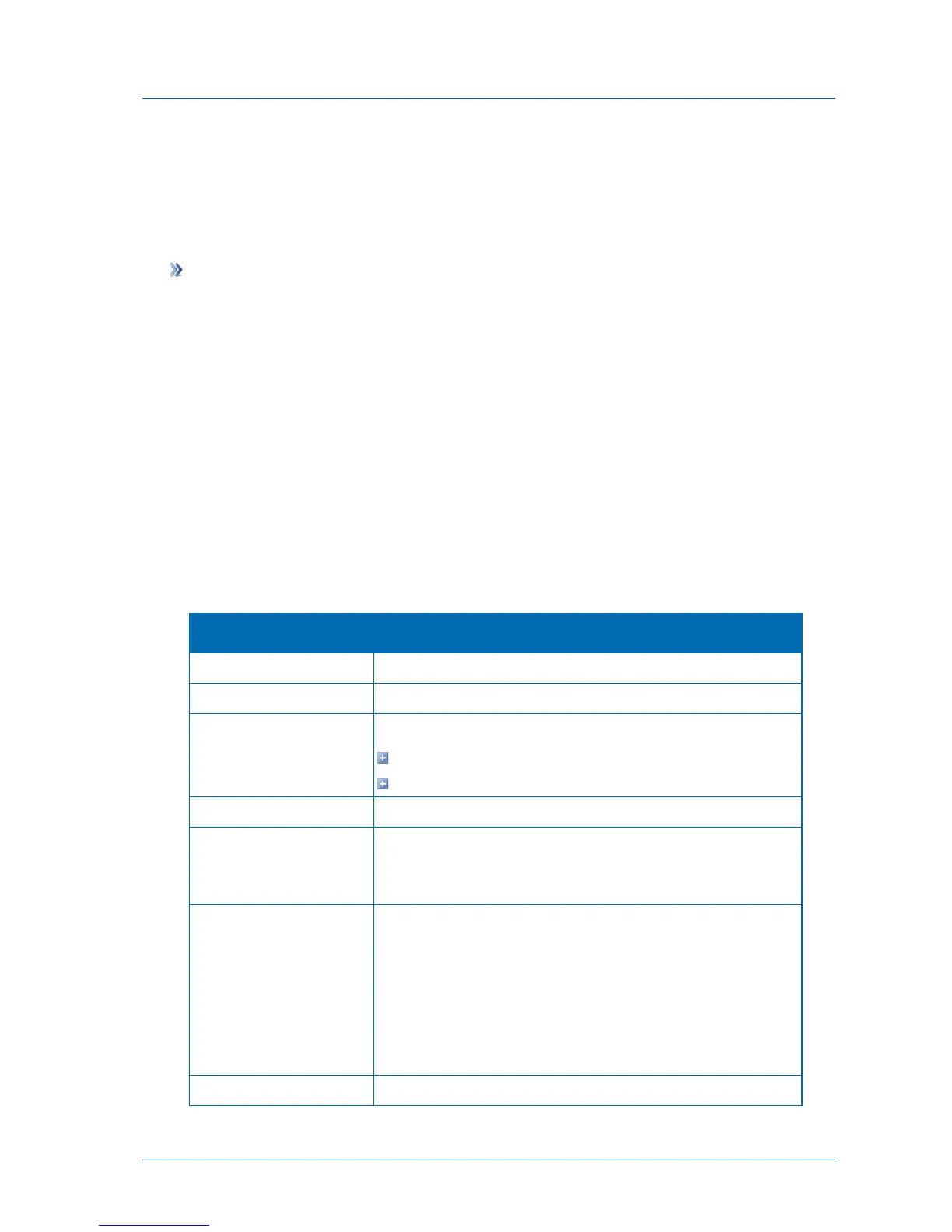
Table 23: Volume Snapshots Upper Pane Fields
The volume's status. This can be either of the following:
Ready. No snapshot operation in progress.
Busy. A snapshot operation is in progress.
The total amount of data on the volume in GB.
The amount of space on the volume that is used to store snapshots in
MB, followed by the percentage of the volume that is used to store
snapshots.
NEXT3 stores snapshots efficiently, by storing only incremental
changes. The data reduction field displays the ratio between the
actual amount of space used for storing snapshots incrementally, and
the amount of space which would have been used had the snapshots
been stored non-incrementally, in percentages. In other words, this
field represents the amount of space saved by using an incremental
method of storing snapshots.
The amount of free space on the volume in GB.



 To Next Page