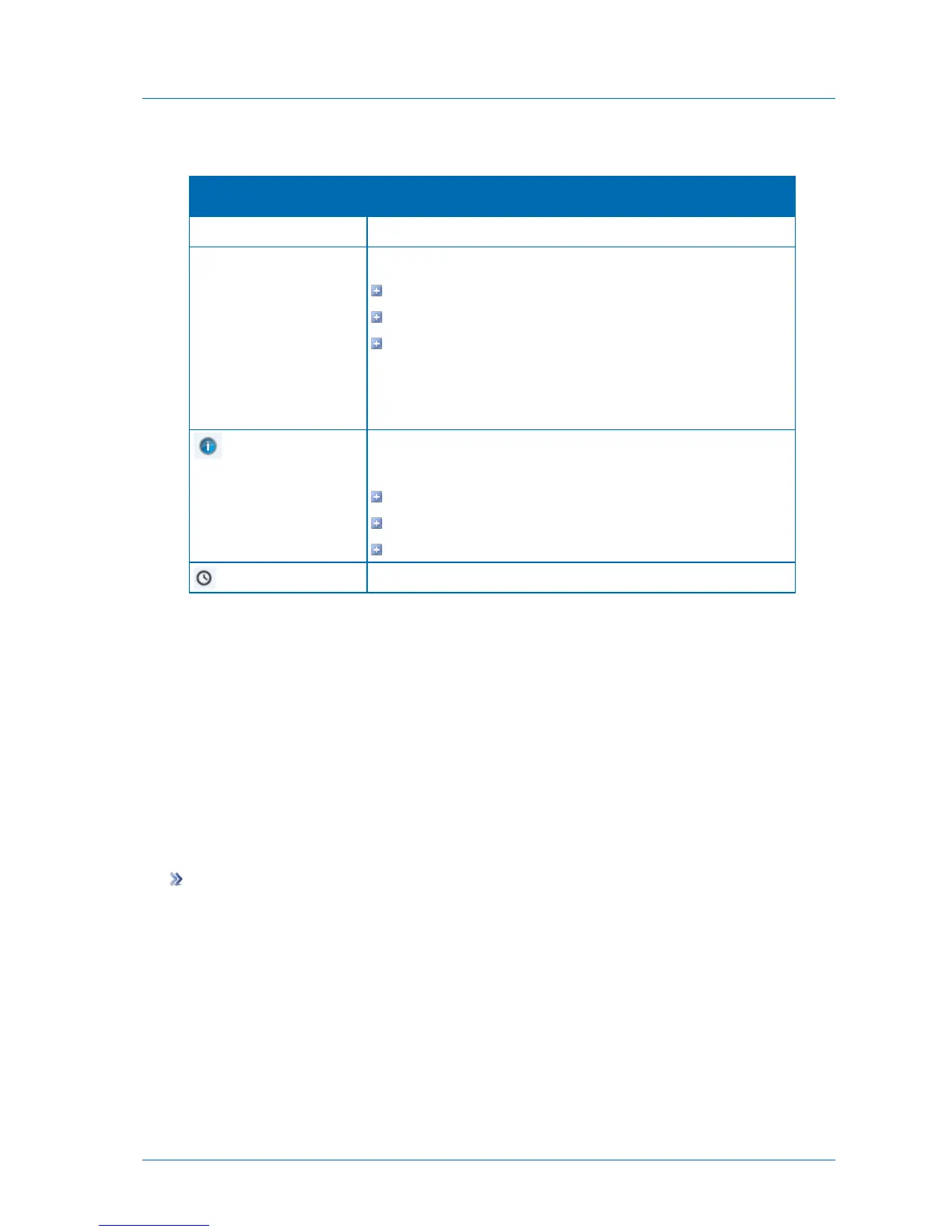
The status of the last backup:
Completed successfully
Backup in Progress
The last backup has failed, followed by the reason it failed
If an error occurred during backup, refer to the backup logs for
details. See Viewing Cloud Backup Logs (on page 303).
Mouse-over this icon to view the following information about the last
backup:
The total size of the files that you selected for backup
The total number of files that you selected for backup
The amount of time the backup took
Preparing a Backup Seeding Hard Drive
When you have a lot of information to back up, the initial backup to the cloud can take a long
time. If your CTERA service provider offers a backup seeding service, then you can speed up
the initial backup by preparing a backup seeding hard drive, that is, is a drive that contains all
of the files you want to include in your initial backup. You then deliver the seeding drive to
the service provider, and the service provider uses the seeding drive to create the initial
backup.
The seeding drive can optionally be encrypted using AES-256 and RSA public key encryption,
so even if the drive is lost, there is very little risk to your sensitive information.
To prepare a backup seeding hard drive
1 Select the files and folders you want to include in the initial backup.
See Selecting Files and Folders for Cloud Backup (on page 155).
These files and folders will be written to the seeding drive.
2 In the Configuration tab's navigation pane, click Cloud Backup > Control Panel.
The Cloud Backup > Control Panel page appears.
3 Click Seeding.



 To Next Page