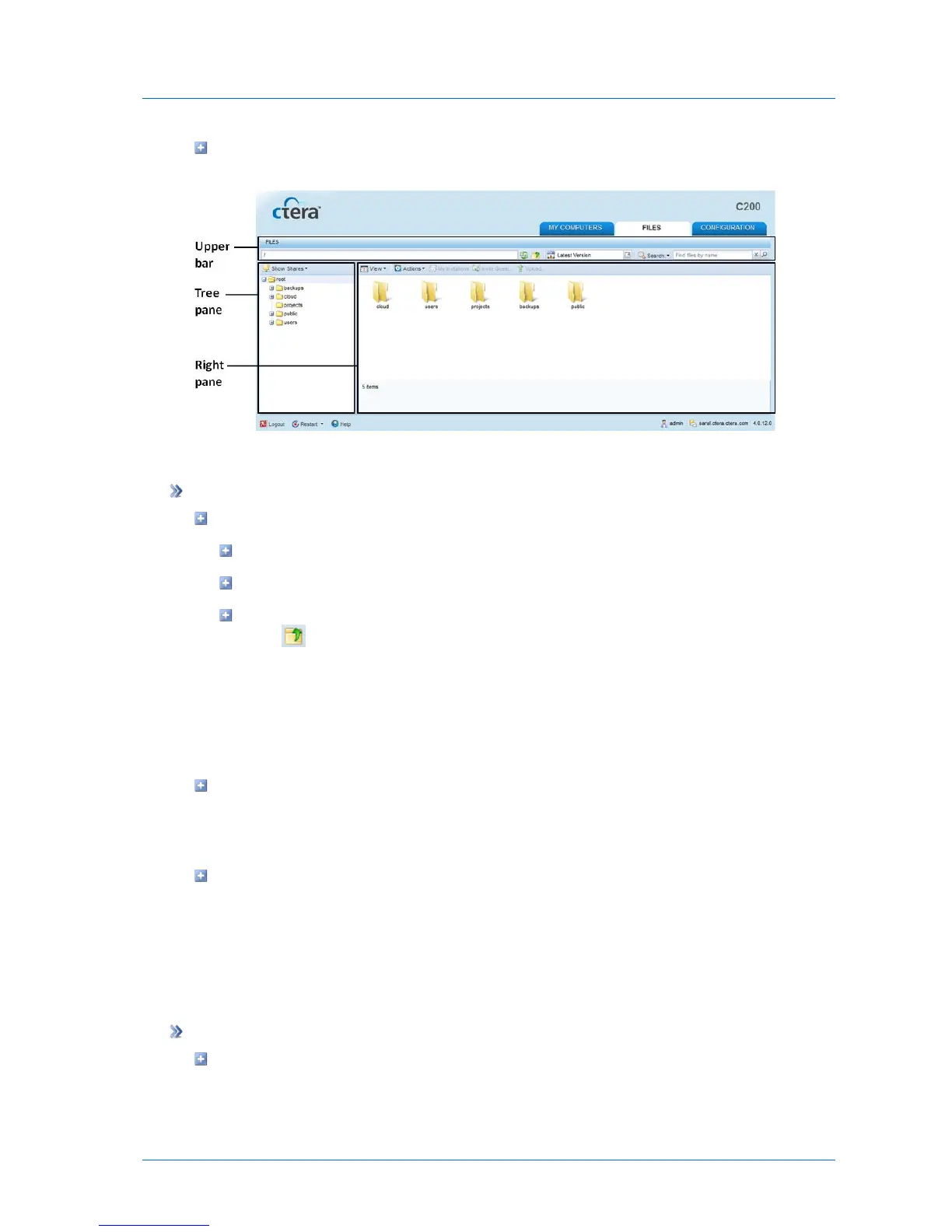
Upper bar. Displays additional navigation options, as well as file restoration and search
controls.
Navigating Between Folders
To navigate between folders
Do any of the following:
In the tree pane, expand the nodes and click on the desired folders.
In the upper bar, type the desired file or folder path.
To navigate to the parent folder of the currently displayed folder, in the upper bar,
click .
The folder's contents appear in the right pane.
Changing the Tree Pane View
The Files tab's tree pane offers two views:
Shares
This is the default view, in which the tree pane displays all network shares and the folders
they contain. All File Manager tasks are available in this view.
Volumes
Users belonging to the Read Only Administrators and Administrators groups can switch to
the Volumes view, in which the tree pane displays both physical volumes and network
shares. This view allows managing folders that are not included in any network share. File
Manager tasks related to guest invitations, project collaboration, and snapshots are not
available in this view.
To change the tree pane view
In the drop-down list the top of the tree pane, select the desired view.



 To Next Page