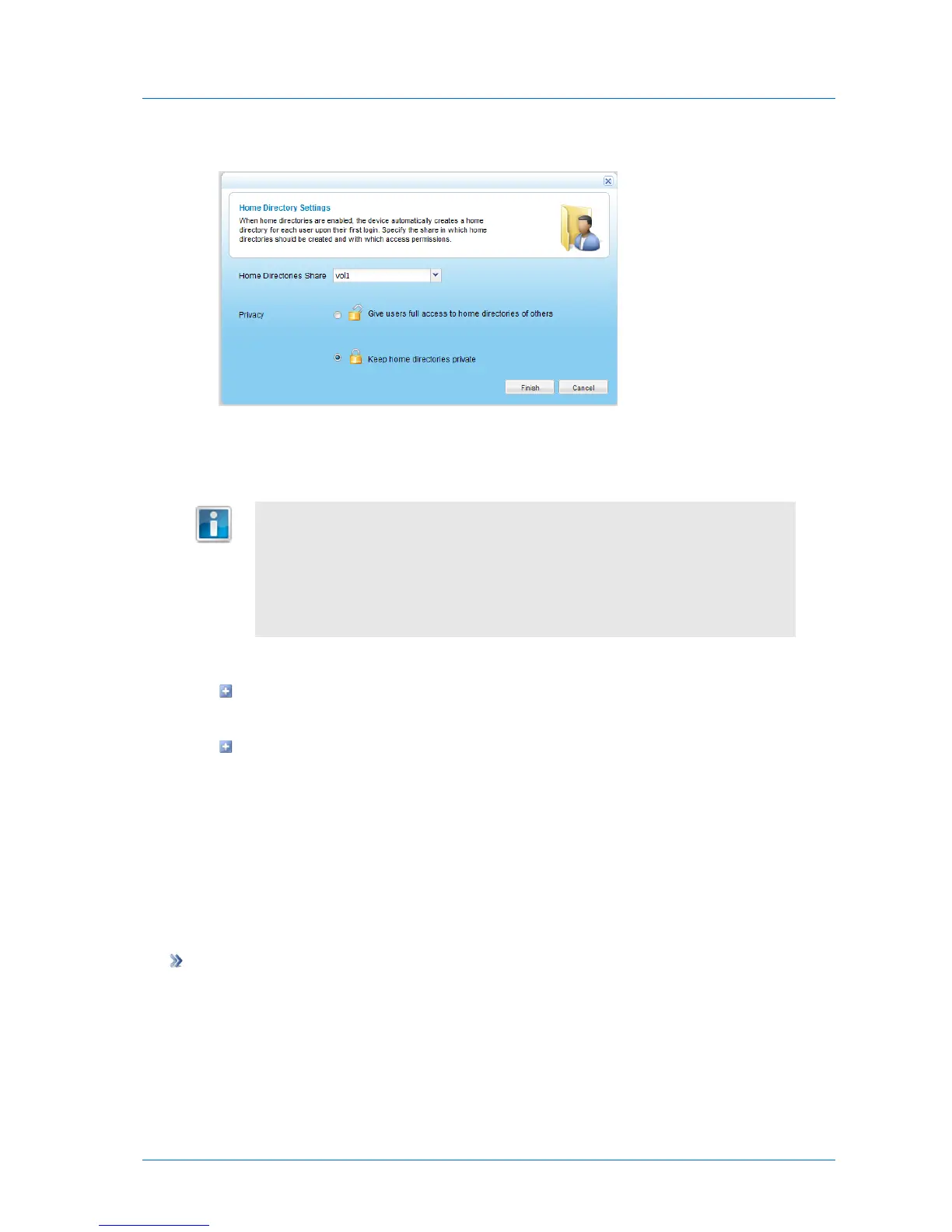
The Home Directory Settings dialog box opens.
3 In the Home Directories Share drop-down list, select the network share in which all home
directories should be stored.
Upon enabling home directories, the users share was created for this purpose;
however, any share can be used.
The selected share will be used exclusively for storing home directories. Users
will not be permitted to store files directly under the share's root folder.
Do not select a share that already contains files or folders that are not home
directories.
4 In the Privacy area, do one of the following:
To grant all users access to the home directories of other users, click Give users full
access to home directories of others.
To allow only a home directory's owner access to it, click Keep home directories
private.
5 Click Finish.
Resetting Home Directory Permissions
You can reset the home directory permissions to the default settings (i.e. all users will be
granted access to the home directories of other users), and set all files to be owned by the
home directory owner.
To reset home directory permissions
1 In the Configuration tab's navigation pane, click Share > Home Directories.
The Share > Home Directories page appears.
2 Click Reapply Permissions.
A confirmation message appears.



 To Next Page