Inviting Users to Install CTERA Agent
You can invite users to install CTERA agent and back up their computers to the appliance.
When you invite a user, the user receives an email invitation with a link to download CTERA
Agent and a username and password for accessing the appliance. The user's account is added
to the appliance and you can see the new user listed in the Users > Users page on the
Configuration tab.
To invite a new user to download CTERA agent
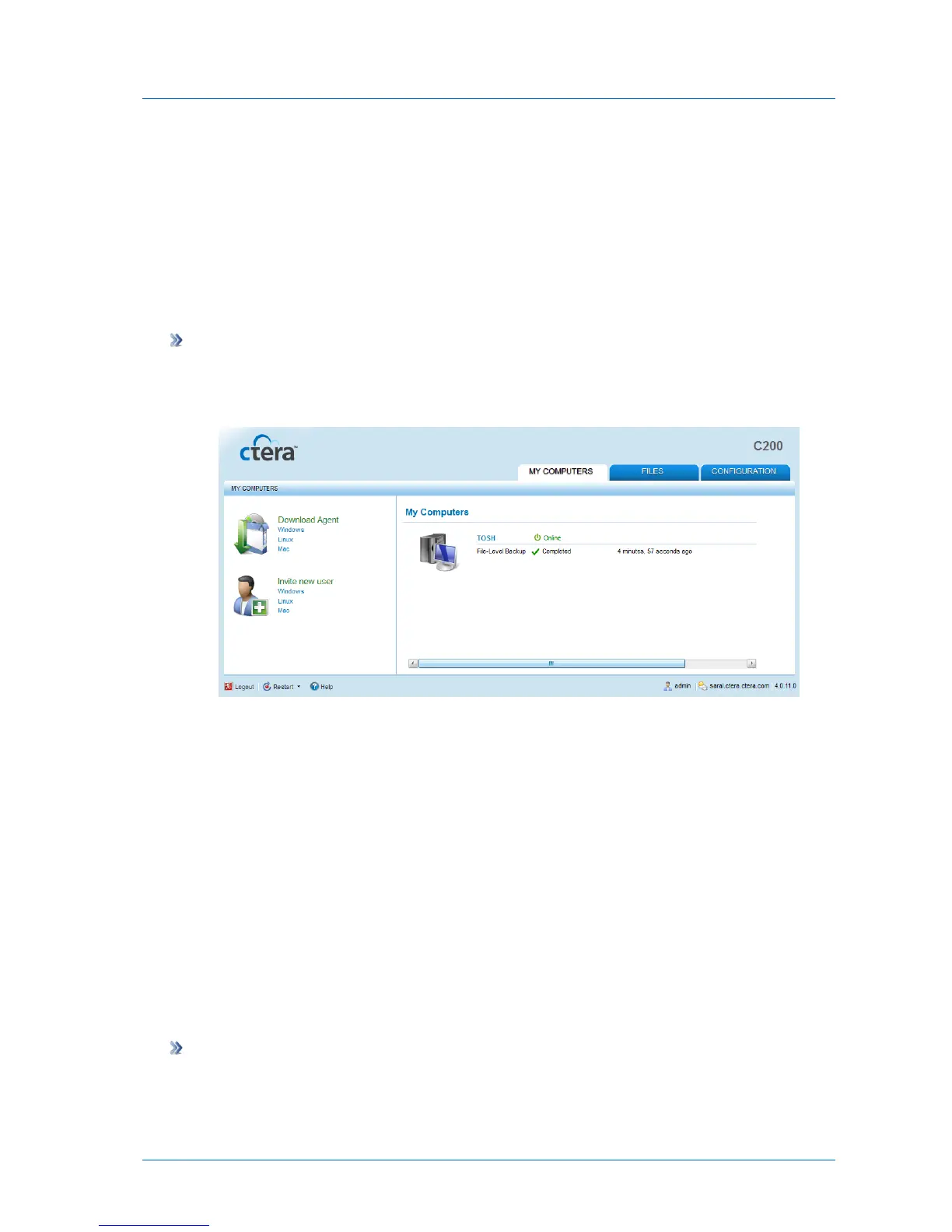
1 Click the My Computers tab.
The My Computers page appears.
2 Under Invite new user, click Windows.
The Invite New User dialog box appears.
3 In the Email Address field, enter the email address of the user you want to invite.
4 In the Username field, enter a user name for the new user.
5 In the Full Name field, enter the user's full name.
6 Click OK.
A confirmation message appears.
7 Click OK. An invitation is sent to the specified email address.
Viewing Users
To view users
1 In the Configuration tab's navigation pane, click Users > Users.
The Users > Users page appears displaying all local users.



 To Next Page