Manually set up storage, by doing the following:
a Add one or more arrays.
See Adding and Editing Arrays (on page 68).
b Create one or more volumes on each array.
See Adding and Editing Logical Volumes (on page 73).
c If you created a SAN volume, you must add it as an iSCSI target, in order to access it.
See Adding and Editing iSCSI Targets (on page 81).
Setting Up Storage Using the Storage Setup Wizard
The Storage Setup Wizard enables you to quickly configure basic, recommended storage
settings for your appliance.
To set up storage using the Storage Setup Wizard
1 In the Configuration tab's navigation pane, click Storage > Arrays or Storage > Volumes.
The relevant page appears.
2 Click Storage Setup Wizard.
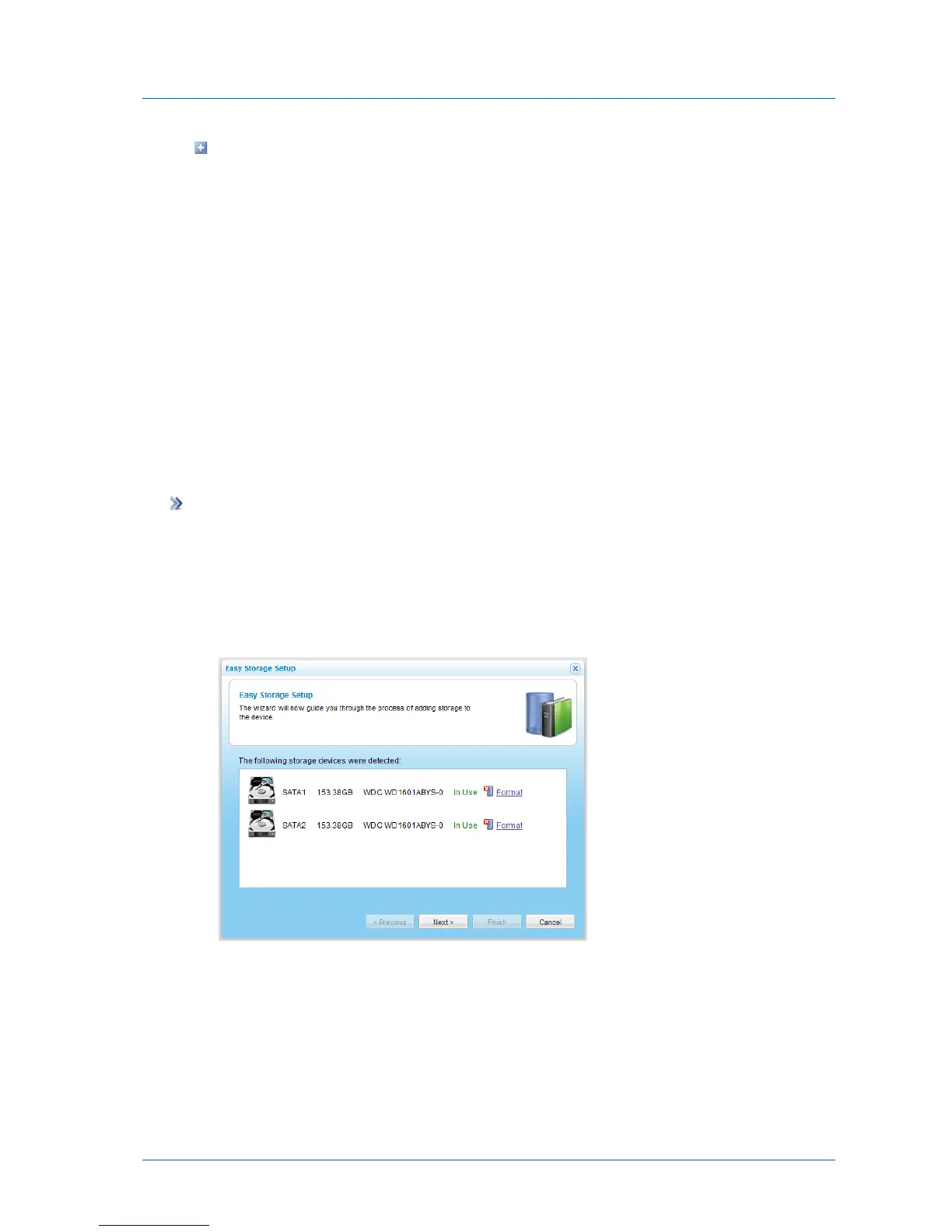
The Easy Storage Setup Wizard opens, displaying the Easy Storage Setup dialog box.
For each installed drive, the following information is listed: port number, disk capacity in
GB, disk type, and disk model.
If there is already data on a drive, the Format option appears next to it. If there is no data
on the drive, the drive's status will be “Empty”, and the drive will be formatted
automatically.
3 (Optional) To format a drive, do the following:



 To Next Page