CTERA C-Series User Guide 107
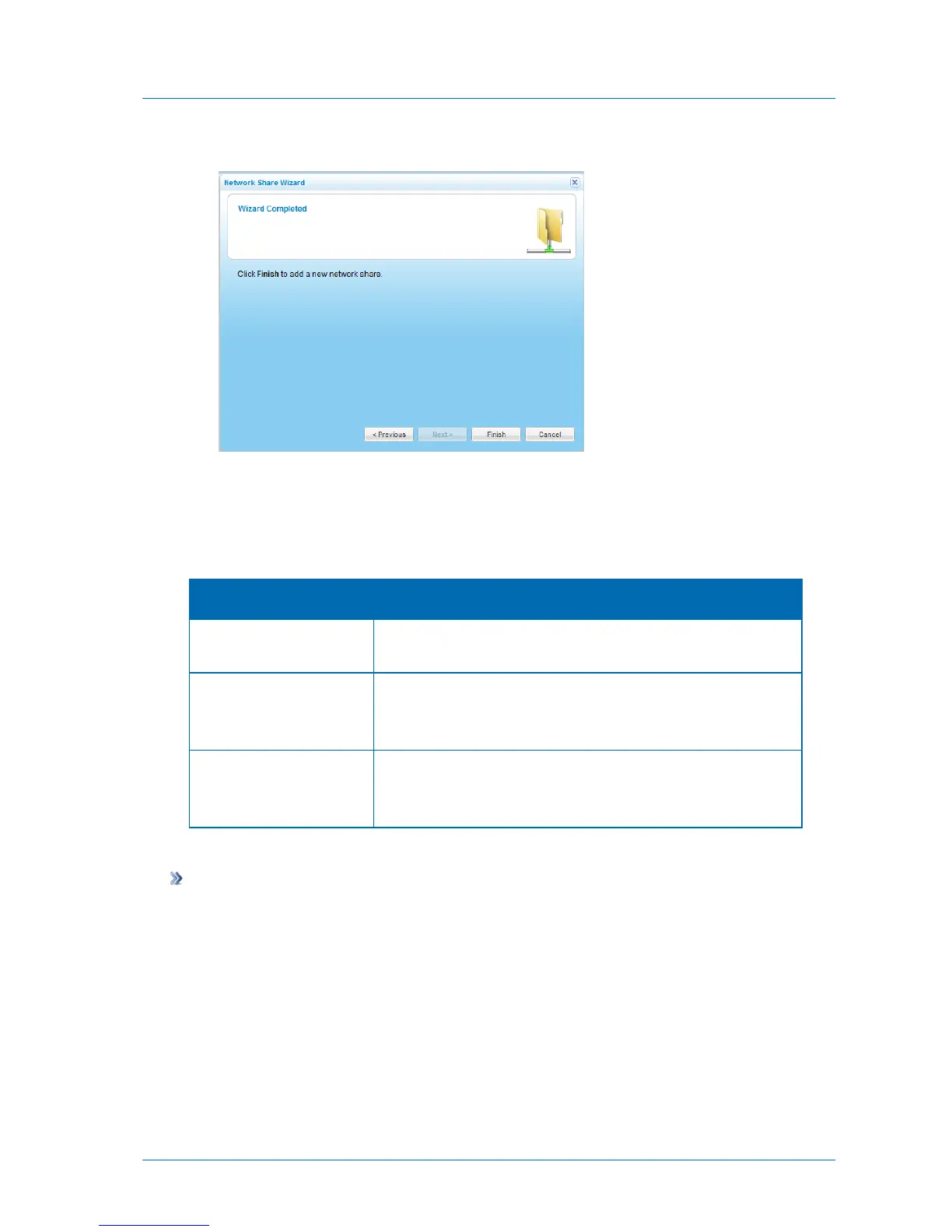
The Wizard Completed screen appears.
17 Click Finish.
The network share is added.
Table 25: Network Share Access Options
Users will be required to authenticate using their appliance user name
and password, in order to access the network share.
Users will be able to read and write to this network share using
Windows File Sharing, and will not be required to enter their user
name and password.
Users will be able to read files from this network share using Windows
File Sharing, and will not be required to enter their user name and
password.
Deleting Network Shares
To delete a network share
1 In the Configuration tab's navigation pane, click Share > Shares.
The Share > Shares page appears.
2 Select the desired network share and click Remove Share.
A confirmation message appears.
3 Click Yes.
The network share is deleted.



 To Next Page