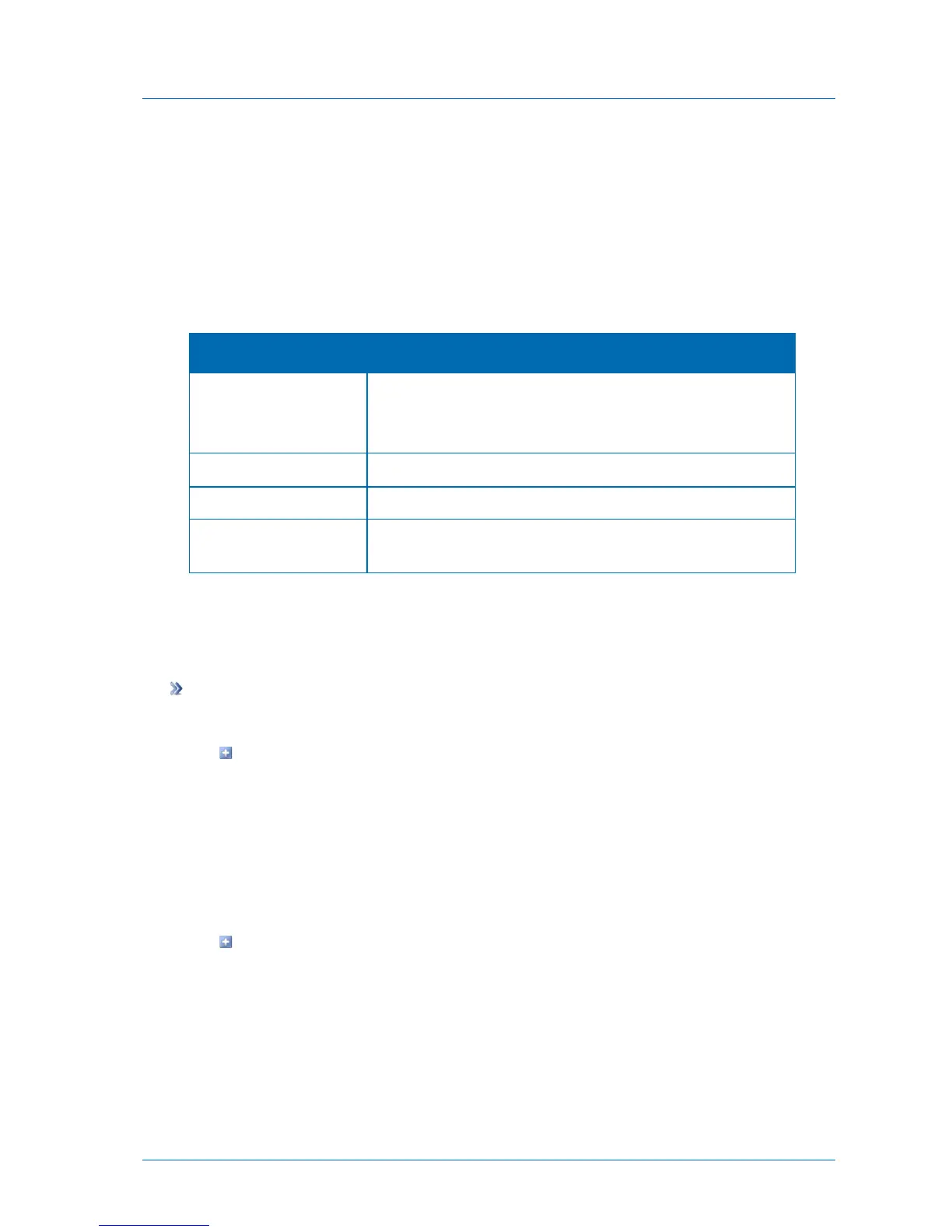
For each invitation the information in the following table is displayed.
2 To view an individual invitation, select the desired invitation, and then click View
Invitation.
The Send Invitation dialog box opens displaying the invitation.
3 Click Close.
Table 31: Active Guest Invitations Information
The name of the user who sent the guest invitation.
This field only appears when viewing all guest invitations in the
system.
Deleting Active Guest Invitations
If you delete an active guest invitation, the path and/or URL it contains can no longer be used
to access files.
To delete active guest invitations
1 Do one of the following:
To select a guest invitation for deletion, out of a list of all active invitations in the
system:
1 In the Configuration tab's navigation pane, click Share > Collaboration.
The Share > Collaboration page appears.
2 Click View Active Invitations.
The Manage Invitations window opens.
To select a guest invitation for deletion, out of a list of all active invitations sent by
you, in the Files tab's Show Shares tree pane view, click My Invitations.
For information on changing the tree pane view, see Changing the Tree Pane View
(on page 278).
The My Invitations window opens.
2 Select the desired invitation, and then click Delete.



 To Next Page