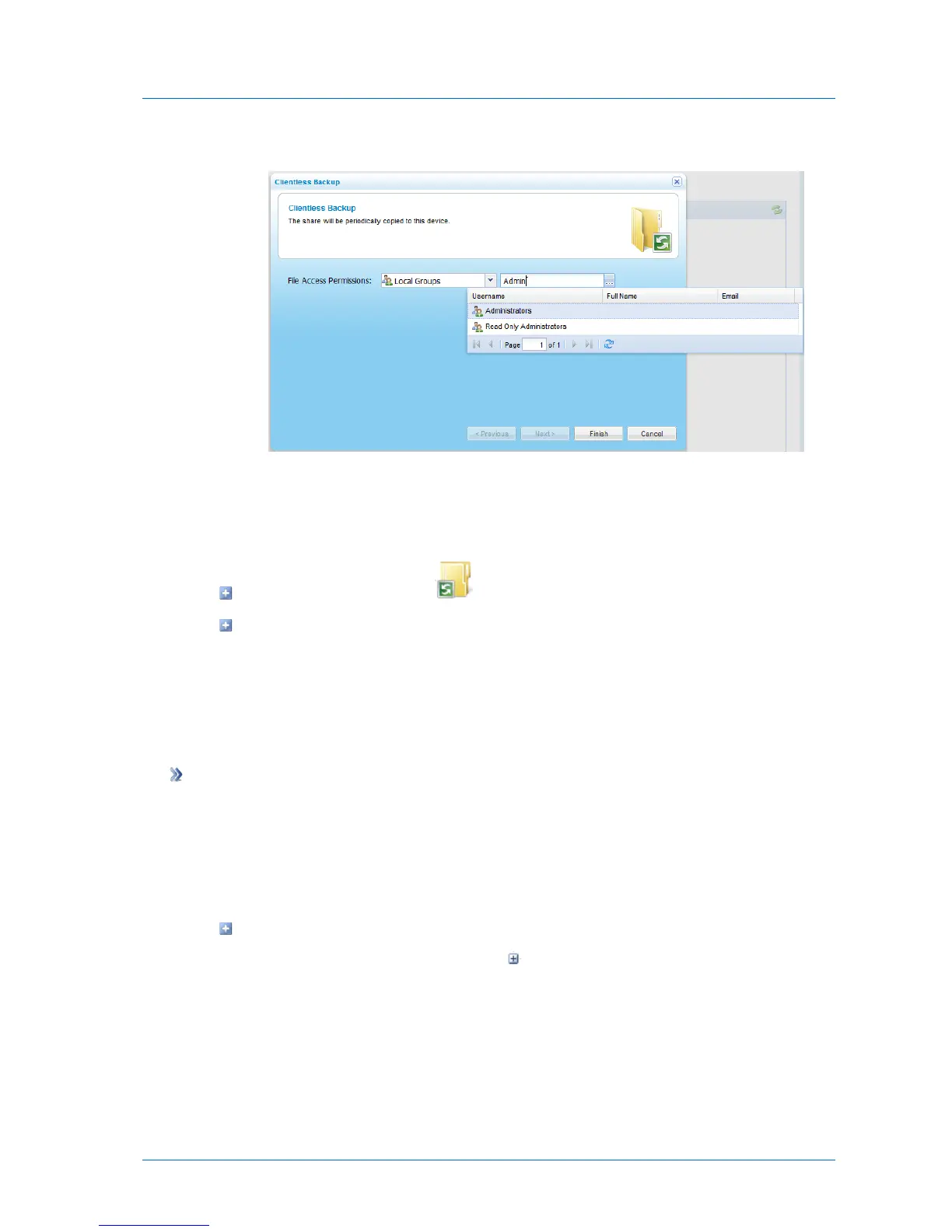
A table of users or user groups matching the search string appears.
3 Select the desired user or user group in the table.
The user or user group appears in the Quick Search field.
6 Click Finish.
The folder's icon changes to , and the synchronization status is indicated.
At the bottom of the workspace, the Destination field indicates the folder on the
appliance to which files will be backed up. The Local Disk Space Usage field indicates
the amount of used space on the disk after the next Clientless Backup operation, out
of the total amount of space available on the disk.
Removing Clientless Backup
To remove Clientless Backup from folders
1 In the Configuration tab's navigation pane, click Local Backup > Clientless Backup.
The Local Backup > Clientless Backup page appears, displaying all computers in the
network neighborhood.
2 Do one of the following:
To remove Clientless Backup for a single folder:
1 Next to the desired computer, click to expand the node.
The shared folders on the computer appear.
2 Select the desired folder, and click Remove Sync.
A confirmation message appears.
3 Click Yes.



 To Next Page