a Click Restart automatically after installing new firmware.
b Specify when automatic rebooting should occur, by doing one of the following:
To reboot as soon as possible after a firmware update, choose As soon as
possible.
In this case, the appliance will reboot as soon as it is recommended to do so. For
example, the automatic reboot might be deferred, if the appliance is undergoing
system maintenance that should not be interrupted.
To reboot only during specific hours, choose During these hours, then use the
drop-down down lists to specify the desired time range.
If you do not enable automatic rebooting, then you will need to reboot the appliance as
described in Restarting the CTERA Appliance (on page 332), when this page indicates that
a new update has been installed.
5 Click Save.
Manually Updating the Firmware
To manually update the firmware
1 In the Configuration tab's navigation pane, click System > Firmware.
The System > Firmware page appears, displaying the currently installed firmware version,
as well as the appliance model.
2 Click Install from file.
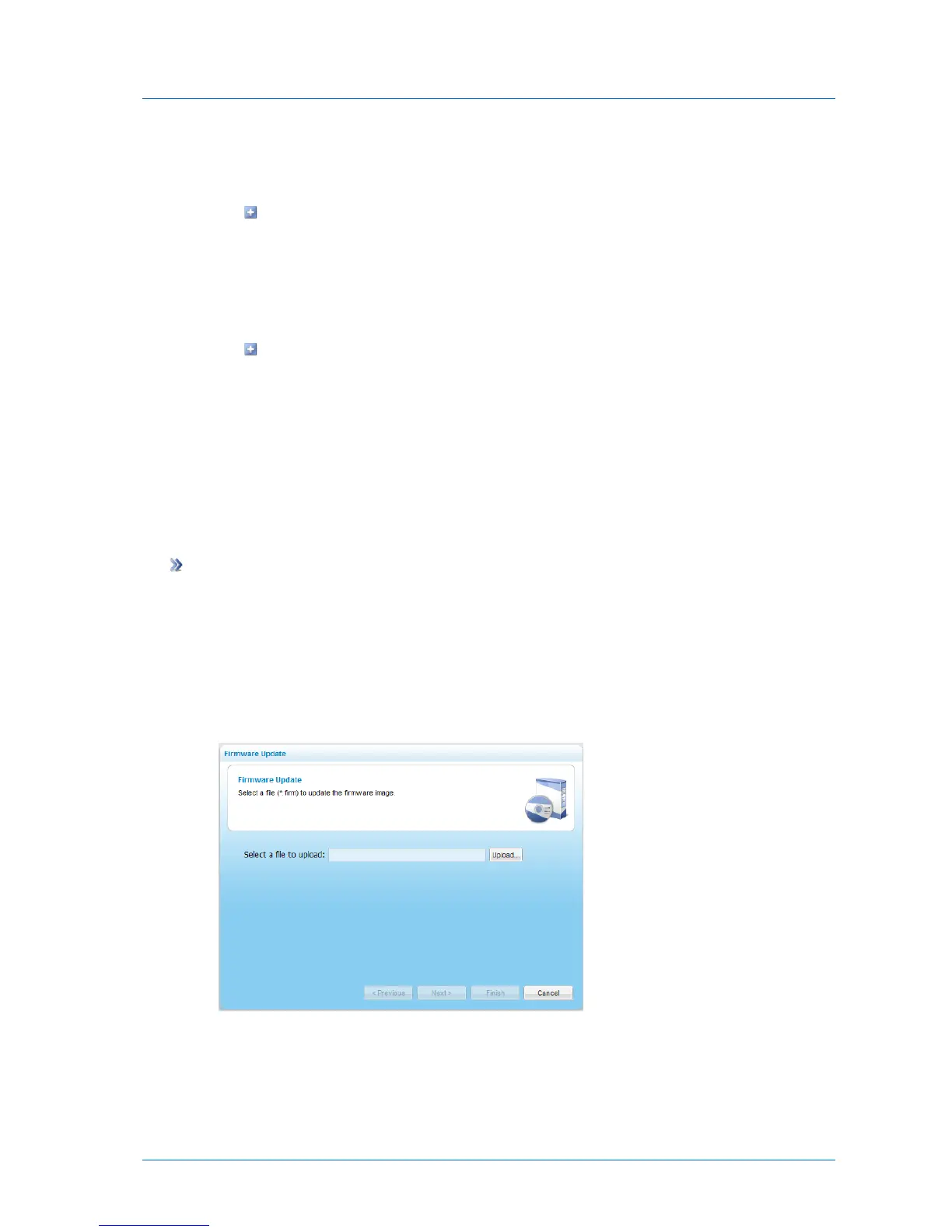
The Firmware Update Wizard opens, displaying the Firmware Update dialog box.
3 Click Upload and browse to your firmware (*.firm) file.
The firmware file is uploaded.
The Completing the Firmware Update Wizard appears.



 To Next Page