CTERA C-Series User Guide 173
This option will appear only if the backup seeding service is supported by your
service provider.
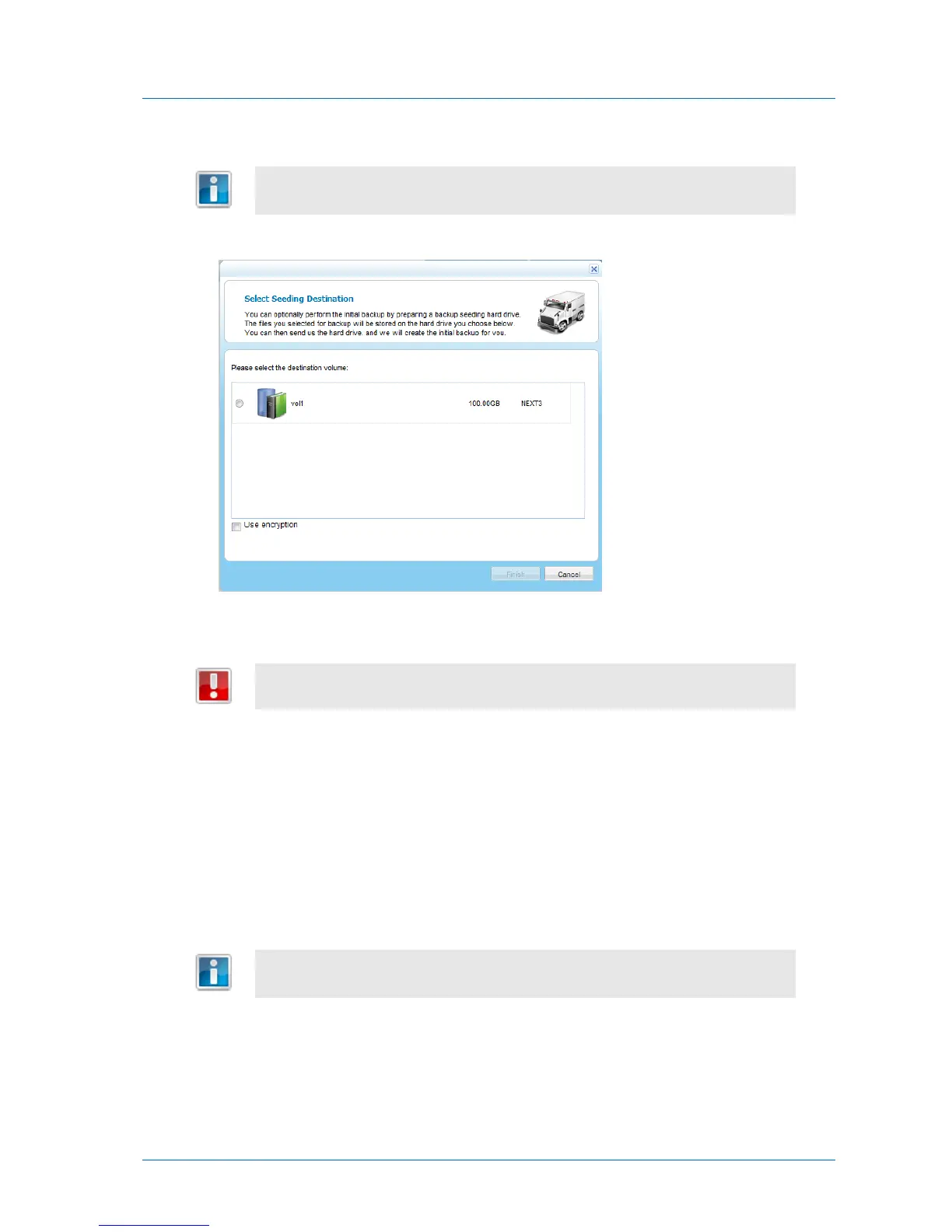
The Select seeding destination dialog box appears.
4 Choose the drive to use as the seeding drive.
The contents of this drive will be deleted.
5 To encrypt the seeding drive, select the Use encryption check box.
6 Click Finish.
A confirmation message appears.
7 Click Yes.
The selected files and folders are written to the seeding drive.
You can now deliver the seeding drive to your service provider.
During the time your service provider is loading the backup seeding drive to your
account, the backup service will be temporarily disabled for your appliance.



 To Next Page