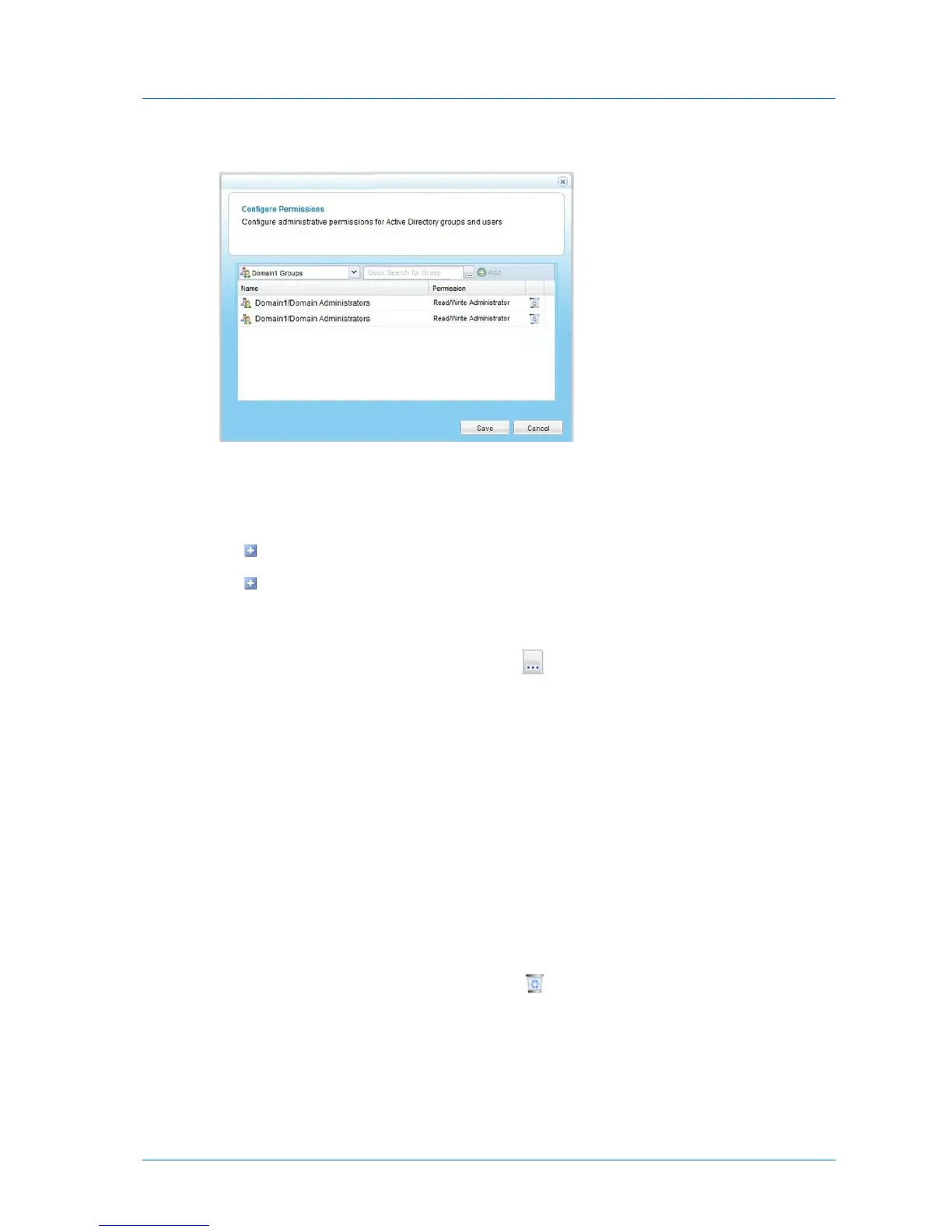
The Configure Permissions dialog box opens.
3 Add each user and group who should have administrative permissions, by doing the
following:
a In the drop-down list in the upper-left corner, select one of the following:
Domain domain Users. Search the users belonging to the domain called domain.
Domain domain Groups. Search the user groups belonging to the domain called
domain.
b In the Quick Search field, type a string that appears anywhere within the name of the
user or group you want to add, then click .
A table of users or groups matching the search string appears.
c Select the desired user or group in the table.
The user or group appears in the Quick Search field.
d Click Add.
The user or group is added to the list of users and groups who should have
administrative permissions.
4 In each user and user group's row, click in the Permission column, then select the desired
access level from the drop-down list.
Options include None, Read Only Administrator, and Read/Write Administrator.
5 To remove a user or group, in their row, click .
The user or group is removed from the table.
6 Click Save.



 To Next Page