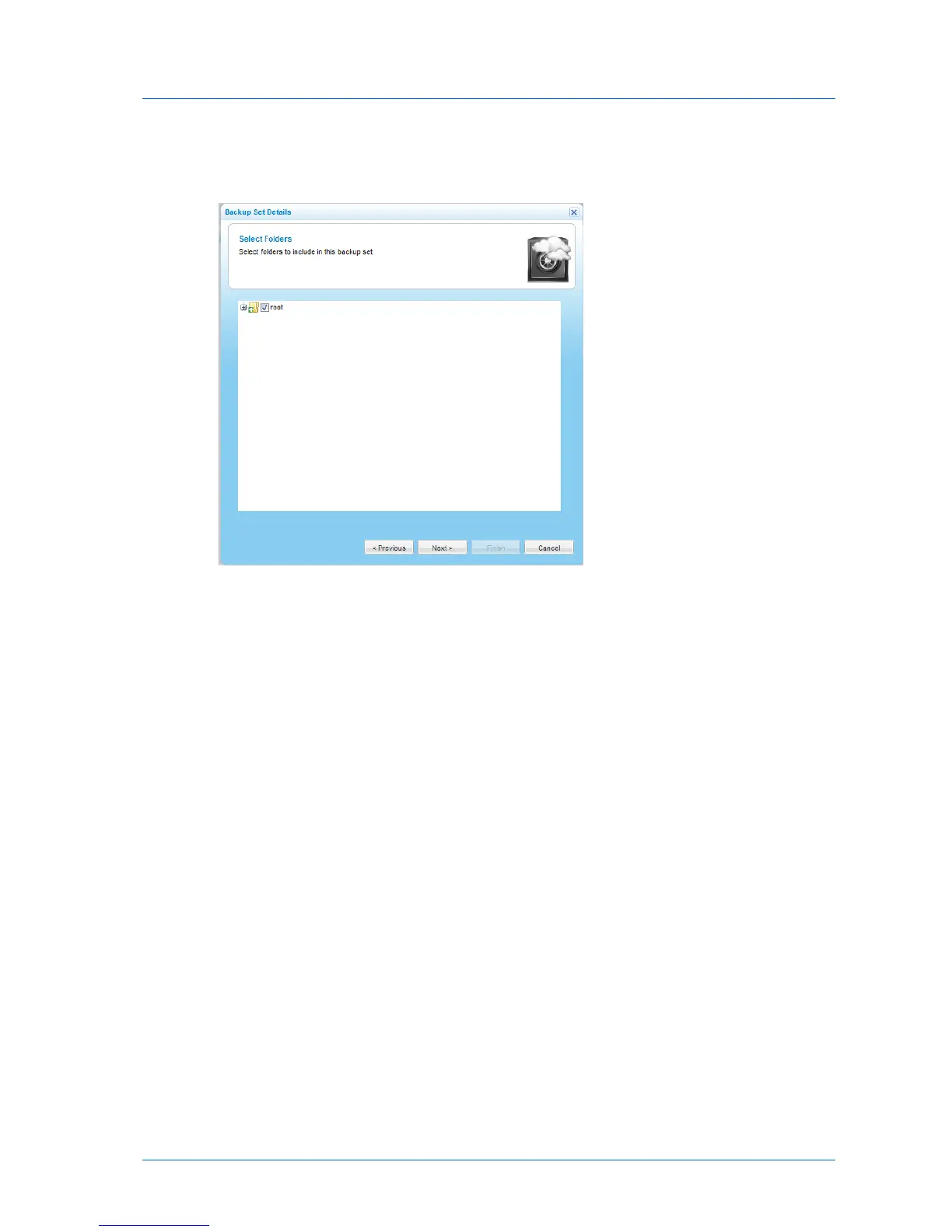
8 Click Next.
The Select Folders dialog box appears.
This dialog box enables you to select the folders to which this backup set applies. By
default, the root folder is selected, meaning that the backup set applies to all files in all
folders. If desired, you can select specific folders to which this backup set should apply.
For example, you can create an backup set that contains all files that have the extension
*.txt and reside in the folder /share1/textfiles by entering "txt" in the previous
dialog box, and then choosing the folder /share1/textfiles in this dialog box.
9 Expand the tree nodes to reveal the folders.
For an explanation of the icons and check boxes next to each folder, see Folder Icons
(page 156).
10 Select the check boxes next to the folders you want to include in the included set.
11 Click Next.



 To Next Page