V0913, 2.9
2.1.8. Change directory
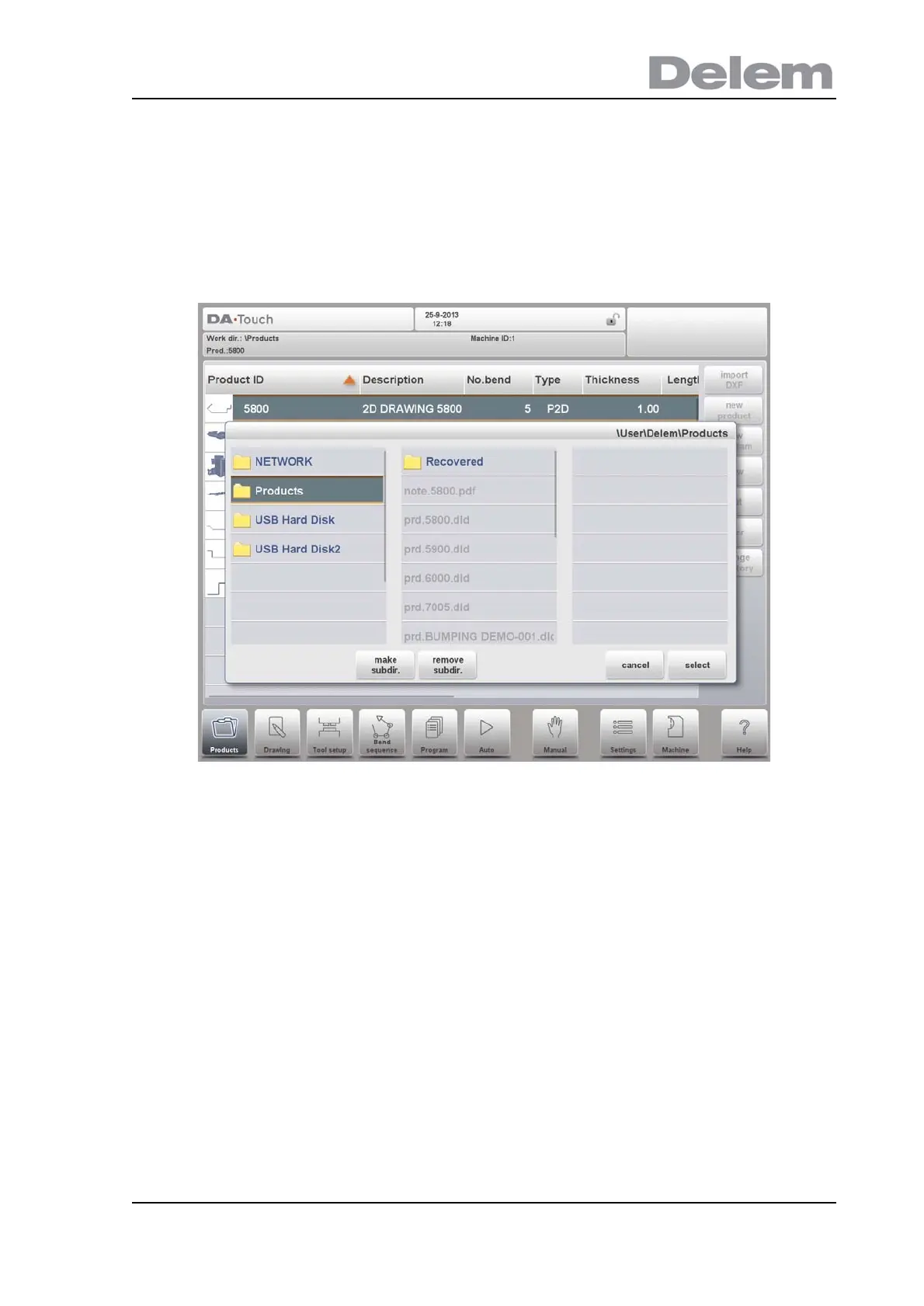
To change to a different product directory, or to add a new product directory, tap Change
Directory. When an obsolete directory must be removed, select the directory and tap Remove
Directory. When a desired directory is reached, tap Select to jump back to the Products screen
which will show all products in the directory. The active local directory name is displayed in the
header.
In this menu it is also possible to remove existing subdirectories (only an empty one) and to
make new subdirectories. Tap Make Subdir and enter the new name. Subdirectories are
called subdirectories because these directories reside under the local directory
'DELEM\PRODUCTS'. The name of the subdirectory cannot be changed.
In this menu it is not possible to copy products from one subdirectory to another subdirectory;
this can be done in Drawing mode or Program mode.
When you leave the product selection menu the control remembers the active subdirectory
and the active product (if a product was selected) until another directory or product is
selected.
make subdir. Add a new subdirectory. The name of the subdirectory can be any
alphanumeric string of maximal 24 characters. (Avoid the use of
slashes '/').
remove
subdir.
Delete a subdirectory. If the directory contains files or
subdirectories, the control will return questions to confirm the
deletion for both.



 To Next Page