Subnetwork Installation Guidelines
148 ECLYPSE User Guide
Expansion Module Model Type
Auto-assigned Subnet ID Address when the
expansion modules’ MAC DIP Switch is set to 0
(factory default position)
ECx-Light-4D (4 dimming lights)
ECx-Blind-4 (4 blinds/shades 230V)
ECx-Blind-4LV (4 blinds/shades
24V)
Table 12-9: ECx-Light and ECx-Blind Series’ Automatic Subnet ID Address when
the DIP Switch is set to 0
If you connect a second expansion module of the same type to the controller’s subnetwork
data bus, you must set at least one of the two expansion modules’ MAC DIP switch to a
unique (that is, unused) subnet ID (MAC) address and then set the same value in Default
address in EC-gfxProgram. See “Manage Light and Sunblind Module Instances” in the EC-
gfxProgram User Guide.
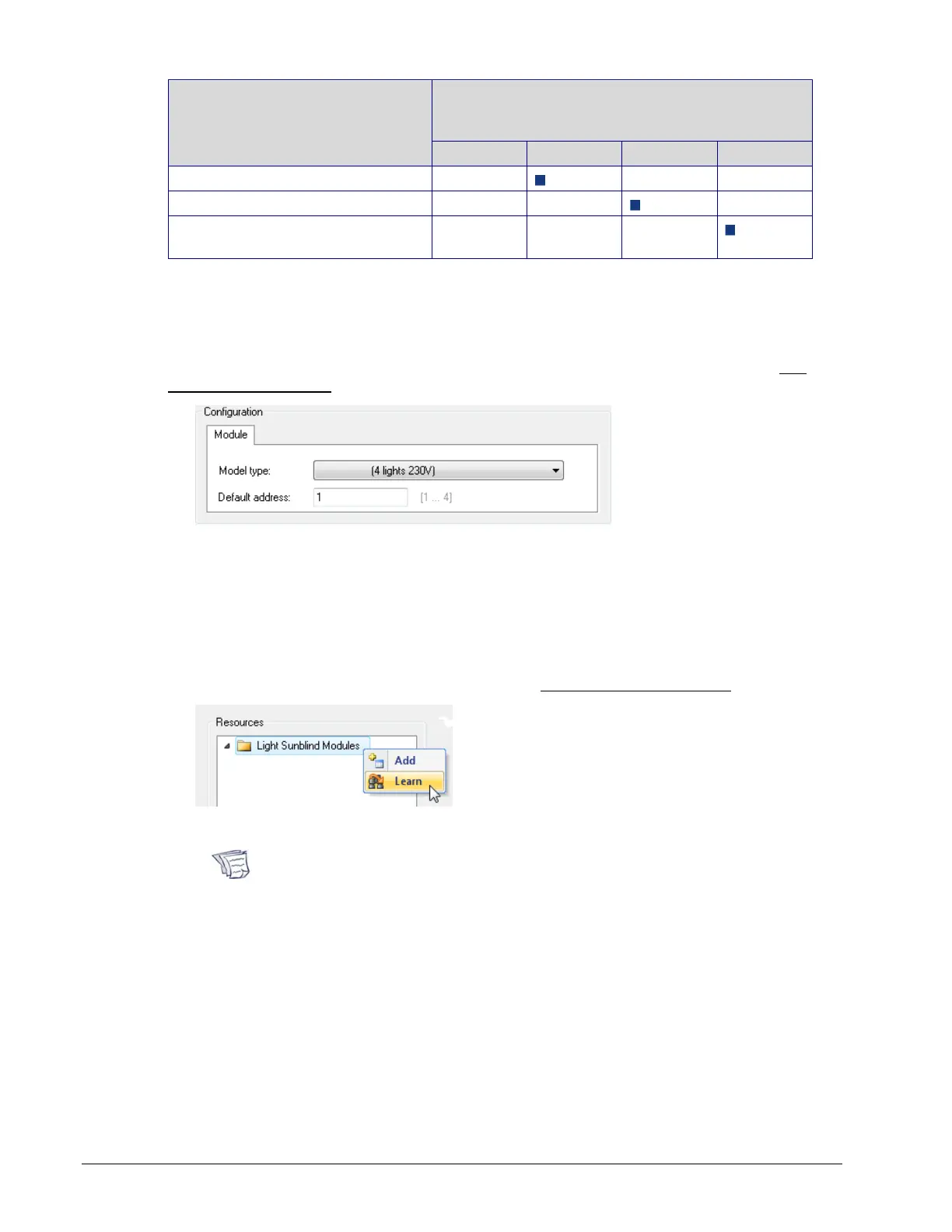
Figure 12-13: In EC-gfxProgram: Default Address: Setting an Expansion Modules’
Subnet ID (MAC) Address for this Expansion Module Instance
Auto Learn Light and Blind/Shade Expansion Modules in EC-gfxProgram
In EC-gfxProgram, when the connection status for the controller is Connected, this scans
the controller’s subnetwork data bus for connected expansion modules, when each
expansion module has a unique subnet ID (MAC) address on the controller’s subnetwork
data bus. Using this feature will delete any previously configured expansion modules. See
“Manage Light and Sunblind Module Instances” in the EC-gfxProgram User Guide.
Figure 12-14: Light and Blind/Shade Modules Tree Options
Learn is only available after 2 minutes of the controller having been powered
up. This information is no longer available after 30 minutes. Reboot the
controller if Learn is unable to find the connected modules (in Project
Synchronization, select Download to device and Reboot controller only).



 To Next Page