Configuring the ECLYPSE Wi-Fi Adapter Wireless Networks
ECLYPSE User Guide 101
Setting up a Wi-Fi Mesh Wireless Network
This feature is only available to Beta clients. This makes the controller a member of a mesh
network. This interface can auto-configure its IP parameters when the connected network
has a DHCP server. See Mesh Network on page 47 for more information.
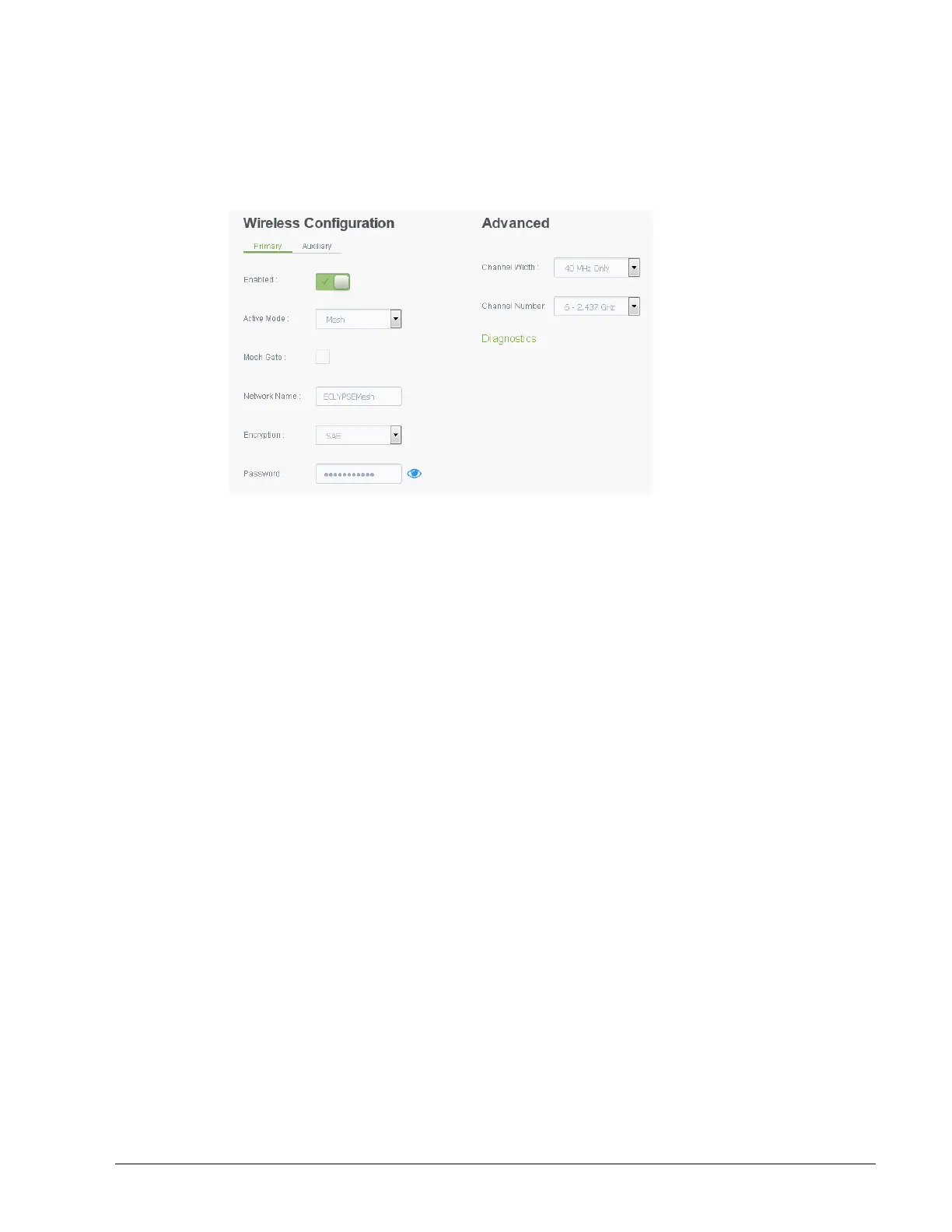
Figure 9-5: Mesh Wireless Network Settings
Configure the controller’s ECLYPSE Wi-Fi adapter mode as a Wi-Fi mesh as follows.
1. Under Wireless Configuration, set Enabled.
2. Set the Active mode to Mesh.
3. Set the Mesh Gate option when this controller has direct access to another non-mesh
network segment through a wired Ethernet connection that acts as a primary network
interconnect. This increases the data rate between mesh network nodes and other
network segments. When this option is enabled, this mesh node will broadcast to the
other mesh nodes at regular intervals that this mesh node has the shortest path to other
networks. Only one or two mesh network nodes should have this option set as these
broadcasts use wireless network bandwidth.
4. Set a network name for the mesh network in Network Name. All mesh network nodes
must use the same network name to become a member of that mesh network.
5. Set the encryption mode to SAE in Encryption. All mesh network nodes must use the
same encryption mode to become a member of that mesh network.
6. Set the mesh network’s authentication password in Password. All mesh network nodes
use the same authentication password.
7. Under Advanced, set the Channel Width, Channel Number, and Wi-Fi Mode. See
Advanced on page 75 for an explanation of these parameters. See also Alternate the
Mesh Network Channel Number on page 48.
8. Click Apply.
Mesh Network Diagnostics
Click Diagnostics to see the currently connected neighboring mesh network controllers and
the corresponding connection receive signal strength and data rate.
This information is used to troubleshoot a mesh network. It is best that each controller has at
least two mesh network neighbors with a receive signal strength stronger than -70 dBm.



 To Next Page