ECLYPSE Web Interface
92 ECLYPSE User Guide
Set this to import a pre-existing certificate saved as a file on your
PC.
To import the custom certificate.
Not present: No certificate has been imported.
Present: A certificate has been imported.
The password for the certificate to be imported.
This is a unique un-alterable identifier for this controller. Use this
identifier when making a license request.
Imports a license file directly from a Web server. Internet
connectivity is required.
Imports a license file from your PC.
Saves the controller’s license file to your PC.
Saving a Certificate
When the HTTPS Certification has been configured, you can save the certificate on your PC.
This certificate must be distributed to all PCs that will connect to this controller. It is this
certificate that allows a trusted connection to be made between the two devices.
1. Enable Use internal certificate, and set this controller’s IP address or DNS name in
Common name. Click Export Authority Key Certificate to save the certificate on your
PC.
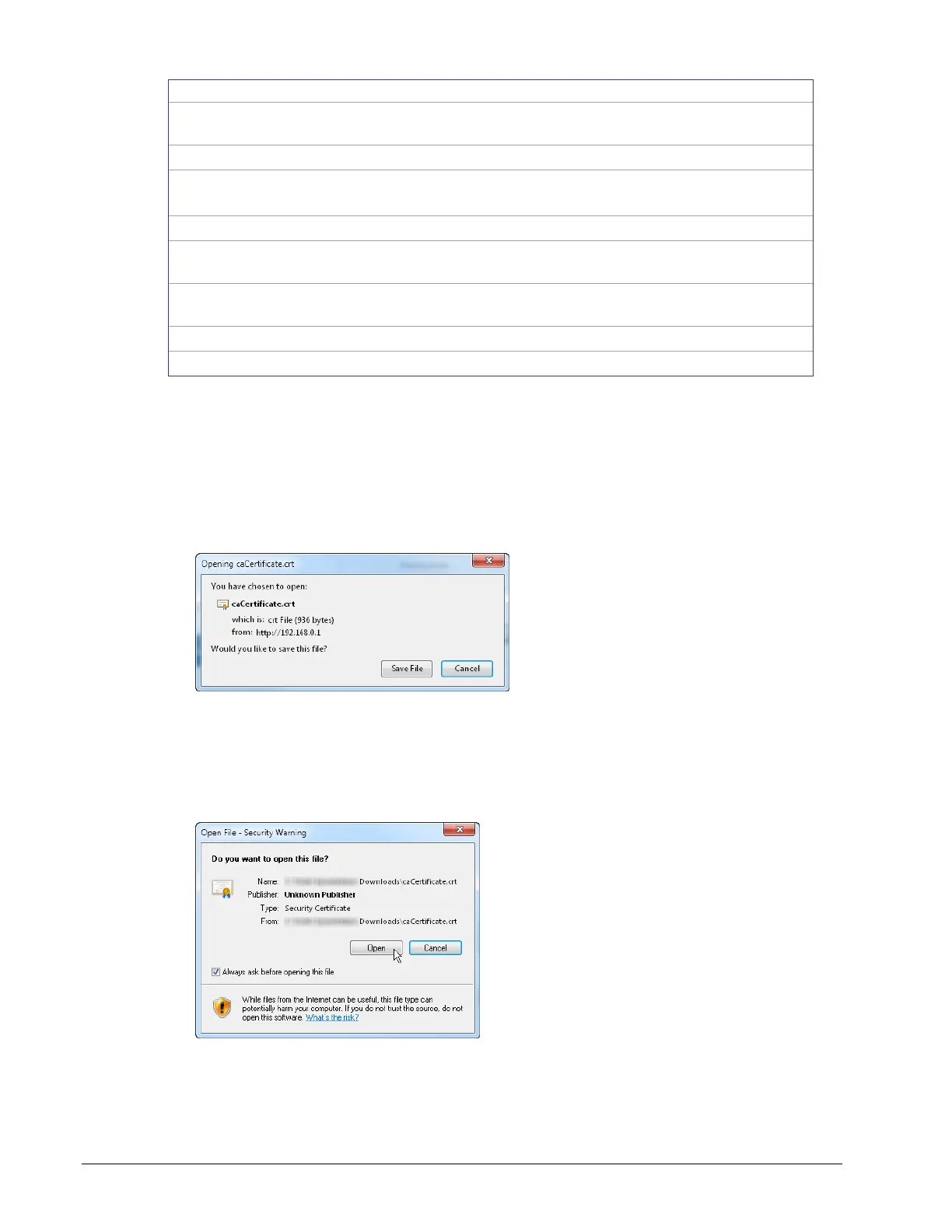
Figure 8-22: Saving the Certificate
2. Save the file on your PC.
3. Distribute this file to all PCs that will connect to this controller.
4. Install the certificate on the PC by double-clicking it in Microsoft Windows Explorer. Click
Open.
Figure 8-23: Installing the Certificate on the PC
5. Install the certificate in the Trusted Root Certification Authorities store. Click Install
Certificate.



 To Next Page