Configuring the ECLYPSE Wi-Fi Adapter Wireless Networks
ECLYPSE User Guide 99
Setting up a Wi-Fi Hotspot Wireless Network
This turns the controller into a Wi-Fi hotspot with a router. This puts the hotspot into a
separate subnetwork with a DHCP server to provide IP addresses to any connected device.
See Wi-Fi Hotspot on page 46 for more information.
Wide area network (WAN) connectivity is through the wired connection. See Network
Address Translation / Firewall on page 24. Though BACnet/IP uses IP protocol to
communicate, this hotspot acts as an IP router; it does not forward broadcast messages
which are important in BACnet to identify services that are available within the BACnet
internetwork. See BACnet/IP Broadcast Management Device Service on page 129.
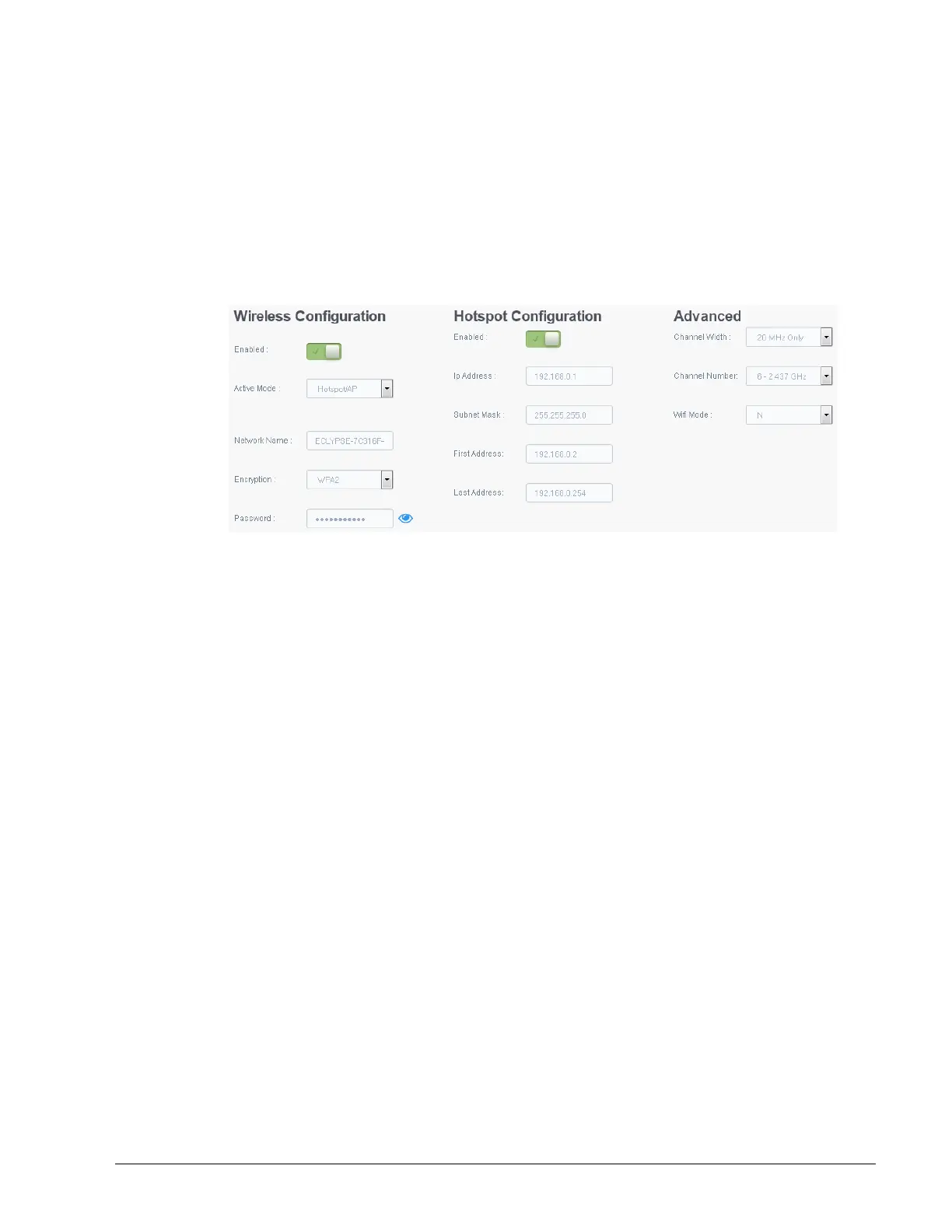
Figure 9-4: Hotspot Wireless Network Settings
Configure the controller’s ECLYPSE Wi-Fi adapter mode as a Wi-Fi hotspot as follows.
1. Under Wireless Configuration, set Enabled.
2. Set the Active mode to Hotspot/AP.
3. Set the name for this access point by which wireless clients will identify it in Network
Name.
4. Set the encryption mode to be used by this hotspot in Encryption:
None: this option should be avoided as it does not provide any wireless security
which allows any wireless client to access the LAN.
WPA2: select the Wi-Fi Protected Access II option to secure the Wi-Fi network with
a password.
WPA2 Enterprise: Use this option if you are connecting to an enterprise network
that has a working RADIUS authentication server. This RADIUS server provides
user authentication.
5. Set the hotspot’s authentication password in Password. This is the password wireless
clients will need to know in order to connect to this hotspot.
6. Under Hotspot Configuration, set Enabled.
7. Set the hotspot’s IP address that wireless clients will connect to in Ip Address. Ensure
that this address is:
Not in the range of IP address set by First Address and Last Address.
Not the same as the IP address set under IP Configuration for the wired network.
8. Set the hotspot’s subnet mask in Subnet Mask. See About the Subnetwork Mask on
page 20.
9. Set the hotspot’s addressing range in First Address and Last Address. This defines
the range of IP addresses to be made available for hotspot clients to use. The narrower
the range, the fewer hotspot clients will be able to connect due to the lack of available IP
addresses. For example, a range where First Address = 192.168.0.22 and Last Address



 To Next Page