ECLYPSE Web Interface
72 ECLYPSE User Guide
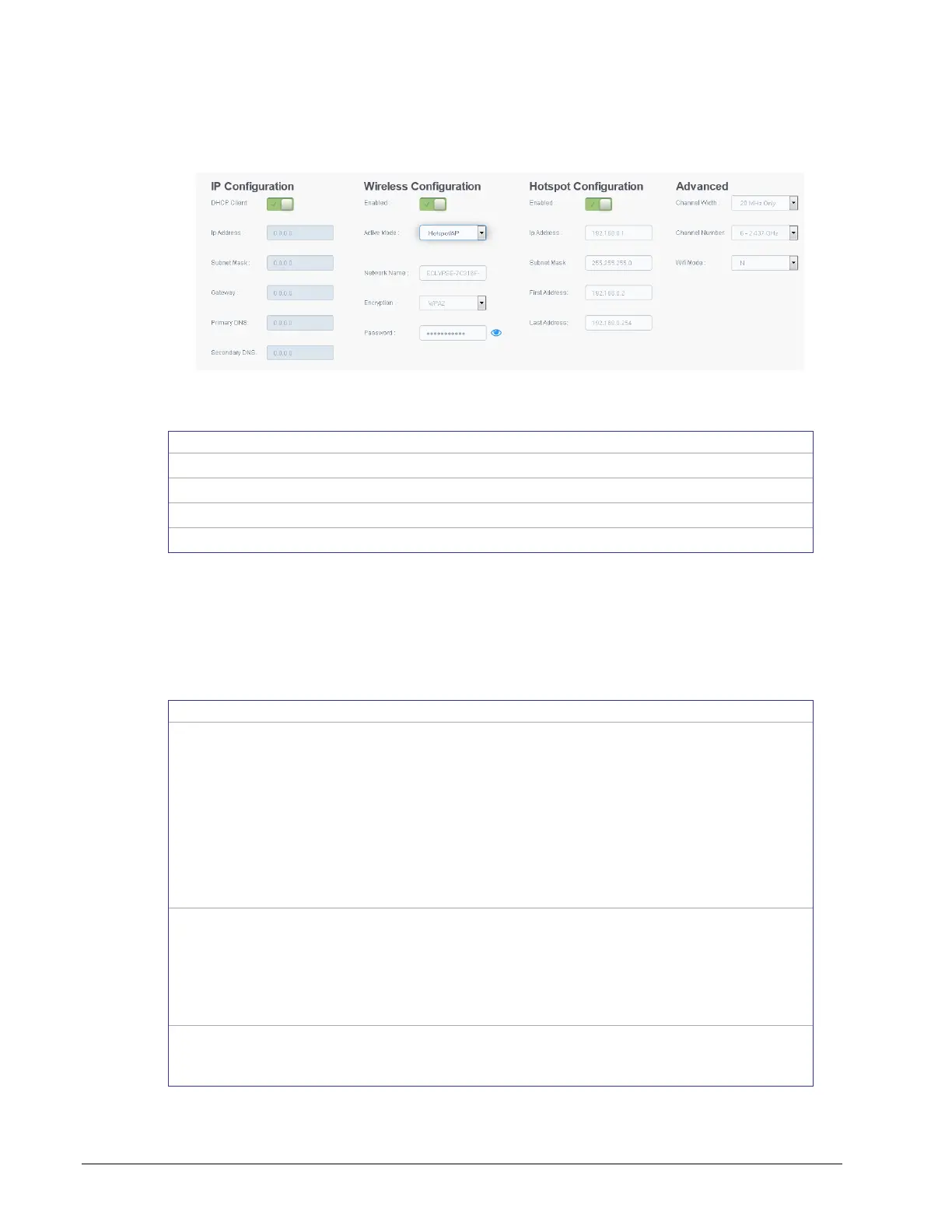
Network Settings
This is where wired and wireless network configuration parameters are set.
Figure 8-6: Network Settings
The following configuration options are available.
IP Configuration on page 72
Hotspot Configuration on page 75
IP Configuration
This configuration interface is for any wired IP connections that are made through either one
of the controller’s Ethernet Switch Pri(mary) connector or Ethernet Switch Sec(ondary)
connector. See Figure 6-2 and Figure 6-3. The Wired IP parameters can be auto-configured
when the connected network has a working DHCP server. The alternative is to manually
configure the controller’s IP parameters.
If the controller is
connected to a network that
has an active DHCP server,
enabling this option will
automatically configure the
Wired IP connection
parameters. The Wired IP
parameters shown below
are read only (presented for
information purposes only).
If you want to manually configure the
controller’s network settings (to have a fixed
IP address for example) or in the case where
the network does not have a DHCP server,
disable this option. In this case, you must set
the Wired IP connection parameters shown
below to establish network connectivity.
See also DHCP versus Manual Network
Settings on page 19.
This is the IP Address
provided by the network’s
DHCP server.
Set the IP address for this network device.
See IPv4 Communication Fundamentals on
page 18.
Ensure that this address is unique from all
other device on the LAN including any used
for a hot spot’s IP addressing.
This is the subnet mask
provided by the network’s
DHCP server.
Set the connected network’s subnetwork
mask. See About the Subnetwork Mask on
page 20.



 To Next Page