64
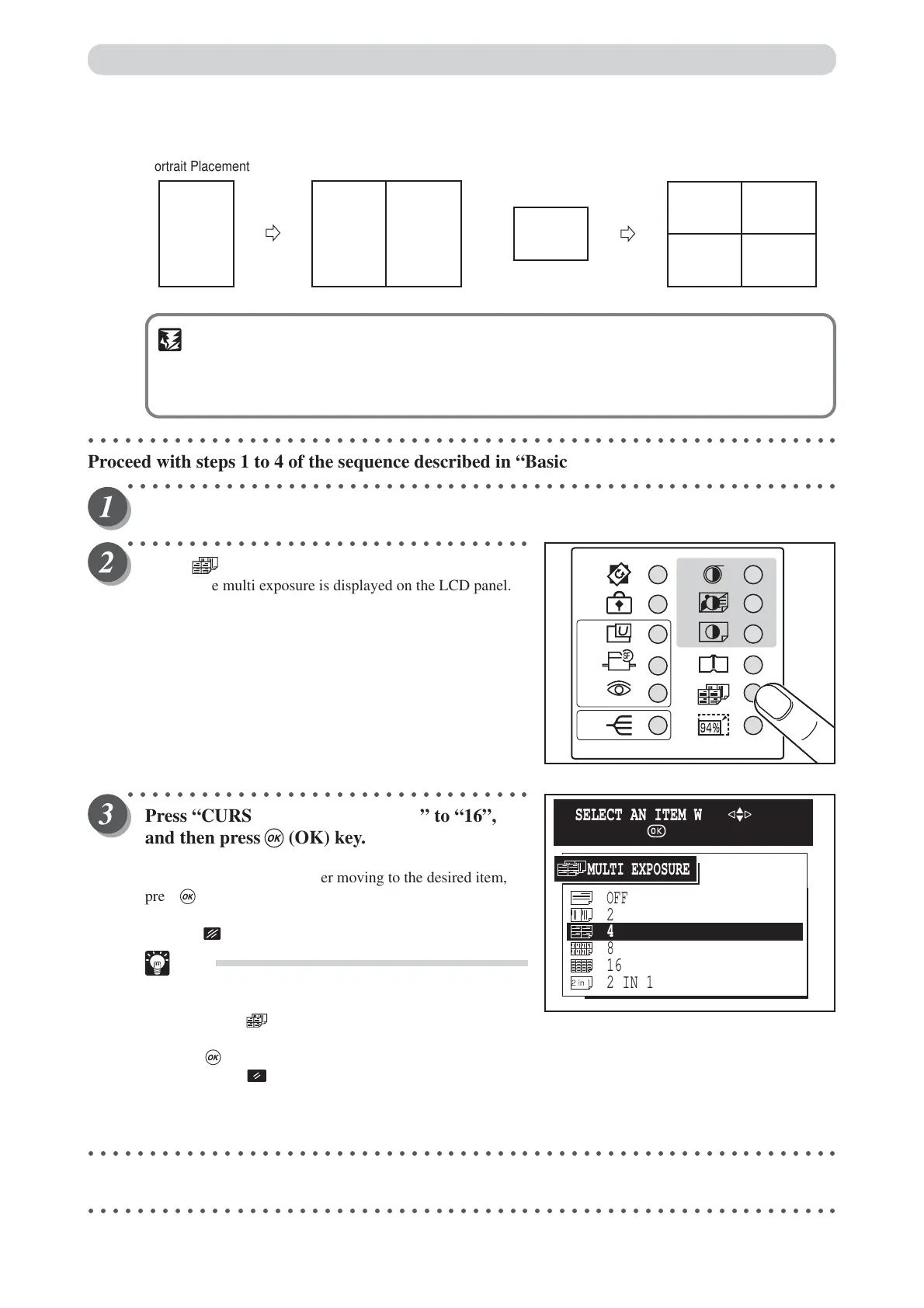
• Copying A4 to A3 (2 prints on one page) and A4 to A3 (4 prints per page)
IMPORTANT
• Select “Multiple Printing” before starting platemaking.
• The printable range is slightly smaller than the printing paper.
•You cannot obtain the correct layout if you select the wrong paper size.
○○○○○○○○○○○○○○○○○○○○○○○○○○○○○○○○○○○○○○○○○○○○○○○○○○○○○○○○○○○○○
Proceed with steps 1 to 4 of the sequence described in “Basic Printmaking” (
aa
aa
a page 32).
○○○○○○○○○○○○○○○○○○○○○○○○○○○○○○○○○○○○○○○○○○○○○○○○○○○○○○○○○○
Open the panel cover.
○○○○○○○○○○○○○○○○○○○○○○○○○○○○○○○○○
Press (MULTI EXPOSURE) key.
A list of the multi exposure is displayed on the LCD panel.
○○○○○○○○○○○○○○○○○○○○○○○○○○○○○○○○○
Press “CURSOR” keys to select “2” to “16”,
and then press (OK) key.
Each press of “CURSOR” keys moves to a different item that
is displayed highlighted. After moving to the desired item,
press (OK) key to select the desired multi exposure. The
selected multi exposure is set.
Pressing (CANCEL) key redisplays the main screen.
Tip
•To exit “Multi Exposure Mode”, use one of the
following teo methods:
• Press (MULTI EX POSURE) key and select
OFF with “CURSOR” keys, and then press
(OK) key
• Press (ALL CLEAR) key. In this case, all
settings are reset to standard mode
(a page 26).
○○○○○○○○○○○○○○○○○○○○○○○○○○○○○○○○○○○○○○○○○○○○○○○○○○○○○○○○○○○○○
Start platemaking and printing. (
aa
aa
a See steps 5 to 8 of “Basic Printmaking” page 32.)
○○○○○○○○○○○○○○○○○○○○○○○○○○○○○○○○○○○○○○○○○○○○○○○○○○○○○○○○○○○○○
A3, LDG
A4
LT
A4
LT
A4
LT
A4
LT
A4
LT
Zoom ratio:
50%
Landscape
Placement
A3, LDG
A4
LT
A4
LT
A4
LT
Zoom ratio:
100%
Portrait Placement
16
2 IN 1
OFF
8
2
4
MULTI EXPOSURE
SELECT AN ITEM WITH
AND PRESS
Multiple Printing on One Page



 To Next Page