3
Printing With Various Functions
75
Sequental Batch Printing
You can change the number of prints made from each document. You can separate the number of prints for up
to 15 documents.
IMPORTANT
• “Batch Printing” can be selected after platemaking.
• Set selection of “Batch Printing“ and “Sequental Batch Printing” at Special Functions. (p.99)
The default setting is “Batch Printing”.
○○○○○○○○○○○○○○○○○○○○○○○○○○○○○○○○○○○○○○○○○○○○○○○○○○○○○○○○○○
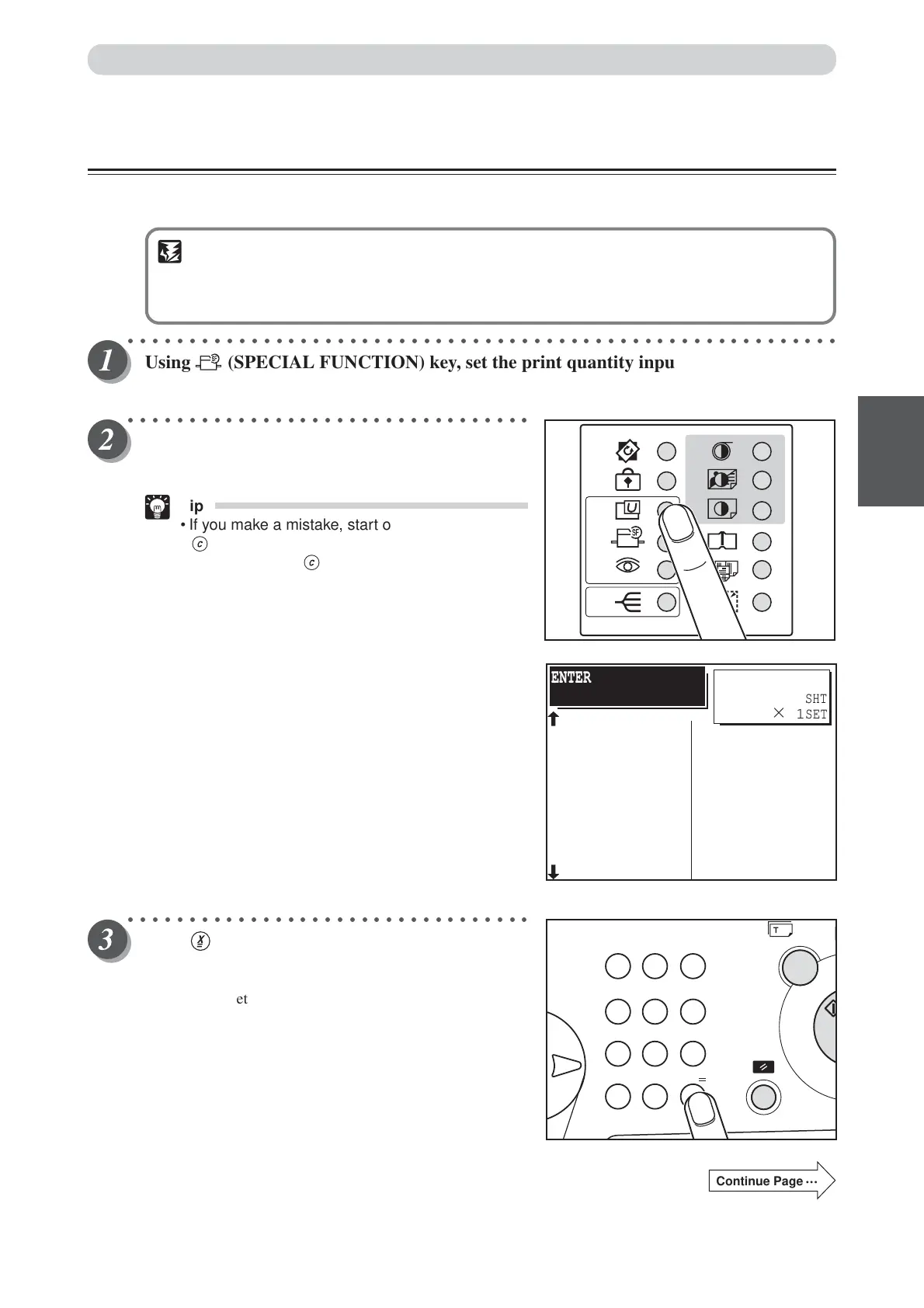
Using (SPECIAL FUNCTION) key, set the print quantity input mode to “Change
number of prints per document”. (
aa
aa
a See page 99, “Batch Print Mode”.)
○○○○○○○○○○○○○○○○○○○○○○○○○○○○○○○○○
Use the key pad to enter the number of prints.
Example: 25
Tip
• If you make a mistake, start over again by press
(CLEAR) key and start from the beginning.
When you press (CLEAR) key, both the
number of prints and the number of sets are
cancelled.
○○○○○○○○○○○○○○○○○○○○○○○○○○○○○○○○○
Press (X) key.
The current set is displayed to the left of the number of
prints.
Example: 1st set
Continue Page
•••
SHT
×
1
SET
ENTER THE SHT/SET
3: 0SHT 0SET
1: 25SHT 0SET
2: 0SHT 0SET
4: 0SHT 0SET
5: 0SHT 0SET
6: 0SHT 0SET
7: 0SHT 0SET
8: 0SHT 0SET
11: 0SHT 0SET
9: 0SHT 0SET
10: 0SHT 0SET
12: 0SHT 0SET
13: 0SHT 0SET
14: 0SHT 0SET
15: 0SHT 0SET
SEQ.BATCH PRINT
25
94%
Batch Printing
123
456
789
C0
X
=



 To Next Page