3
Printing With Various Functions
81
○○○○○○○○○○○○○○○○○○○○○○○○○○○○○○○○○
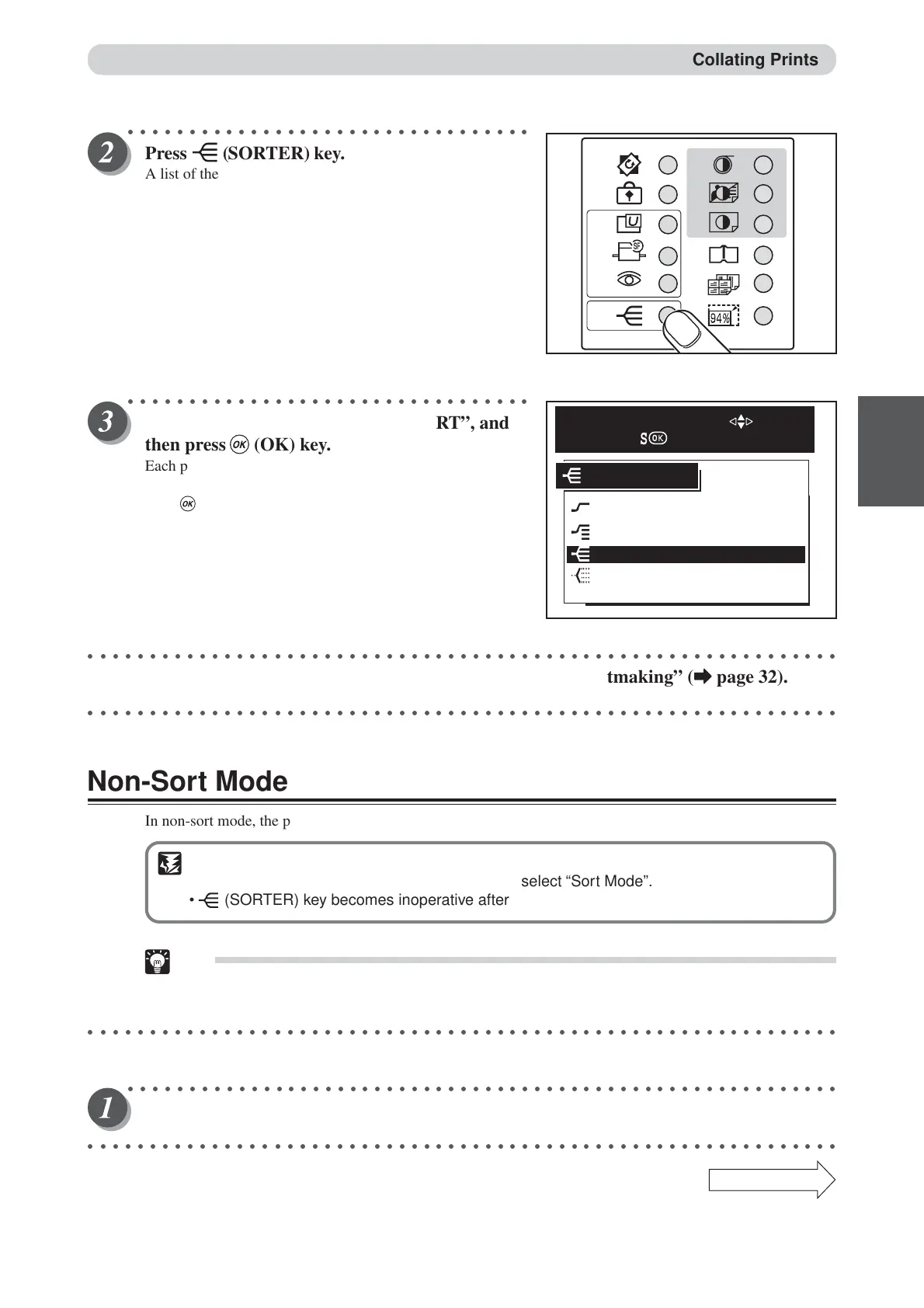
Press (SORTER) key.
A list of the sorter setting is displayed on the LCD panel.
○○○○○○○○○○○○○○○○○○○○○○○○○○○○○○○○○
Press “CURSOR” keys to select “SORT”, and
then press (OK) key.
Each press of “CURSOR” keys moves to a different item that
is displayed highlighted. After moving to the sort item,
press (OK) key to select the sort. The selected sort is set.
○○○○○○○○○○○○○○○○○○○○○○○○○○○○○○○○○○○○○○○○○○○○○○○○○○○○○○○○○○○○○
Proceed with steps 4 to 6 of the sequence described in “Basic Printmaking” (
aa
aa
a page 32).
○○○○○○○○○○○○○○○○○○○○○○○○○○○○○○○○○○○○○○○○○○○○○○○○○○○○○○○○○○○○○
Non-Sort Mode
In non-sort mode, the prints are output to the non-sort bin.
IMPORTANT
•You cannot specify a number of sets when you select “Sort Mode”.
• (SORTER) key becomes inoperative after you enter the number of prints.
Tip
• The non-sort bin holds approximately 200 sheets. Printing stops when about 200 sheets have
been output to the bin.
○○○○○○○○○○○○○○○○○○○○○○○○○○○○○○○○○○○○○○○○○○○○○○○○○○○○○○○○○○○○○
Proceed with steps 1 to 3 of the sequence described in “ Basic Printmaking” (
aa
aa
a page 32).
○○○○○○○○○○○○○○○○○○○○○○○○○○○○○○○○○○○○○○○○○○○○○○○○○○○○○○○○○○
Open the panel cover.
○○○○○○○○○○○○○○○○○○○○○○○○○○○○○○○○○○○○○○○○○○○○○○○○○○○○○○○○○○○○○
Continue Page
•••
NON SORT
SORT OFF
GROUP
SORT
SORTER
SELECT AN ITEM WITH
AND PRESS
Collating Prints



 To Next Page