If the Can bus (1 or 2) status differs from OK, it means there are errors along the bus. The most
frequent problems include:
1) A device on the CAN bus is the wrong speed
2) The device is not connected to the CAN bus
3) CANL and CANH are connected incorrectly
4) Incorrect or missing network termination
5) Bus damage (short circuit between CANL and CANH, or a short circuit along a GND or
power cable)
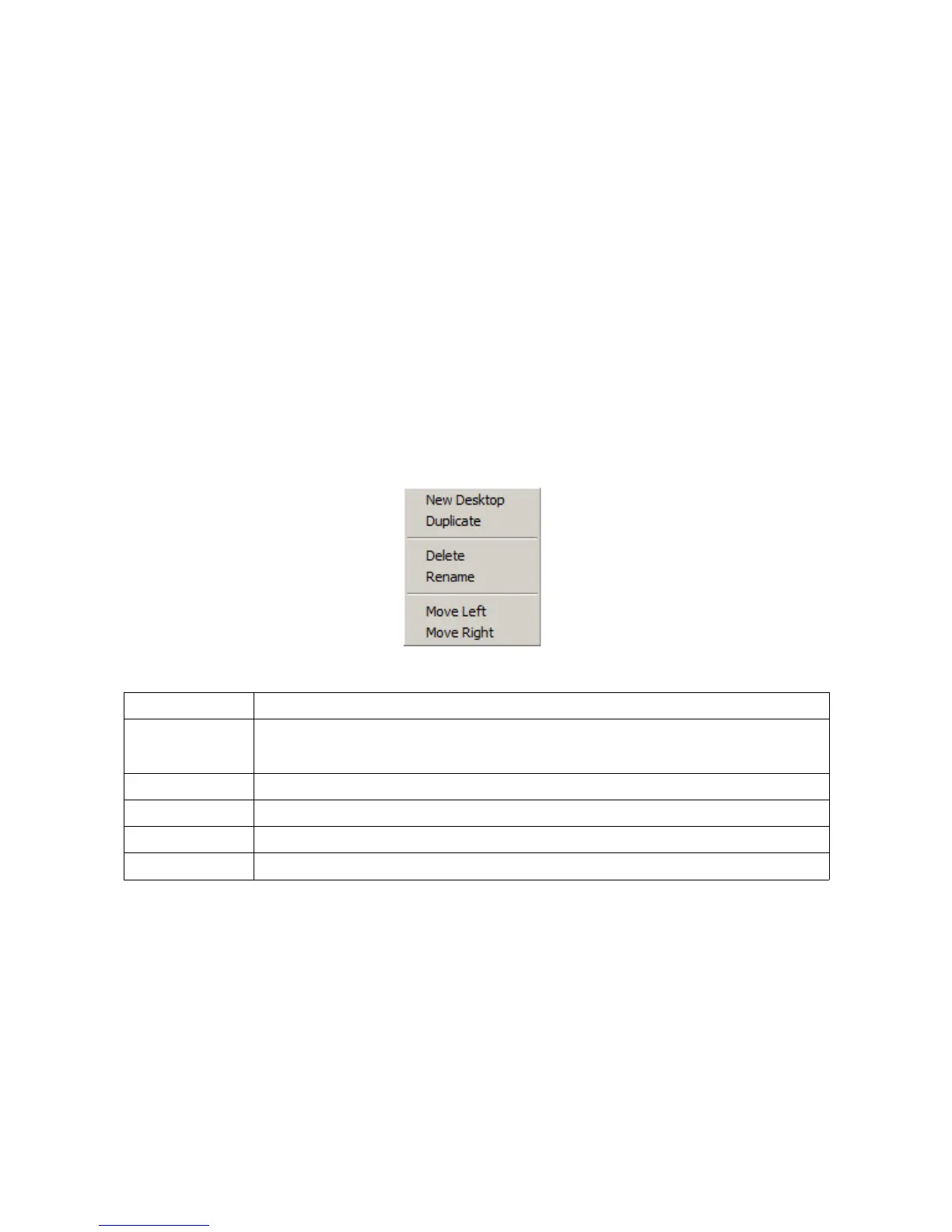
Desktops are an important component of the interface. They enable you to create your own sets of
panes, which speeds up the configuration process. Right click and the following menu will on a
tab:
New desktop Create new desktop. The new desktop will appear on the far right.
Duplicate Duplicate a desktop. This option creates a new desktop copying the contents of
the original desktop.
Delete Delete a desktop.
Rename This function enables you to change the name of a desktop.
Move Left Moves a desktop to the left.
Move Right Moves a desktop to the right.
To save the current desktops to your computer, press F2 (Make permanent). Desktops are also
saved when the ADU application is closed. Desktops may also be saved as a file and used on
another computer. To do this, click the Desktops/Save desktops template option. To return to
the default settings select Desktops/Open desktop template and load programDefault.adulayout
file.
Page 30/137


 To Next Page