Panes are an important element of the interface, containing all of the data and parameters you will
be working with. All device configuration will be done in panes. Press F9 (or click the + icon on
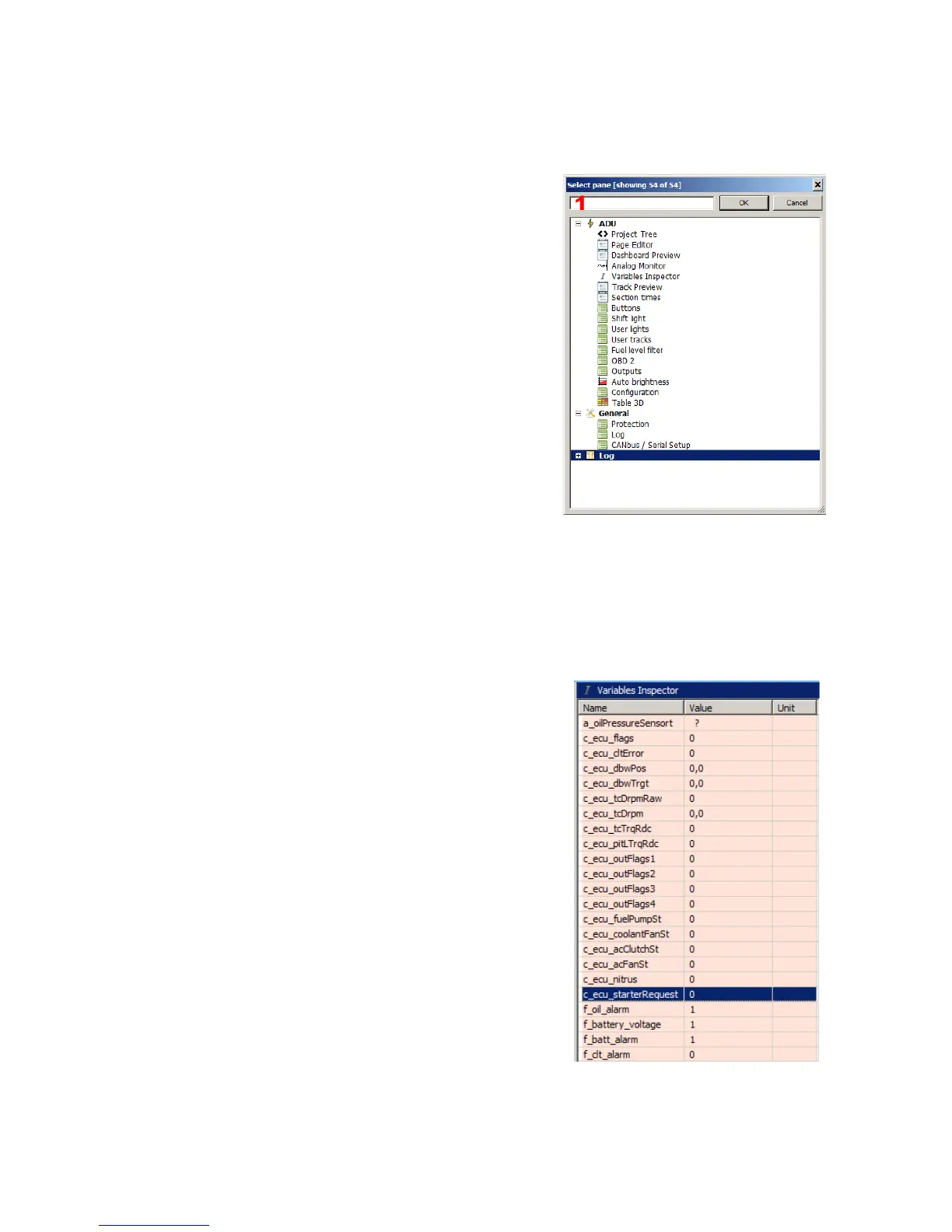
the toolbar) to add a new pane with parameters. A dialog box with all available panes will appear.
At this point you may manually locate the pane you want to
add, or you can start typing in the search prompt at the top
of the dialog box(1). The results will be filtered as you type,
showing only the panes that contain your search term as a
parameter. Double-clicking on a pane, or clicking it once
and hitting 'Okay' will cause it to appear on the desktop.
New panes always appear on the right-hand side. Panes
may be moved by left-clicking on the title bar and dragging
the pane to a new location. To remove a pane from the
desktop, right click on its title bar and select 'Close Pane'
from the drop-down menu.
There are different pane types. Configuration panes contain settings. Another pane types are used
for viewing data in real time, such as the Variables inspector (7), the log channels preview (8) or
the graphic log (9).
The Variable Inspector pane is used for previewing values of the variables defined in a device.
These variables include functions, numbers, Can (CAN) inputs, etc.
When a value displays the ? Symbol instead of a numeric
value, that means the log function for this channel is
deactivated. To activate logging or change the log frequency
of a given channel, right click on a given variable and select
'Set log frequency' then choose the desired frequency from
the drop down menu. There are several panes available that
group common channels together, such as: Analog inputs
(displays the analog input values), Digital inputs (displays
digital input values), CAN BUS message objects, CAN
BUS inputs, Tables (values from the tables), Numbers
(mathematical function values) or Functions (logical function
values).
Page 31/137


 To Next Page