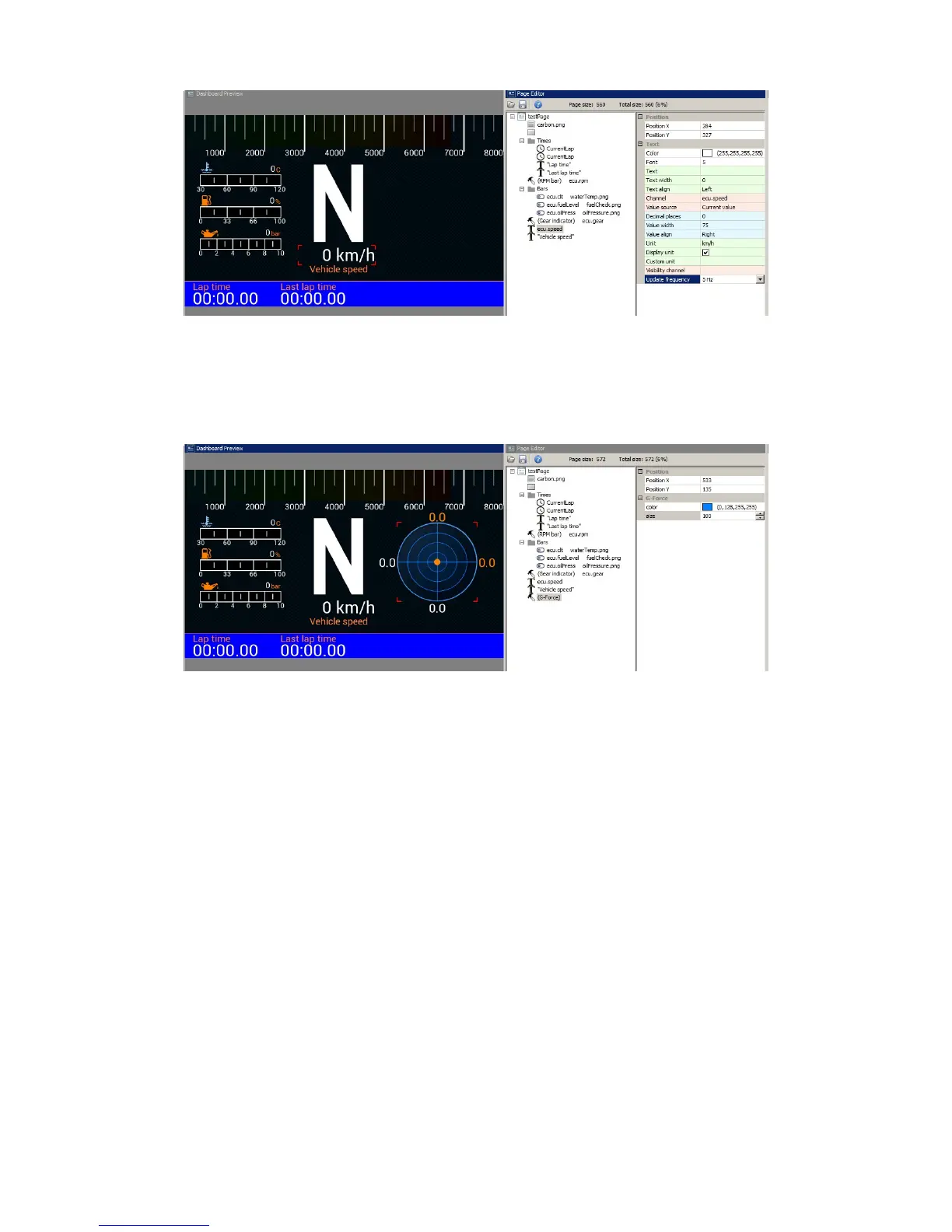
Next we will add a G-force indicator (G-Force). This shows the current G-force acting on the
vehicle. The ADU has a built-in accelerometer which may require calibration after the device is
installed (setting the 0g point). You will find more information about the accelerometer later in the
manual.
When using a GPS module, it is important that the user is able to see its status. To facilitate this,
we will add a GPS status indicator. We will use two channels - gps.status, which shows us the
GPS operation mode, and gps.numSatelites to show the number of satellites that the module is
currently using.
The first step is to add a satellite icon (satelite.png) to the page using an Image indicator.
The indicator color may be assigned to a channel or function. We set red as the default colour
(GPS not working) changing to green when GPS is functioning properly. We also have to create a
function driven by the gps.status channel. We will create a function that outputs 3 states: 0 -
means that GPS is disconnected, 1 – means no synchronization with satellites, 2 - means that
GPS is functioning and has fixed our position. Add the function in the Project tree using the Add
(function) button. We will name the function f_isGPSValid and add a condition using the Add
button. We will select Greater as Operation, gps.status as Channel and set the value for
comparison (Constant) to 1. We have created the condition f_isGPSValid = gps.status > 1. You will
find more information regarding the functions later in the manual.
Page 47/137



 To Next Page