When the attached job is printed, the email is also printed, which includes the typical header information, such as
subject, date, sender, and so forth.
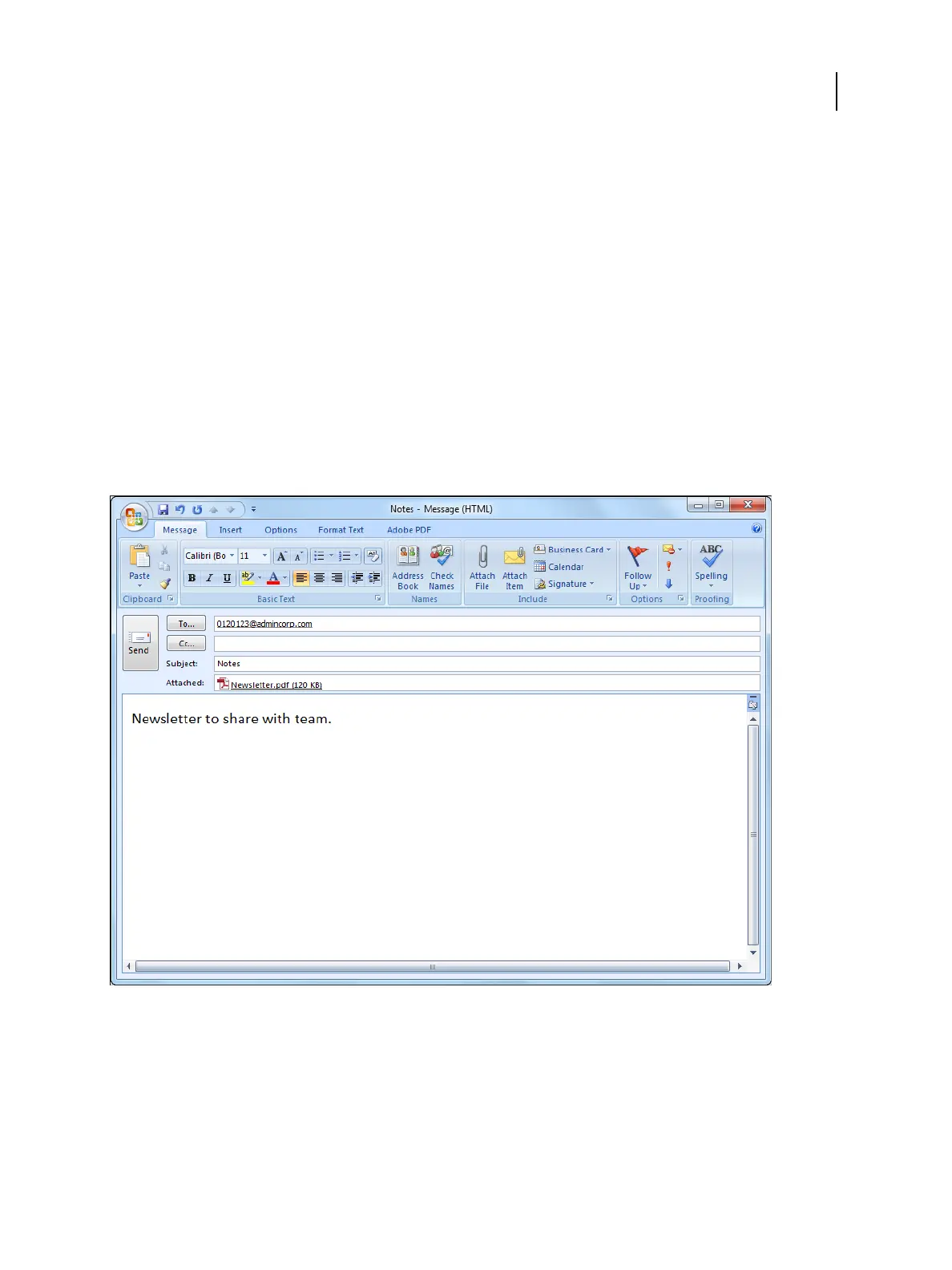
Print an email attachment with an email client
You can print an email attachment with an email client.
1
Open your email application.
2
Type the Fiery ES email address in the To: line.
3 Type text in the Subject line or leave the Subject line blank.
4
Attach the file that you want to print.
The attachment can be in any file format the Fiery ES recognizes (PS, PDF, EPS, VDP, or TIFF).
Note: If your attachment exceeds the file size limitation set by your email administrator, the email is not sent.
5
To identify the job or provide further processing instructions, type text in the body of the message.
Note: HTML-formatted email messages are not supported, and might not print as they appear on the remote
workstation. Send email messages in plain text format.
Printing
Other Printing Methods
52



 To Next Page