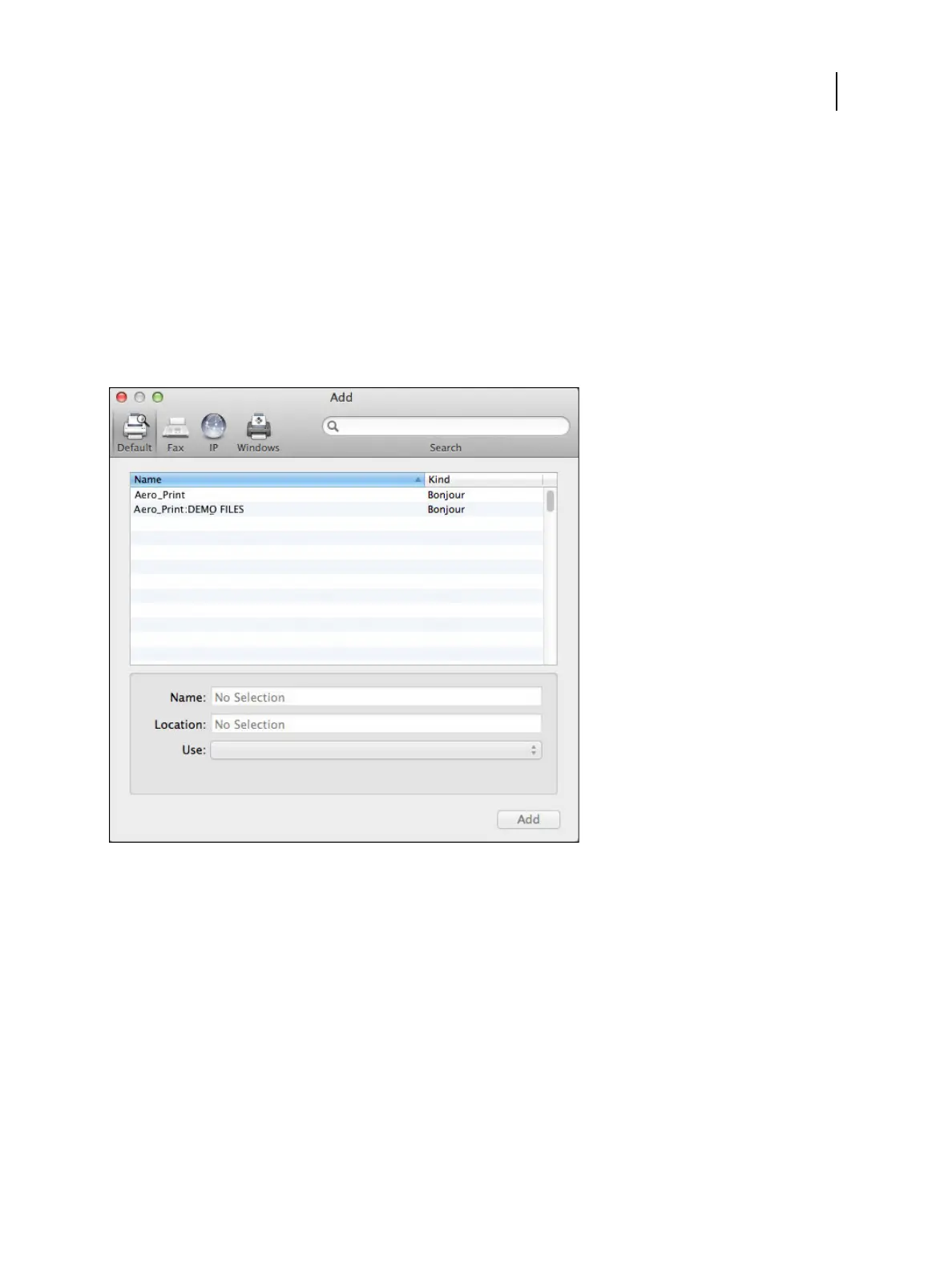
In the dialog box that appears, select one of the printer connections:
• Default
• IP Printer
Add a printer with the Default connection on a Mac OS X v10.11 client computer
You can add a printer with the Default connection on a Mac OS X v10.11 client computer.
1 Click the Default icon in the Add dialog box.
The names of printers with default connections are listed.
The names of the virtual printers appear as printer name : virtual printer name in the list of printers.
Any published virtual printer is available over LPR and FTP.
Note: SMB printing is not supported for Mac OS X v10.11.
2
Select the Fiery ES from the list.
The information about the selected printer appears at the bottom of the Default pane. The appropriate printer
driver for the Fiery ES is automatically selected.
3 Click Add.
The Fiery ES name appears in the list of printers.
4
Select Fiery ES.
5 Click Options & Supplies, and then click the Options tab.
Printing
Mac OS for Fiery ES
36



 To Next Page