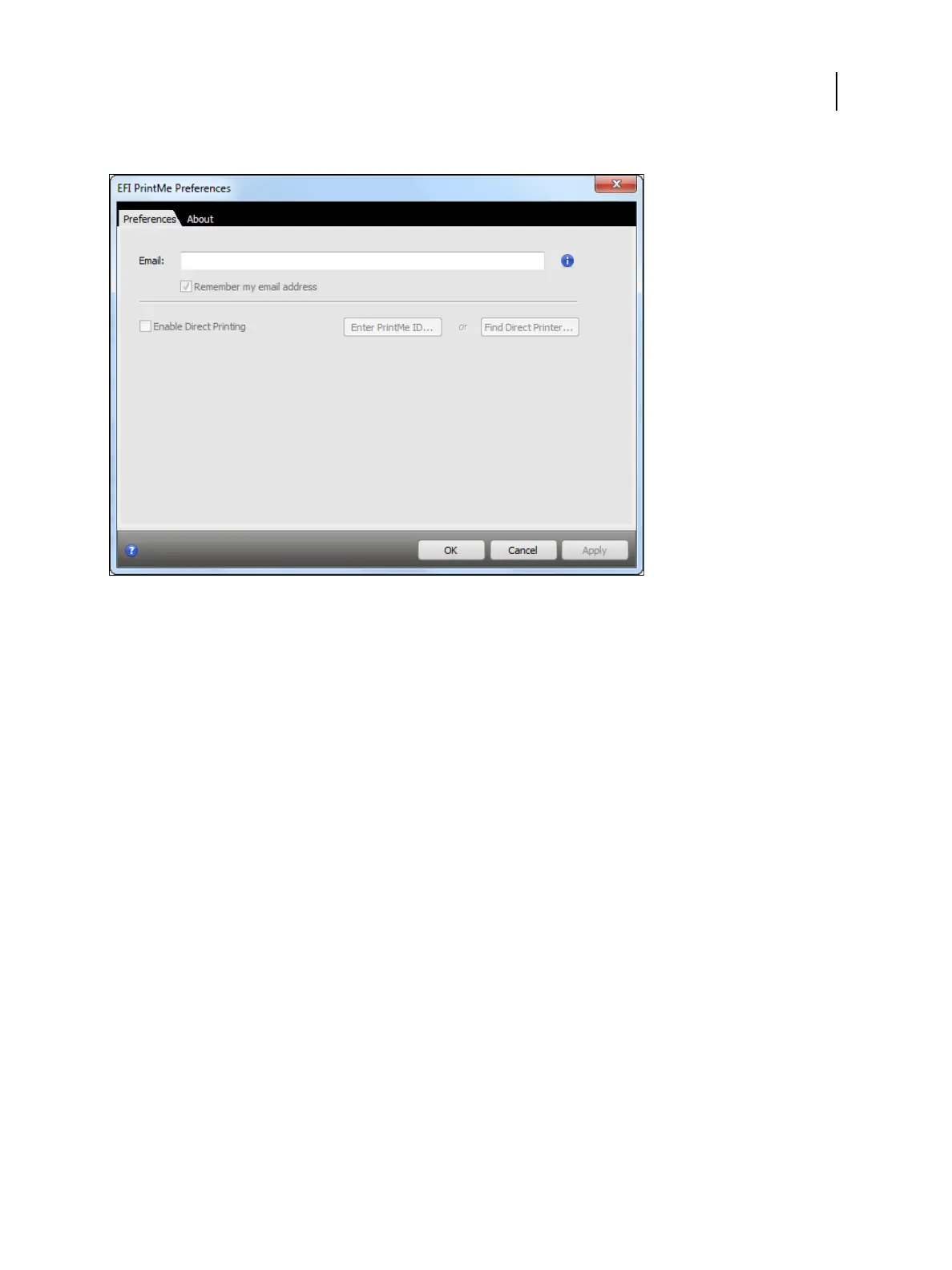
3 Type your email address and click OK.
An email message containing the Document ID is sent to your email address.
Print with Fiery JDF
Fiery JDF allows submission of JDF jobs to a Fiery ES from applications that allow creation of JDF tickets.
Use Configure to specify JDF settings and to view the Fiery JDF version, the JDF Device ID, and the JMF URL. For
more information, see Command WorkStation Help.
This option is available as part of Fiery Productivity Package. For more information, see Fiery Productivity Package.
1 From Configure, choose Job Submission > JDF Settings.
2 Select Enable JDF.
3 If a virtual printer is configured for the Fiery ES, select one from the Use Job Settings from Virtual Printer option.
Note: Specify this option only if it applies to your specific workflow.
4 Specify a default print queue from Job Action.
5 Select Override JDF job with the above settings, if you want to override the settings specified in the JDF ticket.
6
Specify how you want the JDF jobs closed once they are printed.
7
Specify the items required for closing a JDF job. The items you select here must be filled out before the job can
close automatically or manually.
8
Specify the network paths where the Fiery ES searches for common resources.
9 Click Save.
Printing
Other Printing Methods
60


 To Next Page