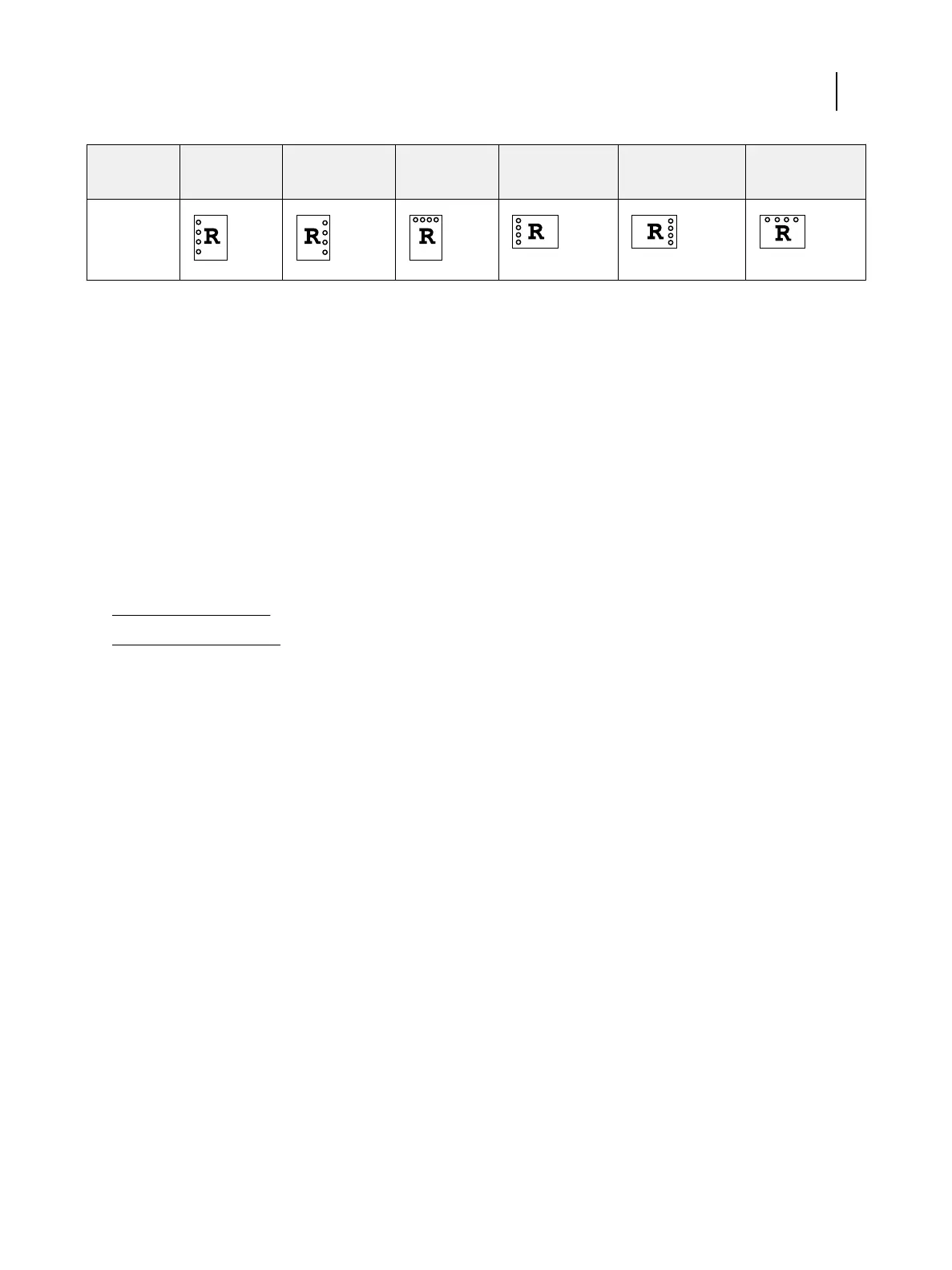
Punch
setting
Portrait: Left Portrait: Right Portrait: Top Landscape: Left Landscape:
Right
Landscape: Top
4-holes
The number of holes differs depending on the finisher destination:
•
US, 2-holes or 3-holes
•
EU, 2-holes or 4-holes
For information about finishers and other installable options, see printer driver help.
User Authentication
If Users and Groups user authentication is configured in Fiery ES Setup, you must enter a valid user name and
password to send a print job to the Fiery ES.
In Command WorkStation, the management of jobs is determined by how you log on to the Fiery ES.
The print options associated with Users and Groups user authentication are as follows:
•
On Mac OS computers: Click Job Info and type logon information in the User name and Password fields.
•
On Windows computers: Set the following:
• Use Windows Login - Select this option if you are already logged on to a Windows computer. Otherwise, type
your Windows network logon information in the User name and Password fields.
• Validate - Click to validate user authorization and to confirm printing privileges. To validate, Two-Way
Communication must be turned on. For information on establishing Two-Way Communication, see printer
driver help.
• I’m a guest - Select this option to activate guest printing privileges. By default, guest printing is turned on.
For information about turning on Users and Groups user authentication in Configure, see Configuration and Setup
and Command WorkStation Help.
Printing
Print Options
104


 To Next Page
 Loading...

