EasyManua.ls Logo

evertz 3025SW - Firmware;Software Version Confirmation

evertz 3025SW
208 pages
Print Icon
To Next Page IconTo Next Page
To Previous Page IconTo Previous Page
Loading...
3025SW Master Control Switching & Channel Branding
Revision 1.0 Page 171
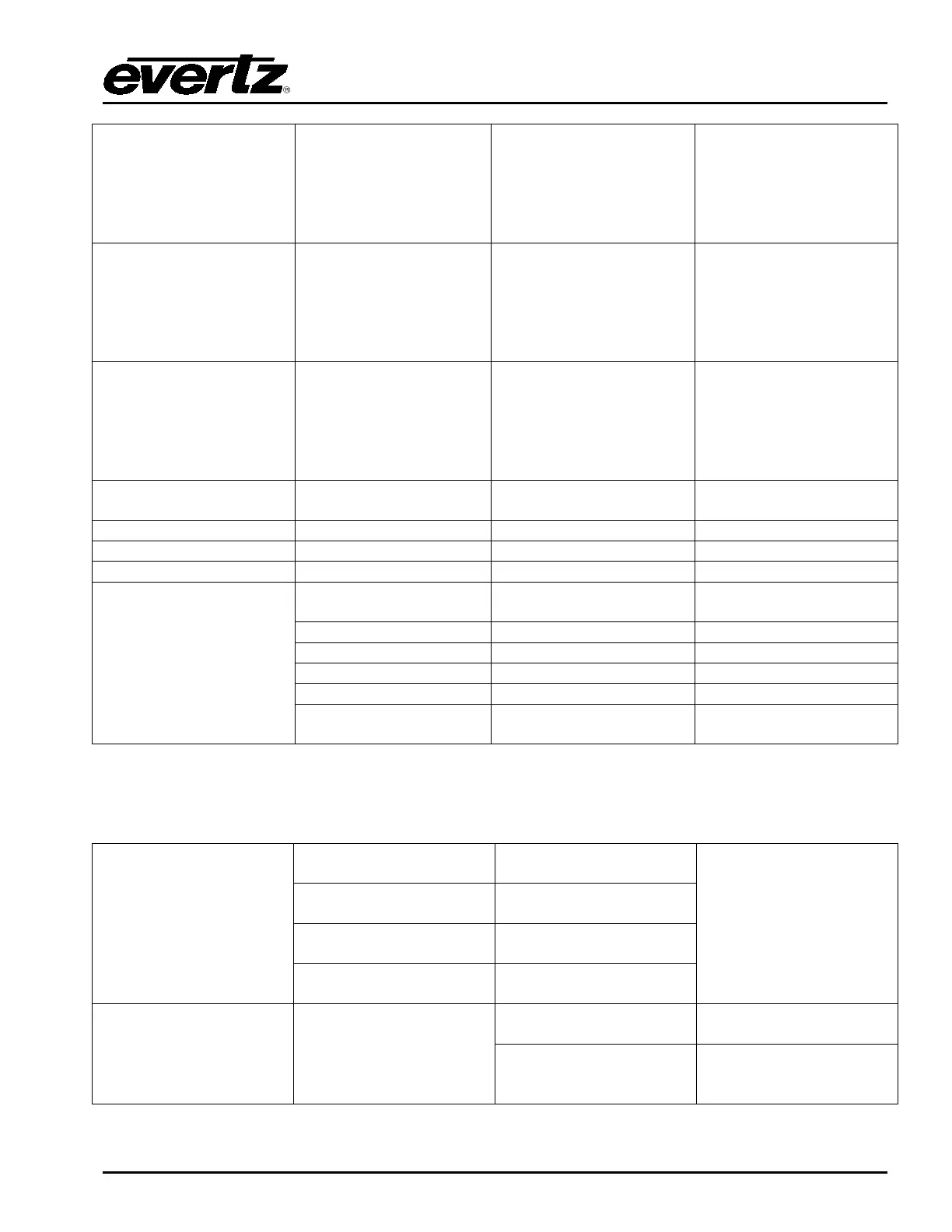
Logo Position Right
N/A
Adjust the X position of
the currently selected
media to the right.
If this button is
configured directly above
a rotary dial then this
button configures the
function of this dial as
Logo Position Left/Right.
Logo Position Up
N/A
Adjust the Y position of
the currently selected
media Up.
If this button is
configured directly above
a rotary dial then this
button configures the
function of this dial as
Logo Position Up/Down.
Logo Position Down
N/A
Adjust the Y position of
the currently selected
media Down.
If this button is
configured directly above
a rotary dial then this
button configures the
function of this dial as
Logo Position Up/Down.
Logo Take
N/A
Fade-in ALL media that
is currently cue’d.
N/A
Logo Channel
Not Supported.
MG Logo Layer
Not Supported
MG Layer Shift
Not Supported
MG Control Keys 1
Select Logo
Select media (using
Logo Selection)
N/A
Cue Logo
Cue current media
N/A
Fade In Logo
Fade In current media
N/A
Fade Out Logo
Fade Out current media
N/A
Fade All Out
Fade Out ALL media
N/A
Current Logo
Displays the name of the
currently selected media
N/A
MG Control Keys 2
MG Logo Gain Up
Adjust current media
gain level up.
If this button is
configured directly
above a rotary dial then
this button configures
the function of this dial
as media gain up/down
or layer up/down.
MG Logo Gain Down
Adjust current media
gain level down.
MG Layer Up
Adjust current media
layer up.
MG Layer Down
Adjust current media
layer down.
MG MSK Control
N/A (scrolling)
NO TRAN
Media will NOT change
state with a transition.
CUE→PGM
Any cue’d media will
fade-in with the next
transition.

Table of Contents

Related product manuals