1. Installation and general user information
1−27
Festo P.BE−SPC200−WIN−PISA−CD−EN en 0901d
Toolbar Frequently used commands are often available as buttons on
the toolbar to make access to them quicker. The command
required can be executed directly by clicking on the button
with the mouse.
The function of a button is shown in the status line when the
mouse cursor is moved over it.
Working area In this
area you can work with the various windows of
WinPISA.
Project window Use the project window to manage and configure all elements
of your positioning system.
Program window You will need to open a program window to edit a program.
Window icons To give a better overview, you can reduce individual windows
in the working area
to a symbol, as the ex−ample of a graphic
(graphic icon) shown here.
Online Status Display The Online Status Display shows all important system and
axis statuses when online mode is active; see section 6.1. The
"Status:" button: opens the "Status Display" window directly.
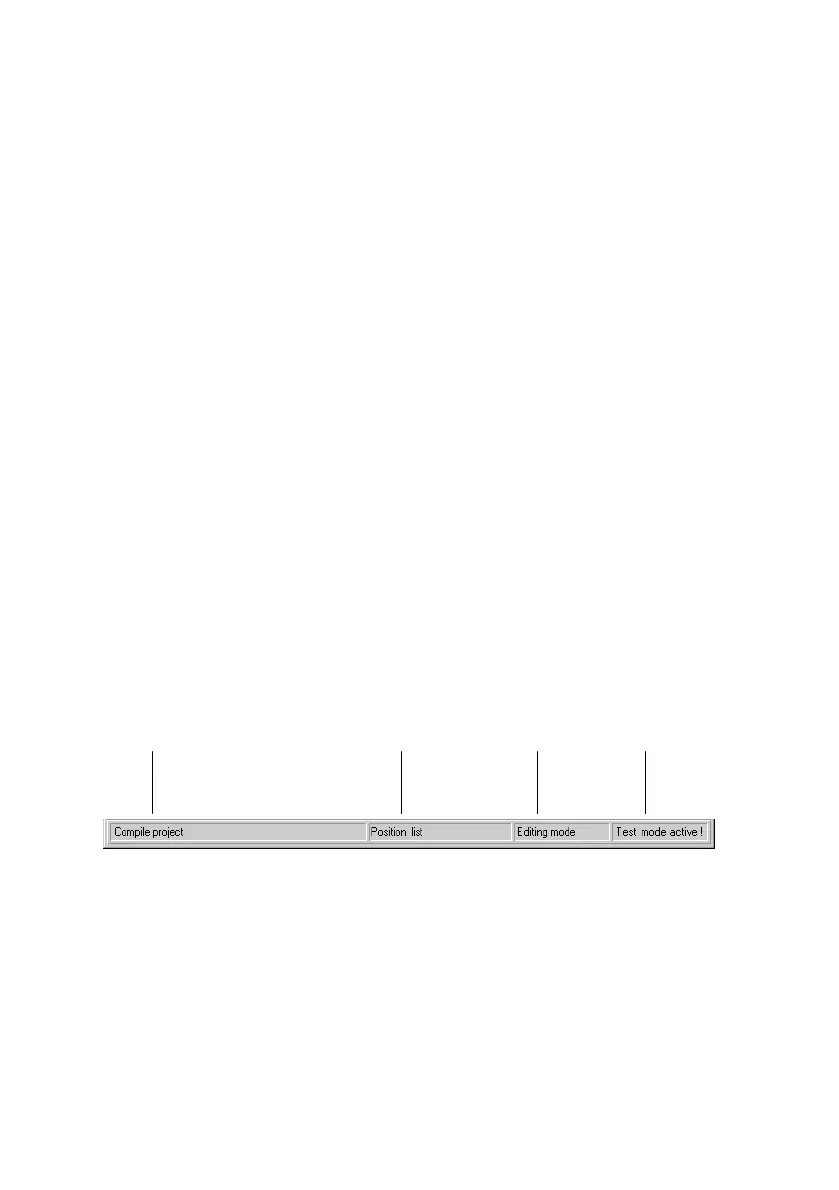
Status line The status line shows the following information:
2341
1 Function/meaning of the menu command or button under the mouse cursor
2 Name of the active window
3 Displays the position of the cursor in the active program window (line:column)
or editor mode in the position list
4 Displays Test mode active" or print progress display
Fig.1/13: Status line





 To Next Page