13. Select 1K-Xmodem in the “Protocol” drop-down menu of the “Send File” window. Browse the
app.bin file in the “Filename” field (the name of the file depends on the software version). Click
“Send”. The Hyper Terminal starts downloading the file. After the download is fully completed,
the device stores the downloaded file into the memory. After the Send button is clicked, the
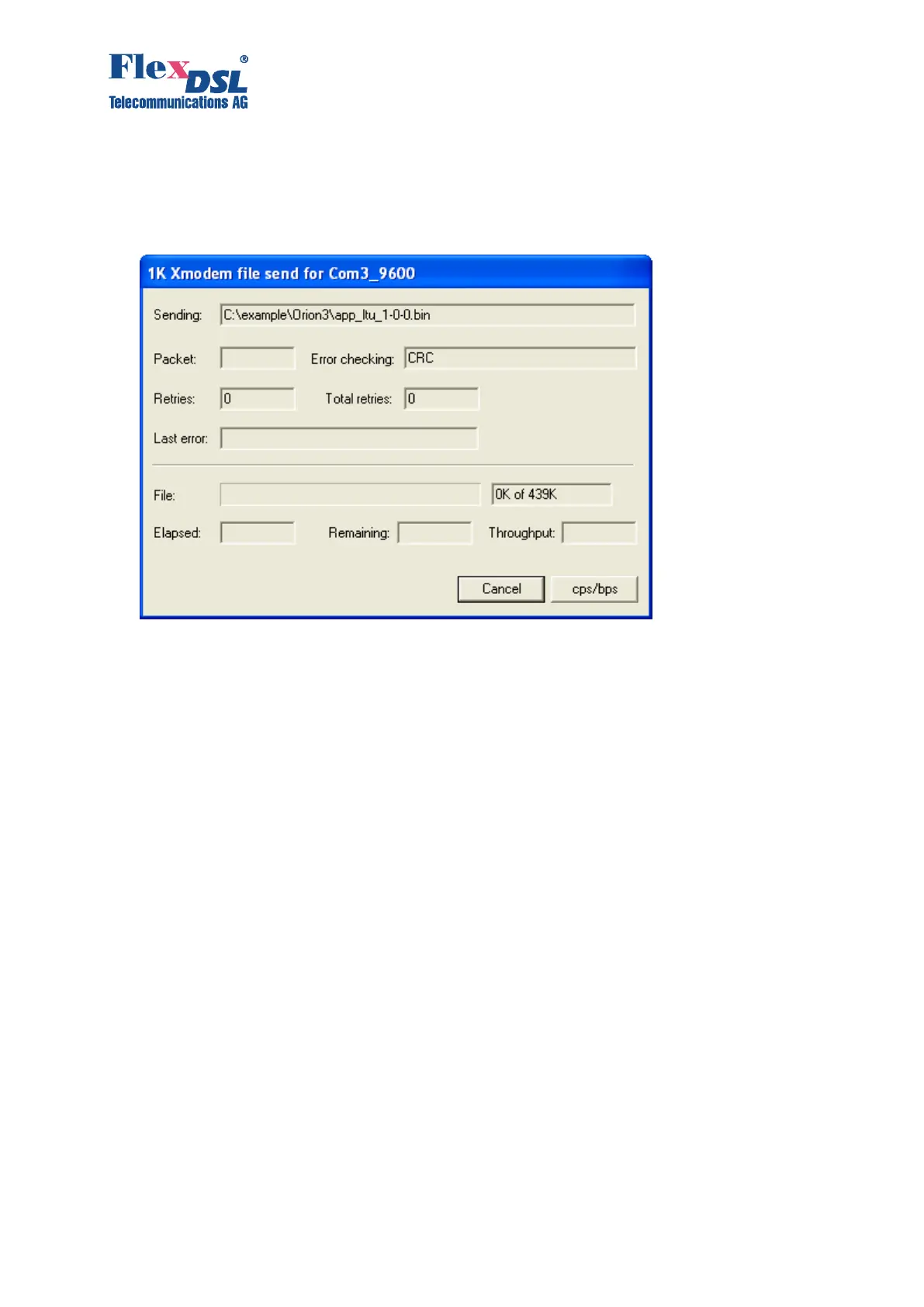
“1K-Xmodem file send for…” window pops up.
The window displays the software downloading statistics (the name of the file, the number of
transmitted packets, the error checking method, the last error, the downloading progress,
time, etc.). To cancel downloading, click Cancel.
14. If the software is downloaded, the “1K Xmodem file send for...” window closes automatically.
15. After the software is downloaded completely, enter the <RESET> command in the “Fault and
maintenance management” menu. After this, enter the main menu again with %SN, where SN
is the slot number in the subrack into which the device is installed.
16. Enter the “Fault and maintenance management” menu and input the <SOFTCONFIRM>
command.
17. The software downloading is now completed.
5.3 Software Download via Ethernet (1K-Xmodem and Telnet)
This method of the software downloading is similar to the “Software Downloading via the RS-232
COM Port (LCT) Using Xmodem Protocol” described in chapter 5.2. The only difference is that
instead of selecting the number of the COM port, select TCP/IP Socket. Select 23 for the port
number (TELNET). This method is the fastest one, because of the high data rate for downloading.


 To Next Page