Section 3: Model 9500B Controls: Modes of Operation 3-15Descriptions assume 9500B/1100
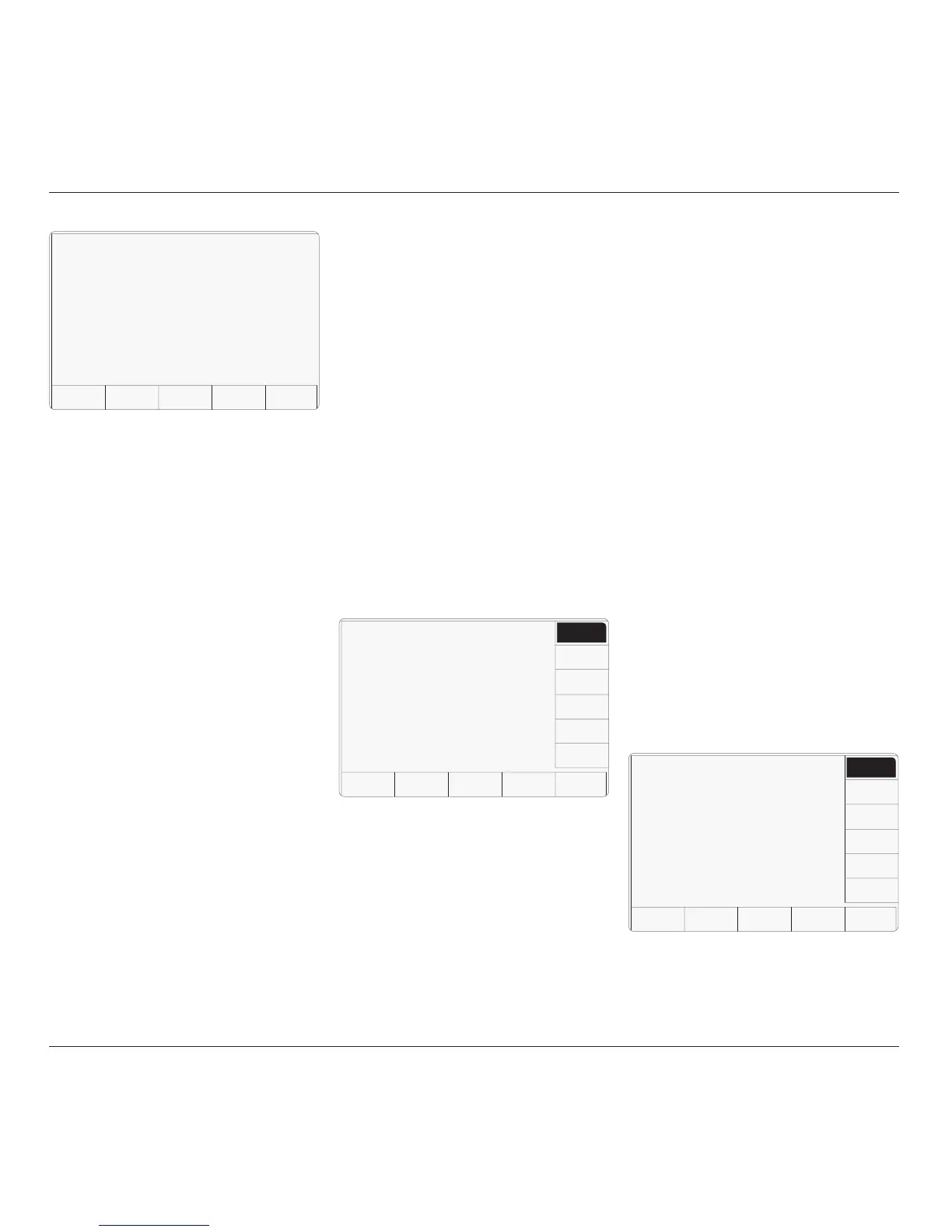
2. Use Direct edit to set the required
percentage of specification tolerance.
Results which lie between this percentage
and 100% of tolerance will be reported as
'Border line'.
3. Press the EXIT screen key to return to the
second 'Present settings' menu screen.
Subsequently, during each verification in
Procedure mode, the 9500B will detect its own
slewed output and place the UUT measurement
error into the 'Pass', 'Border line' or 'Fail'
category. When a (Style 1) certificate is printed,
and on any active results card, each test point
will indicate a 'Pass', 'Borderline' or 'Fail' result.
3.4.3.17 'Results card'
Formatting Results Memory Cards
(Procedure Mode only)
In Procedure mode, the 9500B can deliver the
results of a 'Calibrate' or 'Verify' procedure to
a memory card inserted into PCMCIA SLOT 2
in the front panel (refer to Section 5 of this
Handbook). Note that only SRAM cards can
be used in the PCMCIA SLOT 2 drive.
New SRAM cards must first be formatted for
the purpose. This can be carried out in Test
mode, as part of the 'Card Slot Test' procedure
(refer to Section 8), or within Portocal II
software.
Caution!
During the formatting process, the Card Slot
Test over-writes all data stored on the card in
the slot, and sets up a new 'Results card header'.
Note:
It is not necessary to re-format a used card,
with results already stored, for it to accept new
data. New results data from Procedure mode
runs will be concatenated with existing data
until the card memory is full. Erasure of card
contents should be done using Portocal II.
1. For access to enable Procedure mode results
to be downloaded to a SRAM memory
card in the front panel PCMCIA SLOT 2,
press the RESULTS CARD screen key on
the 'Present Settings' screen.
2. The 'RESULTS CARD' screen key
transfers to 'The result card requirement'
menu screen.
The power-on default is DISABLE.
3. To enable or disable the facility, press the
required screen key on the right of the
screen. If enabled without a results card
inserted in PCMCIA SLOT 2, the selected
procedure will not run.
4. EXIT returns to the second 'Present
Settings' menu screen.
TODAY'S DATE TIME
Configuration
The result card requirement is
indicated by the highlight.
Use the softkeys to select
another.
EXIT
DISABLE
ENABLE
3.4.3.18 'Engineers Notes'
Engineer's Notes
When a certificate is being prepared in
Procedure mode, sometimes it will be desirable
to insert additional information about special
conditions, pertinent to the procedure which
was carried out.
For instance: if the procedure was performed
on a plug-in module of an oscilloscope, it may
be desired to add the serial number of the
oscilloscope mainframe, as well as the module's
serial number.
If, in CONFIG mode, the 'Engineers Notes' are
enabled, then an extra field will be added to the
certificate entitled 'Additional Notes' in which
any engineer's information can be entered. It
will appear between the 'Calibration Standard'
and 'Measurement Type' blocks.
The additional notes can be added on a screen
which will be shown in Procedure mode when
'Engineers Notes' are enabled.
To Enable Engineers Notes
1. On the second 'Present Settings' menu
screen, press the ENG NOTES screen key
on the right. This transfers to the 'Eng
notes requirement' screen:
2. Press the ENABLE screen key on the
right. The DISABLE key reverses the
process.
3. The EXIT screen key reverts to the second
'Present Settings' screen.
TODAY'S DATE TIME
Configuration
The eng notes requirement is
indicated by the highlight.
Use the softkeys to select
another.
EXIT
DISABLE
ENABLE
TODAY'S DATE TIME
Configuration
The percentage of UUT
specification tolerance
beyond which a
"border line"
is reported can be adjusted
by using direct editing only.
EXIT
Border line =
7Ø.ØØ


 To Next Page