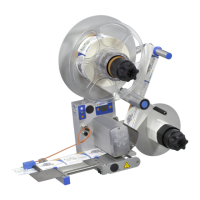
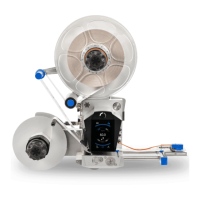
Threading the Label Web
4 1.10 GB (2019/02/28)
Did you make all the connections required for your task? Are the connections secure? See the “Electrical
connection” section.
Familiarise yourself with the menu navigation so that you can quickly access the necessary settings. The
“Menu navigation” section describes the operating menu in detail along with the icons used.
You can swipe through the menus vertically, as on a smartphone, but not horizontally.
Please note that some parameters can only be displayed or cannot be displayed depending on other
parameters.
In order to access the functions or parameters you must log in to the control program. See the “Login”
section.
If you cannot select the key for switching on the operating mode (greyed out), you are not authorised to
use this function. You can activate the function by setting the “Activate access / standby” parameter in the
“Access” submenu of the Extended settings menu to “Internal display only”.
If you want to carry out certain operations such as changing the name of the format, updating the firmware,
backing up the device, etc., you have to operate the applicator from an external system with a keyboard
and a mouse. You can do so by establishing an Ethernet connection from an external terminal, for example
a PC. See also the instructions on Ethernet connections in the Extended settings
You can find notes on products, components, settings, replacement parts, FAQs and much more on the
Internet at https://www.herma.com/machines.
Threading the Label Web
See the “Label Web Threading Diagram” section.
Menu Navigation
Familiarise yourself with the structure of the operating program and its menus in the “Menu Navigation and
Structure” section.
See the “Opening and Editing Parameters” section to learn about the parameters available.
Read the “Start Screen Parameters for Quick Access” section to learn how to save frequently used parameters as
favourites on the start screen.
The “Direct Parameter Access” section explains how you can select certain parameters directly.


 To Next Page