HD2 Series Inverter Basic Operation Guidelines
-45-
parameter list, the addition operation will be invalid. If key or key is pressed without
selecting addition operation, it will return to parameter setup list menu.
All the function code groups under parameter setup sub-menu can be added to user defined
parameter list. Up to 64 function codes can be added to the user defined parameter list.
5.4.5 Editing user defined parameters
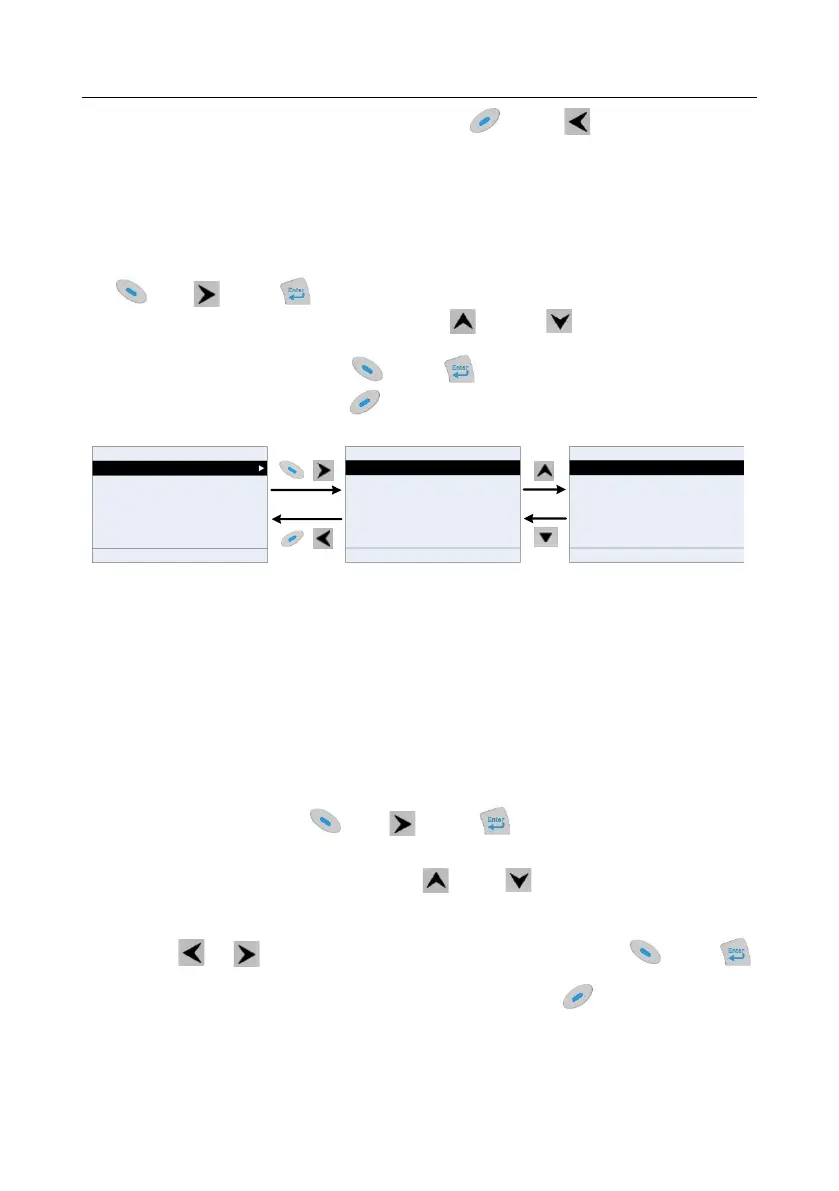
After accessing a specific function code under the User defined parameters menu, you can press
the key, key or key to enterthe parameter edit interface. After entering the edit
interface, the present value is highlighted. Press the key and key to edit the parameter
value, and the corresponding parameter item of current value will be highlighted automatically. After
the edit operation is completed, press key or key to save the selected parameter and
return to the previous menu; or press key to maintain the parameter value and return to the
previous menu.
Present: 0
Auth:√
0:SVC0
1:SVC1
2:SVPWM
Present: 1
Auth:√
1:SVC 1
2:SVPWM
3:VC
Default: 2
Default: 2
HD2
16:02:35
P00.00: Speed Ctrl Run Cmd
P00.02: Comm Cmd Channel
P00.03: Max Output Freq
P00.04: RunFreq Up Limit
P00.05: RunFreq Low Limit
Fwd
Local Ready
P00.01: Run Cmd Channel
3:VC
Note: If 0/1/3 is selected, it is required to set motor
nameplate parameters first and perform motor
parameter autotuning.
Note: If 0/1/3 is selected, it is required to set motor
nameplate parameters first and perform motor
parameter autotuning.
Back Edit Sele Back Home OK Back Home OK
Figure 5-19 Editing user defined parameters
In parameter selection edit interface, the "Auth" field on the top right indicates whether this parameter
is editable or not.
"√" indicates the set value of this parameter can be modified under the present state.
"×" indicates the set value of this parameter cannot be modified under the present state.
"Present" indicates the present value.
"Default" indicates the default value of this parameter.
5.4.6 Editing parameters in parameter groups
You can choose Menu > Parameter groups, enter a specific function group and then a specific
function code, and then press key, key or key to edit the parameter setting
interface. After entering edit interface, set the parameter from low bit to high bit,
and the bit under setting will be highlighted. Press key or key to increase or decrease the
parameter value (this operation is valid until the parameter value exceeds the max. value or min.
value); press or to shift the editing bit. After parameters are set, press key or
key to save the set parameters and return to the previous menu; press to maintain the original
parameter value and return to the previous menu.


 To Next Page