- Digital Microscope VHX-5000 User’s Manual -
Album
6-5
Playing and Editing Images
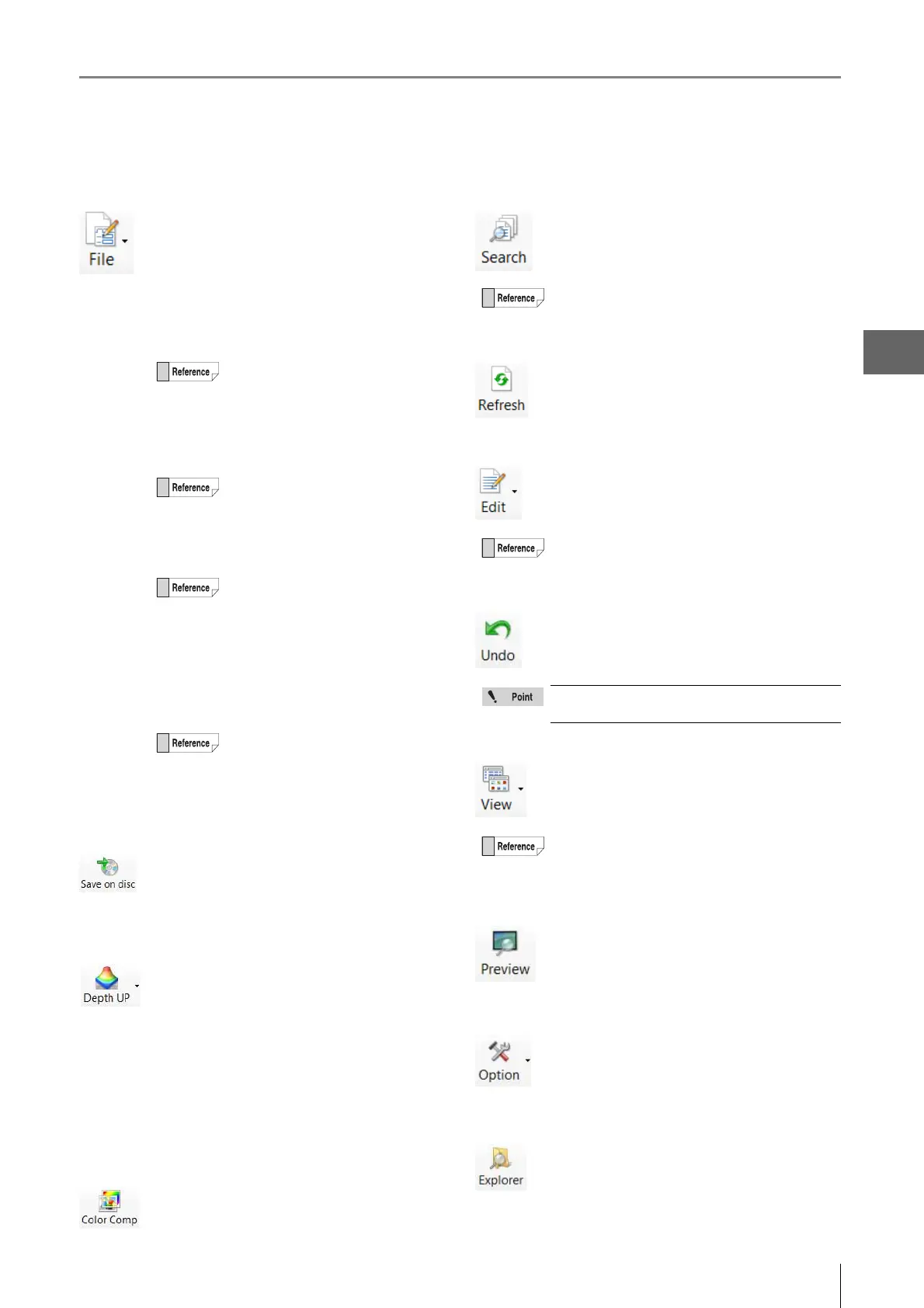
File
This button allows you to handle files.
New Folder
Creates a new folder on the hard disk in the
microscope.
Select the folder, at the folder view, where a new
folder is to be created before clicking.
Change name
Changes the name of the selected folder or file.
Delete
Move the selected file to the Recycle Bin.
Properties
Yo u can display/set file properties (such as title
and creator) and display file information (such
as file type and size).
Save on disc
Save a selected file or folder to a disk (Page 12-
4).
Depth Up
This command combines image files recorded
at different focal points. The files can be
displayed combined or in 3D. This is useful for
viewing objects that are difficult to view
completely in focus due to large height
differences.
Refer to Page 10-2 for details on the Depth Up
function.
Color Comp
This command allows you to perform color
composition (Page 6-12) after selecting color
image and large-depth image.
Search
This command searches (Page 6-15) within the
hard disk. You can specify search criteria.
Refresh
This command refreshes the album view.
Edit
This button drops down to show the Cut, Copy,
Paste, and Select all commands.
Undo
This command undoes the most recent
command.
View
This button sets the display format (Page 6-16)
of the files window.
Preview
This button shows/hides the preview area.
Option
This button allows you to set the options (Page
6-16) of various f
unc
tions.
Explorer
This button launches Explorer.
Yo u can create a new folder from the
menu which is displayed by right-
clicking a folder or files window.
Yo u can change a name of a file or
folder by right-clicking a folder or file.
Yo u can delete a file or folder from the
menu by right-clicking a folder or file.
• When a folder is selected, the
folder information is displayed.
•You can also display the file or
folder properties by right-clicking a
folder or file.
Yo u can also search by right-clicking a folder and
clicking Search on the pop-up menu.
Yo u can also use these commands from the pop-up
menu presented by right-clicking the folder or file.
[Undo] is allowed for only one command. Some
operations cannot be undone.
Or, you can change the view format from the pop-
up menu presented by right-clicking in the files
window.



 To Next Page