- Digital Microscope VHX-5000 User’s Manual -
Selecting an Image from 9 Different Settings (Optimize)
7-10
Improving Images
Selecting an Image from 9 Different Settings
(Optimize)
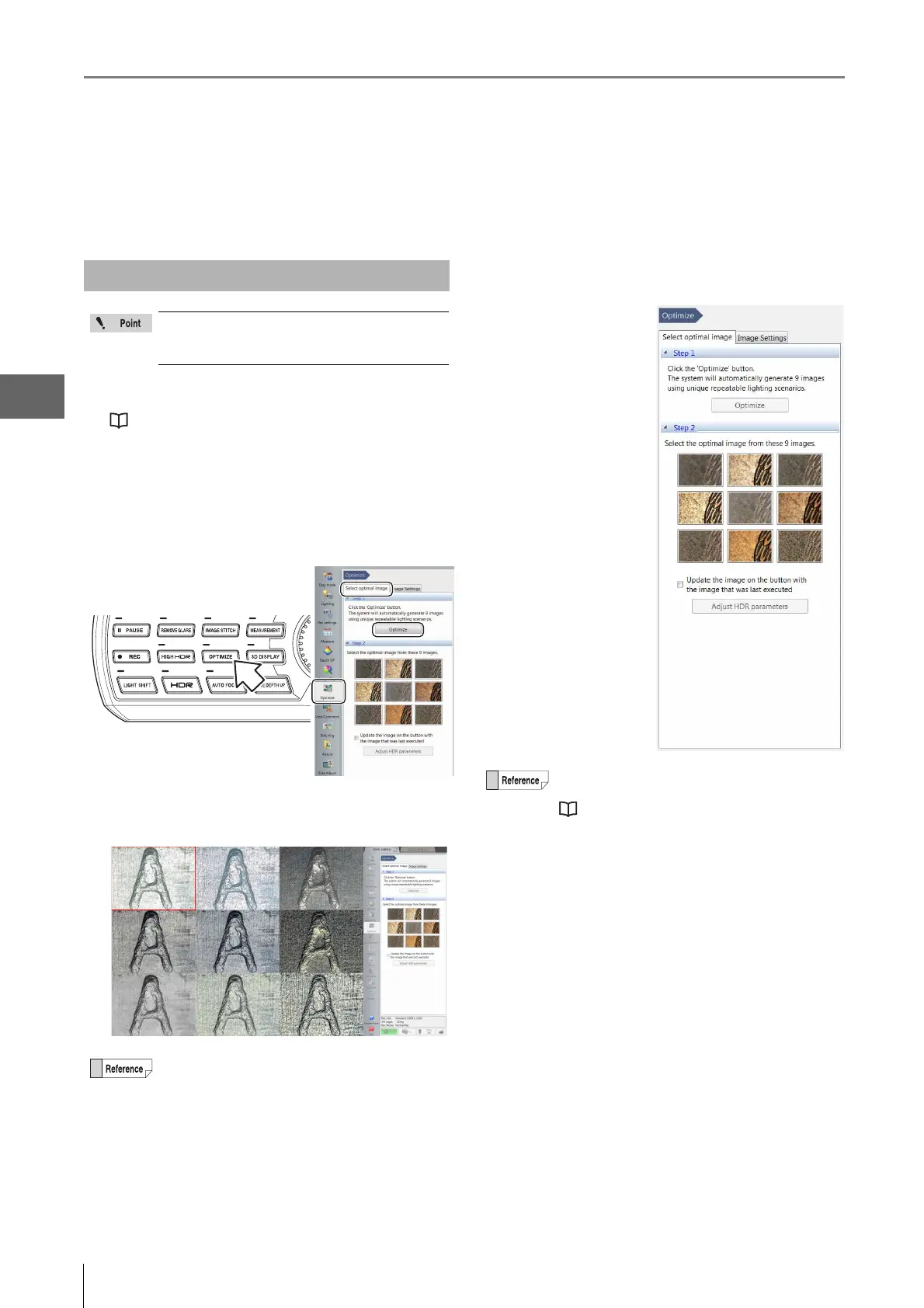
This feature presents the image under 9 different settings in a 9-way split screen. It allows you to select the setting
(processing) best suited to the application. Selecting the image selects the most effective setting.
1 Adjust the brightness, magnification, and focus.
"Adjusting the Brightness and Focus" (Page 3-4)
2 Press the [OPTIMIZE] button on the console, or
click [Optimize] from the VHX MENU, select the
[Select optimal image] tab and click the [Optimize]
button.
The image is displayed in the observation window and
operation view under 9 different settings.
3 Double-click the best image in the observation
window.
This displays the
image in the full area
of the window.
• Clicking one of the
nine images on the
[Optimize] tab
displays the
observed image
using those settings.
Selecting the Best Image
All images are displayed in normal (1600 x
1200) resolution even if the recording size (Page
5-5) is not set to normal.
To display the observed image on the side icons of
images in the operation view, check the [Update the
image on the button with the image that was last
executed] option of side icon images.
Clicking an HDR image enables the [Adjust HDR
parameters] button under [HDR].
"Enhancing Resolution and Increasing
Gradation" (Page 7-2)



 To Next Page