- Digital Microscope VHX-5000 User’s Manual -
Album
6-9
Playing and Editing Images
Playing video
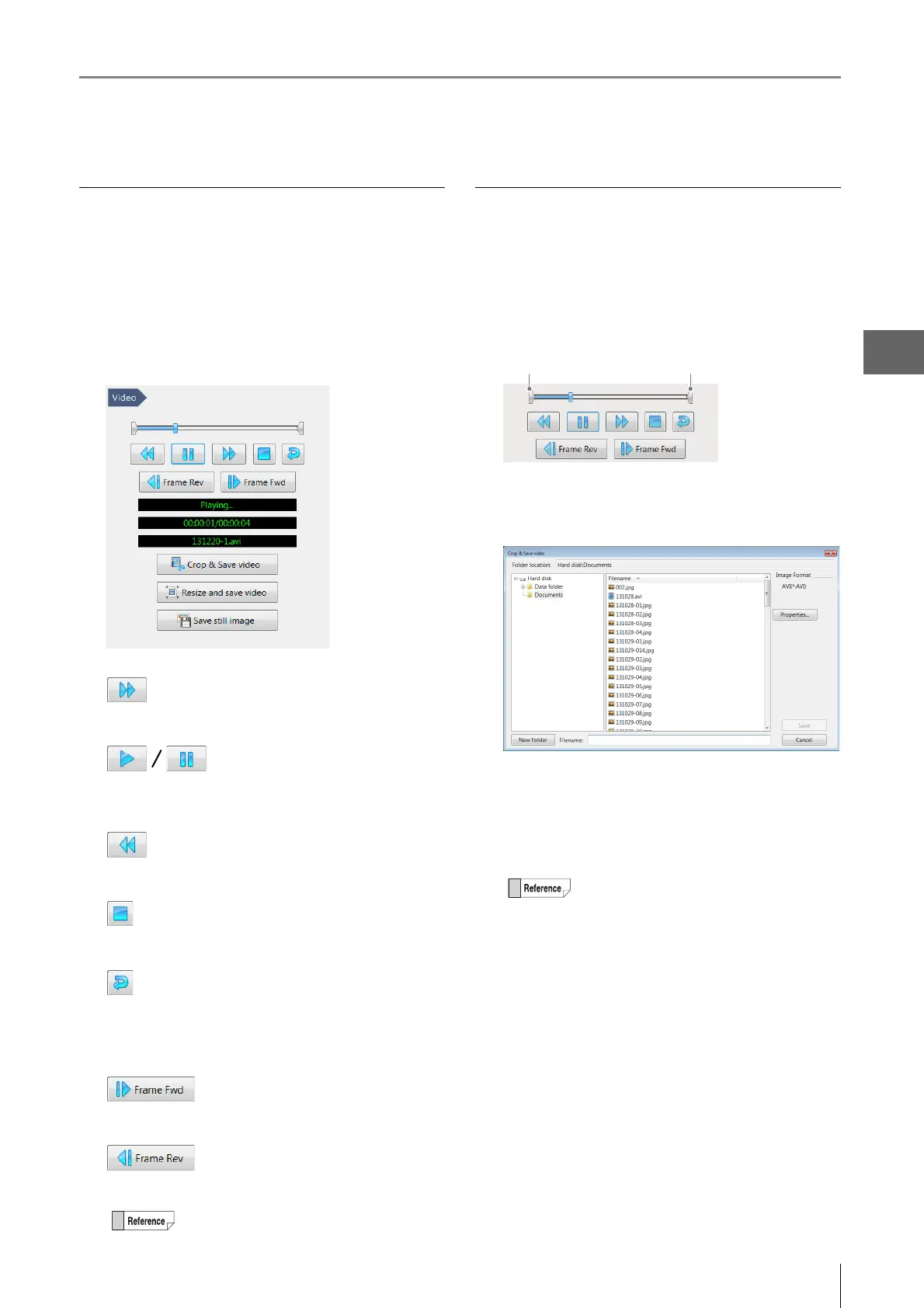
1 Select the video file to play in the files window.
2 Click [Playback].
The video playback view appears.
Playback the video.
Fast forwards the video.
Click [Playback] to start playing the video.
The button changes to the [Pause] button while playing.
Rewinds the video.
Stops playback and pauses the video.
Click this button to turn repeat ON. A video will play
repeatedly when the [Playback] button is clicked. Click
again to turn repeat OFF.
Each click advances the video one frame.
Each click reverses the video one frame.
Editing videos
Crop & Save
Specify start and end points to save a segment of the video.
1 Drag the start point cursor and end point cursor to
specify the start and end of the segment to crop.
2 Click [Crop & Save].
The [Crop & Save] dialog box appears.
3 Enter the folder and file name to save the segment,
and click [Save].
This will save the video between the start and end
points.
Clicking the slide bar displays the video at that
point.
Yo u can also create a new folder and save the
video there.
Yo u can also enter information in the file
properties when saving.
Start point End point cursor



 To Next Page