C
HAPTER
5
| Monitoring the Switch
Displaying Information About Ports
– 219 –
DISPLAYING LOG
DETAILS
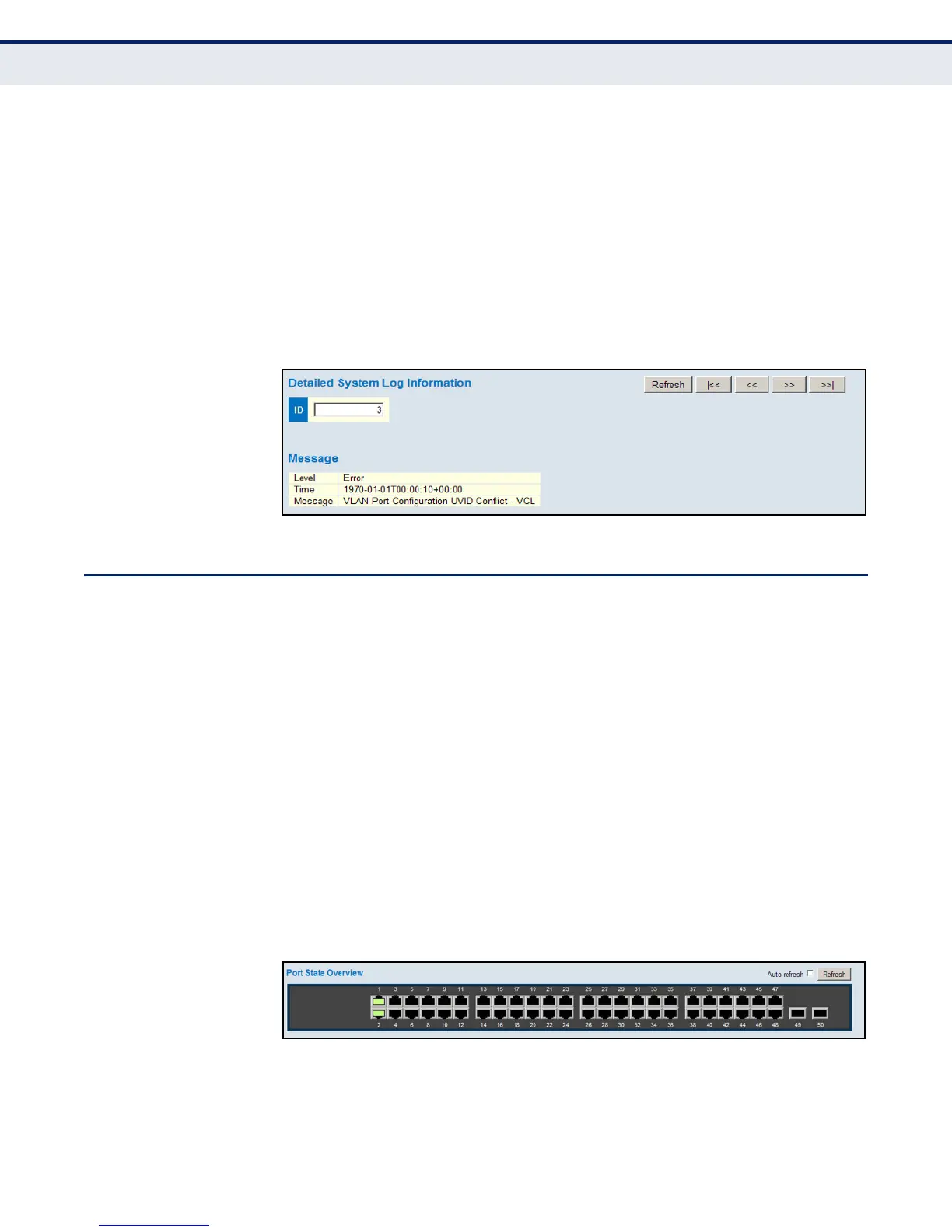
Use the Detailed Log page to view the full text of specific log messages.
PATH
Monitor, System, Detailed Log
WEB INTERFACE
To display the text of a specific log message, click Monitor, System,
Detailed Log.
1. Enter a log identifier in the ID field, and click Refresh.
Figure 99: Detailed System Log Information
DISPLAYING INFORMATION ABOUT PORTS
You can use the Monitor/Port menu to display a graphic image of the front
panel which indicates the connection status of each port, basic statistics on
the traffic crossing each port, the number of packets processed by each
service queue, or detailed statistics on port traffic.
DISPLAYING PORT
STATUS ON THE
FRONT PANEL
Use the Port State Overview page to display an image of the switch's ports.
Clicking on the image of a port opens the Detailed Port Statistics page as
described on page 222.
PATH
Monitor, Ports, State
WEB INTERFACE
To display an image of the switch's ports, click Monitor, Ports, State.
Figure 100: Port State Overview





 To Next Page