L-VIS User Manual 149 LOYTEC
Version 6.2 LOYTEC electronics GmbH
A mapping table can include text, bitmaps and colors at the same time. If connected to a
text control, the text part will be shown together with the color settings. When the same
mapping object is connected to a bitmap control, the bitmap will be shown. Number and bar
controls use the color setting only.
9.7.1 Mapping Table Properties
The properties of a mapping table are set on the Mapping property page. The New Entry
button on this page adds a new entry to the mapping table.
NOTE: If you want to add a new entry, but the New Entry button is grayed out, you most likely have
a control selected in the tree view which does not yet have a mapping table object attached
to it. Go back to the tree view and add a mapping table object, or use the Load button to
load a mapping table from a file.
The value component of the new entry defines the lower limit for the input value to display
the given text, bitmap and/or color. Since multiple entries will be present in the table, the
entered values build up ranges, which define the texts and bitmaps to display for every
possible numeric value. The valid range for each entry in the mapping table is defined to
reach from the value of the entry itself, up to but not including the value of the succeeding
entry. If this is the last entry, it is used for all values up to +infinite, since there is no more
entry to define an upper bound. For practical reasons, the first entry in the table always
ignores the entered limit and is also used for any value lower than its own limit.
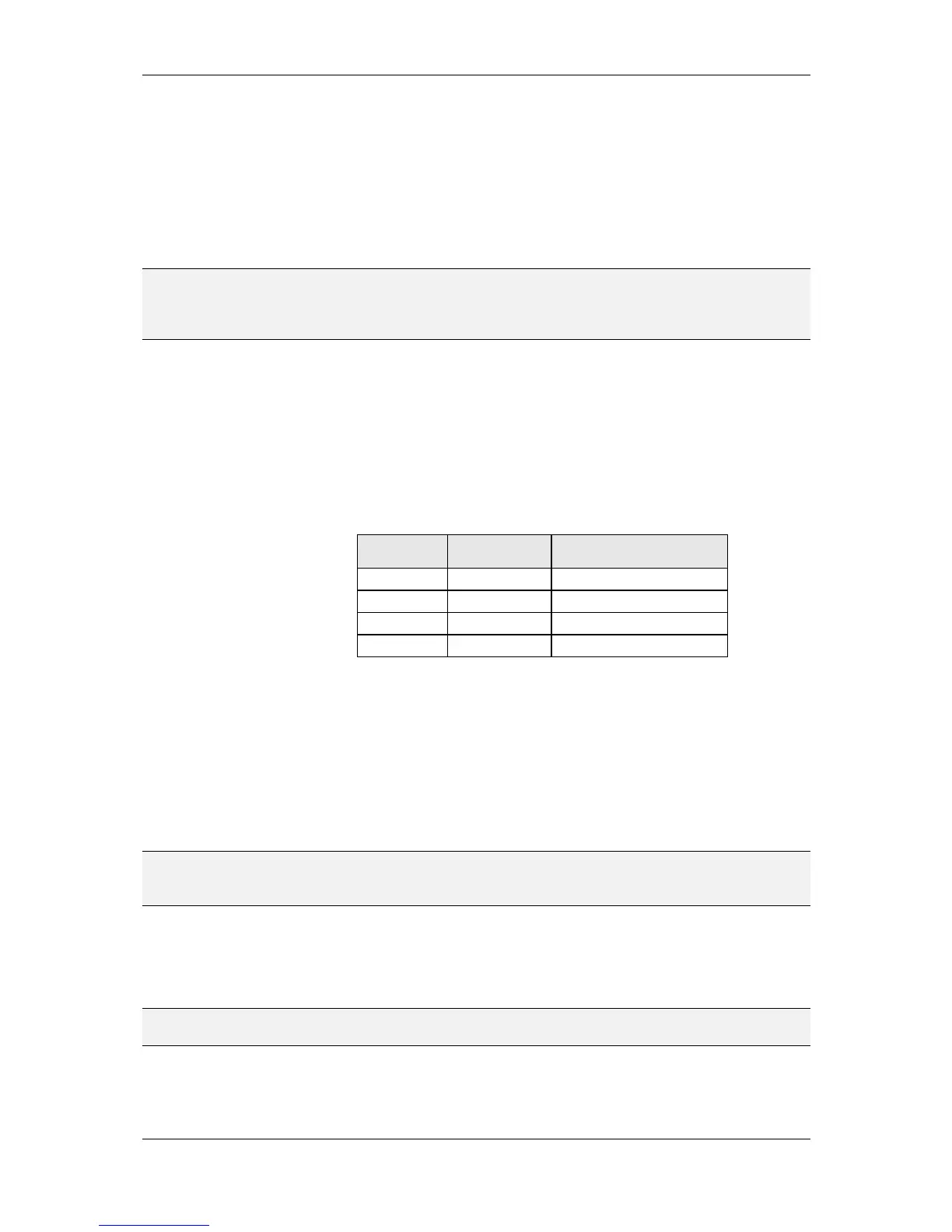
Here is an example with four entries:
Once a mapping is defined, it can be stored to a file (Save button) and loaded (Load button)
to define the mapping for other controls in subsequent projects. This way, an archive of
frequently used mappings can be built for use in various projects. To use the same mapping
for other controls of the same project, just copy and paste the mapping table object in the
tree view.
The same mapping table can be used in both directions. Translating incoming values to
texts, bitmaps, or colors, as well as looking up a value to send out, when the user selects a
given element from the mapping table via a dropdown list or a push button browses the
table to find the next entry.
NOTE: All texts, bitmaps and colors used in a mapping table are included in the file when the
mapping table is saved, so that the mapping file is self-contained and can be loaded and
used on different PCs, even when the source bitmap files may not be available.
To define the color for a single entry, either select the entry from the list and click the color
button to the right of the text input field, or directly click in the area to the right of the text
whose color you want to set (in the color bar). A color selection dialog will appear, from
which you may select the desired color.
NOTE: To define a mapping table entry which should not modify the current color, set the color of
the entry to Unset (shown by the black cross).
To define a color gradient for a number of entries (for example going from red to green),
set the desired colors for start and end of the gradient and then multi-select the range of
entries over which the gradient should be calculated. Hit the button to the right of the New


 To Next Page