www.mdcusa.com
Ph: 1-833-632-8721
©Copyri ght
Smart Scenes & Automation
The Smart Scenes feature allows automation based on energy levels, location, and temperature.
Example: Custom Battery Protection Mode
• Trigger: Battery SOC drops below 30%.
• Action: Disable high-load appliances (e.g., inverter, air conditioner, or water heater).
How to Set Up a Smart Scene:
1. Navigate to Settings > Smart Scenes.
2. Tap Add Scene.
3. Select a trigger event (e.g., "Battery < 30%").
4. Choose an action (e.g., "Turn off AC").
5. Save the settings.
Troubleshooting Guide
For additional troubleshooting, visit
renogy.com/support
.
Maintenance & Best Practices
• Inspect wiring regularly for loose connections or wear.
• Update firmware via the DC Home App for the latest features.
• Keep solar panels clean to maintain maximum efficiency.
• Monitor battery levels daily to avoid deep discharges.
Factory Default Settings (DO NOT CHANGE)
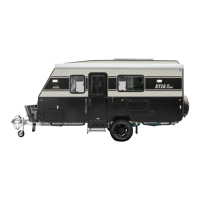
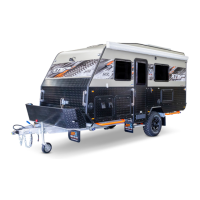
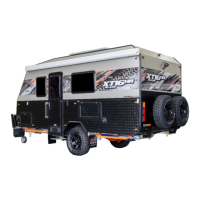
The following factory settings are optimized for the XT12HR OGE and should not be modified:
• Battery Type: Pre-configured for LiFePO₄ (Lithium).
• CAN Bus: Enabled for auto-detection of Renogy CAN devices.
• Wi-Fi Frequency: Supports both 2.4 GHz & 5 GHz.
• AC Output Priority: Set to Battery First to maximize off-grid usage.
Changing factory settings may cause
system malfunctions
and
void warranties
.
Renogy ONE Core won’t power
on
No 12V DC input Check battery connections and fuses.
Weak signal or incorrect
password
Move closer to router and retry.
Bluetooth device won’t pair
Device out of range
Move closer and ensure
.
Faulty connection or shading Inspect
solar wiring and panel condition
.
Inverter not providing AC power
Inverter off, low battery Turn on inverter, check battery charge level.



 To Next Page