131
33. Connecting a PC: PC [DVI-D] ➜ TV set [HDMI]
Start your PC and preset the resolution to
1024 x 768p 60 Hz. Exit windows and
turn the PC off.
Setting DVI-D ➜ DVI-D
•
Call up the TV menu with the key
•
Open the “AV devices” menu with the
yellow button
.
•
Use the cursor control key to select
the “PC” AV device and then click the
key . Use the cursor control key
to go to the “Signal types” menu
item. The settings must be made as
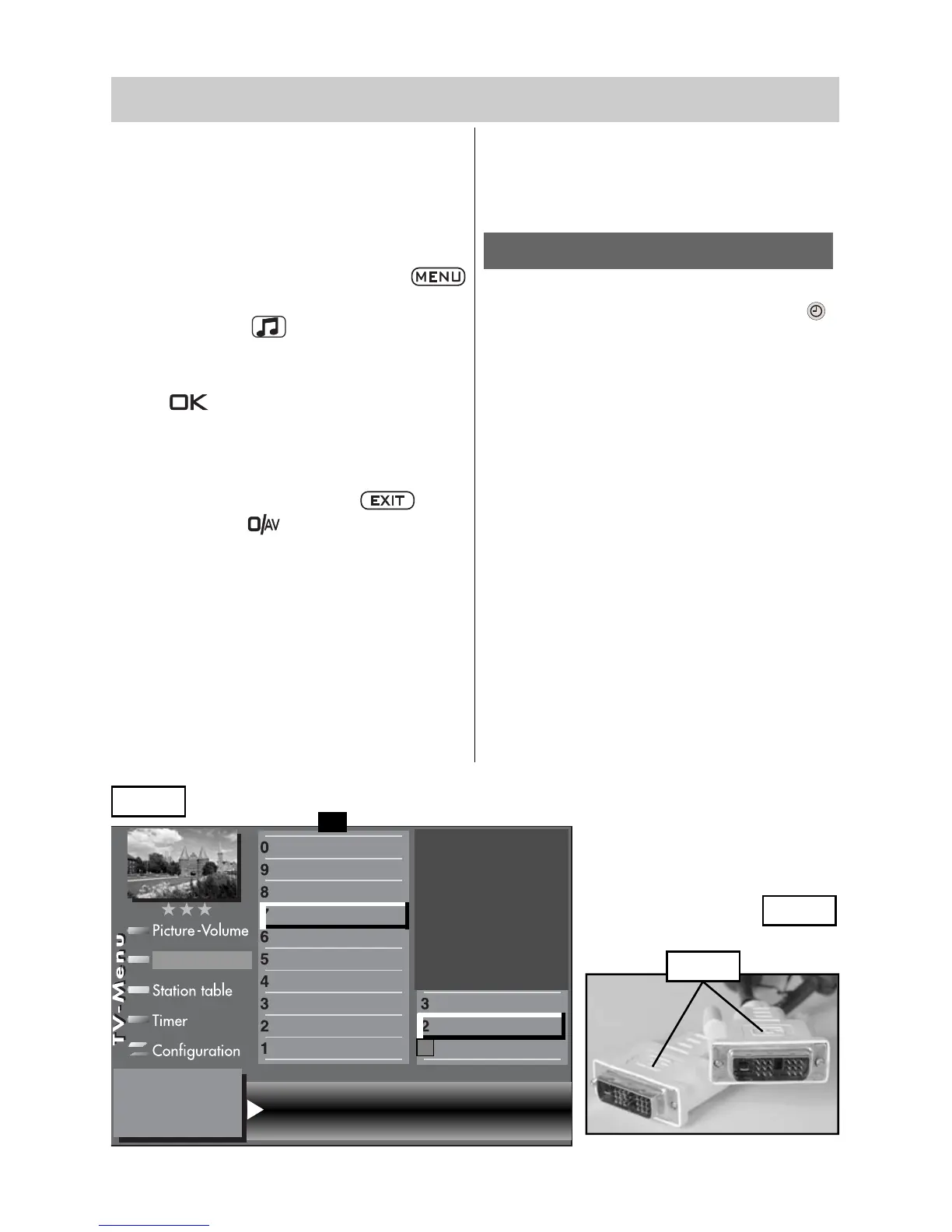
shown in Figure 1b.
• Exit the menu with the key
.
Press the key for approx. two
seconds and then select the AV device
“PC”.
• Use a commercial multimedia cable
(DVI-D ➜ DVI-D, fig. 3)
to connect
the DVI-D output of the graphics card
of the PC to the DVI-D input of your TV
set.
Switch the TV on.
• Switch the PC on. When the picture of
the PC is shown on your TV for the first
time, a box is displayed on the bottom
edge of the screen with the resolution
that has been set, e.g.:
Video: 1024 x 768 60Hz
You can call up this information at
any time by pressing the green
button.
While Windows is starting, data is
exchanged between the graphics card and
the TV. The possible resolutions are deter-
mined in the process.
When the start-up procedure is finished,
you can set the resolution as you wish
(recommended = 1360 x 768 - 60 Hz.) in
the Windows menu “Display characteri-
stics”.
☞
fig. 3
fig. 1b
Signal OUT DVI-D Signal IN no Signal
Name
Signal types
Connect
F1
➔
✗
AV devices
DVI-D
Front HDMI
AV-Receiver
Other device 1
Other device 1
PC
Satellite / set top
DVD Player 2
DVD Player 1
DVD/Videorec.2
DVD/Videorec.1


 To Next Page