User’s Guide – Ultima cutting plotter
32 AP-75032, Rev 2.2, 20/04/07
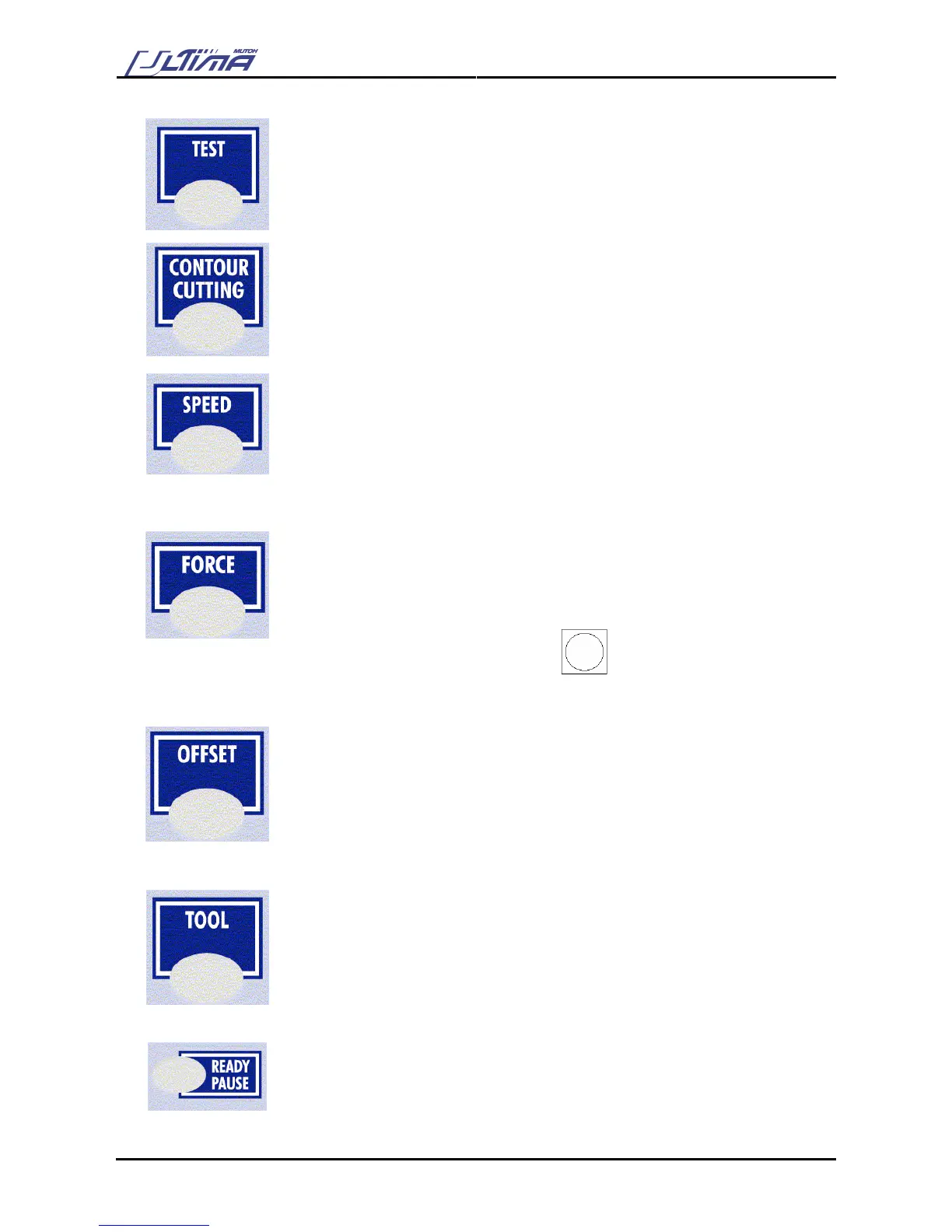
TEST-key
By pressing the [TEST] key you can select one of the test plots out of the list to
cut.
CONTOUR CUTTING-key
In this menu you can start a “manual”, “auto no barcode”, “barcode multi” or
“barcode single” aligning procedure by selecting the desired one of the shown
list.
SPEED-key
Press the [SPEED] key to enter the setting menu to change the cutting speed.
Press the [UP] or [DOWN] key to change the speed. Press the [ENTER] key to
confirm the change. If you do not want to change the speed press the
[CANCEL] or [EXIT] key.
FORCE-key
Press the [FORCE] key to enter the setting menu to change the force.
Press the [UP] or [DOWN] key to change the force. Press the [ENTER] key to
confirm the change. If you do not want to change the force press the [CANCEL]
or [EXIT] key.
Press the [FORCE] key again to cut following picture to verify your force cutting
value.
OFFSET-key
By pressing the [OFFSET] key you can change the offset of the knife:
When you enter this menu you can input the offset or the base offset for cutting
the calibration figures.
When you press the [ENTER] key you get a dialog on the cutter that asks if you
want to do a test cutting (select 1 or 2) or not.
When you perform a test cut, 10 reference pictures around the selected base
offset are cut. You can choose the best one by selecting one of the pictures
with the laser pointer and the [UP] and [DOWN] key.
TOOL-key
Press the [TOOL] key to select:
Knife or Pen
READY / PAUSE-key
By pressing this key you can interrupt the cutting job. When you press the
[READY/PAUSE] key again the cutting job is started again. When no media is
loaded you only can be in pause. When media is loaded the status is ready and
can be changed to pause. When in the pause status (media loaded or not) you
still can send a file to the cutter but it will only responds when you go to ready.



 To Next Page