132
3-7-3 Adjustment of Marking Position
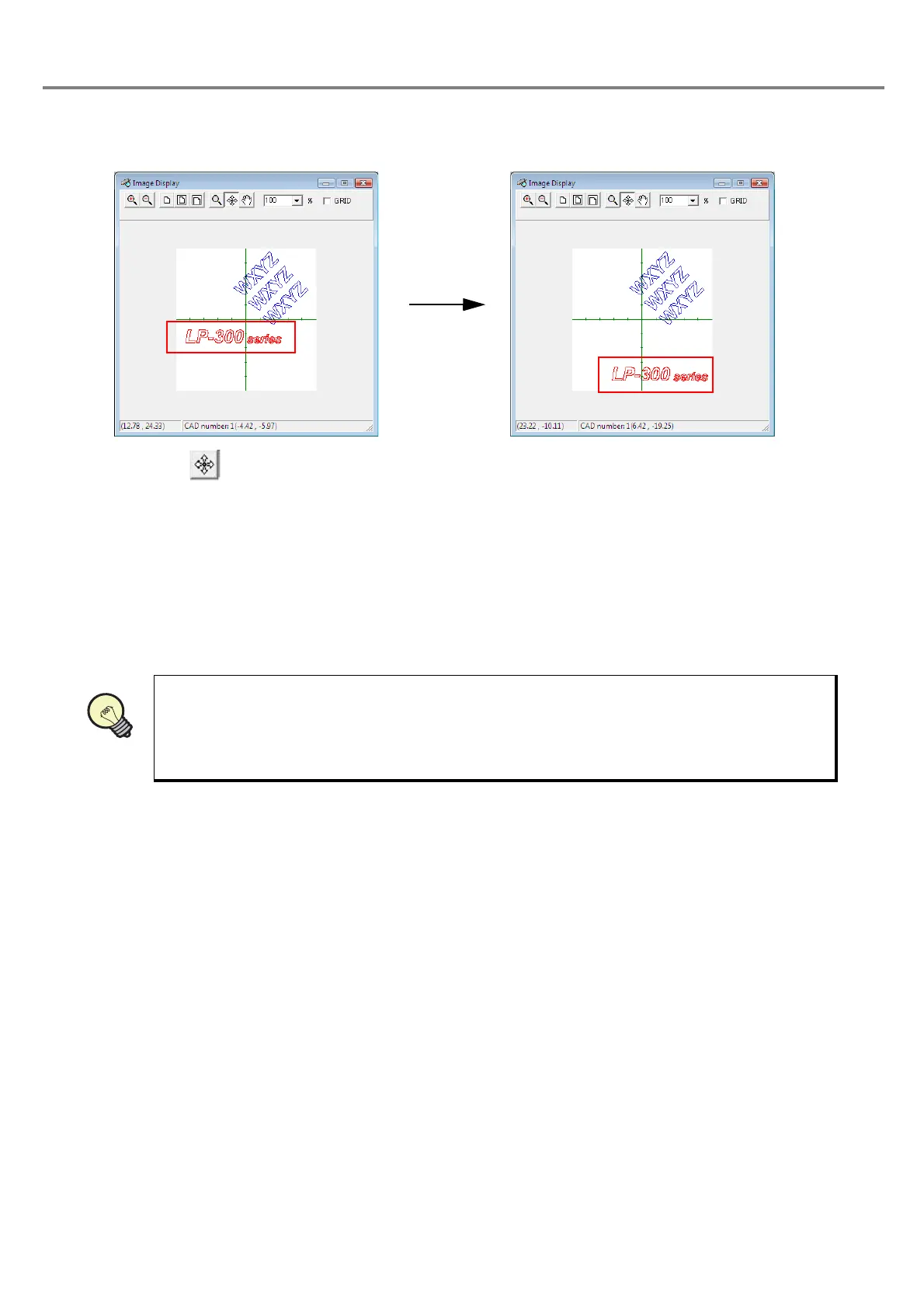
When clicking button, the mouse cursor is changed.
With pressing the left button on the desired character string for moving, move the mouse to the desired position
and release the button.
(The color of the selected character string is changed into red.)
• The selected character string can also be moved with the arrow keys.
Arrow key : The character string is moved per 0.01mm.
Shift + Arrow key : The character string is moved per 0.1mm.
• When clicking the right mouse button on the selected character string, the character setting screen and
marking condition screen can be opened.
• If the marking position is moved and the character string is moved out of the scope of the
marking area, “Marking data has exceeded marking area” is displayed. Shift the character
string into the scope of the marking area.
• The contents set in the character setting, function setting, and marking conditions screens are
reflected onto the image display immediately. It is useful to keep displaying the image.


 To Next Page