115
3-5-3 Character Condition
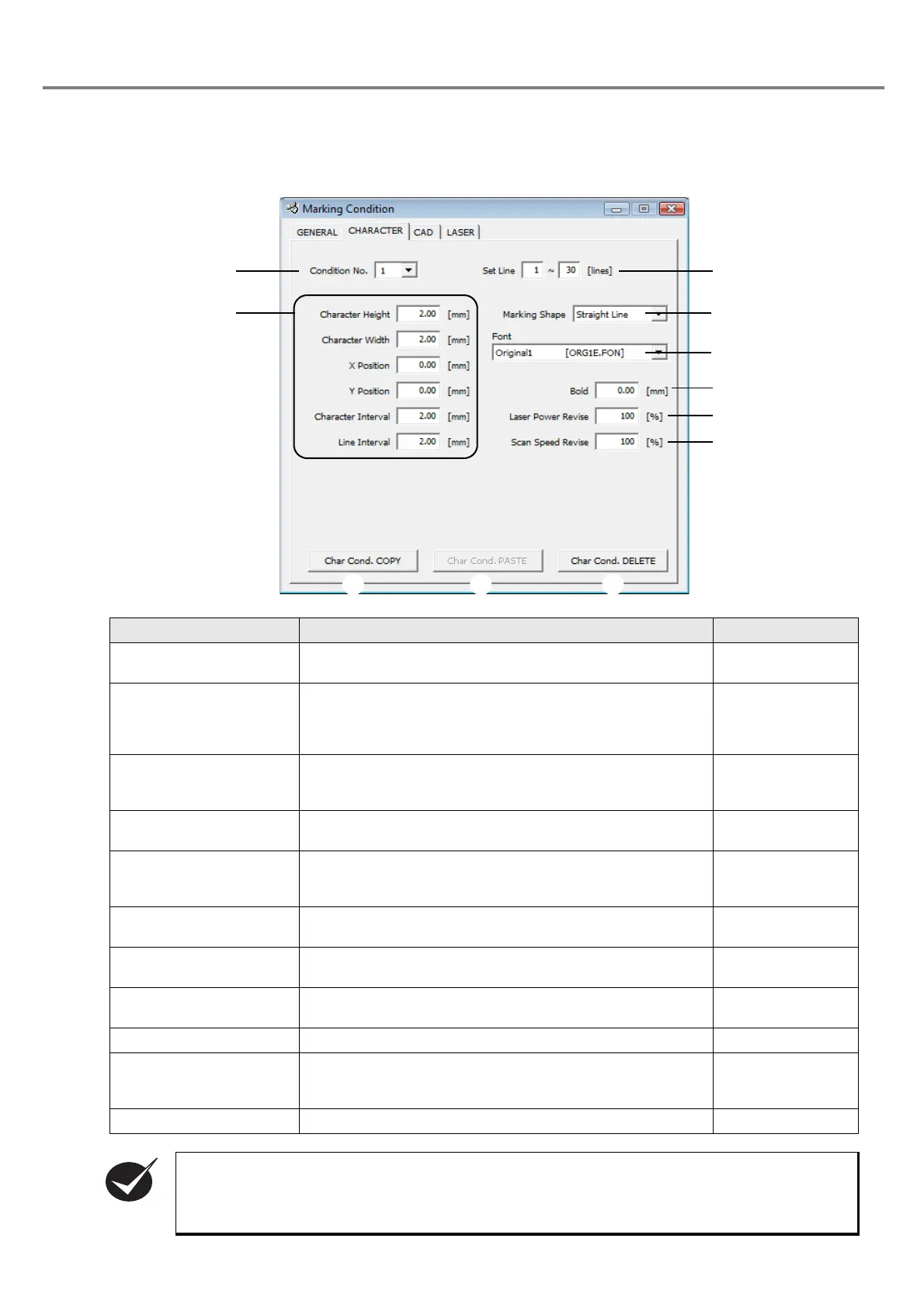
On the character setting screen, set the shape of marking, size and position of character for the marking char-
acter string in the respective lines of the character setting.
Item Description Setting Range
1. Condition No.
Enables to set the character condition for each condition
No.
Select the condition No. using the list box.
1 to 30
2. Set Line
Specifies the lines which are set for the marking character
strings of the character setting screen. When inputting the
start line and ending line, the character conditions between
these two lines become effective.
1 to 30 for both
start/end lines
3. Character Setting Part
Enables to set the size and position of the character. This
part changes the items to be set depending on the
selected marking shape.
Refer to 3-5-3 (1).
4. Marking Shape
Selects the design of the character string among “Straight
Line”, “Tilt Angle” and “Fan Line Form”.
Select the shape
using the list box.
5. Font
Selects the font file to be used for displaying the marking
character string of each line by setting software and marking
the character string by the laser marker.
Select the font
using the list box.
6. Bold Enables to set the thickness of the character stroke.
0.00mm to 6.00mm
(Step: 0.01mm)
7. Laser Power Revise
Enables to set the correction against the laser power set
on the laser setting screen.
0 to 200%
8. Scan Speed Revise
Enables to set the correction against the scan speed set
on the laser setting screen.
50 to 200%
9. Char Cond. COPY Copies whole character condition. -
10. Char Cond. PASTE
Pastes the whole character condition copied to the
condition with other condition No. Note that the set lie is
not copied.
-
11. Char Cond DELETE Deletes whole character condition. -
If the setting lines are duplicated with those with the different condition No., the setting with the
smaller condition No. is effective.


 To Next Page