49
2-1-3
Procedure from Laser Marker Setting to Test Marking
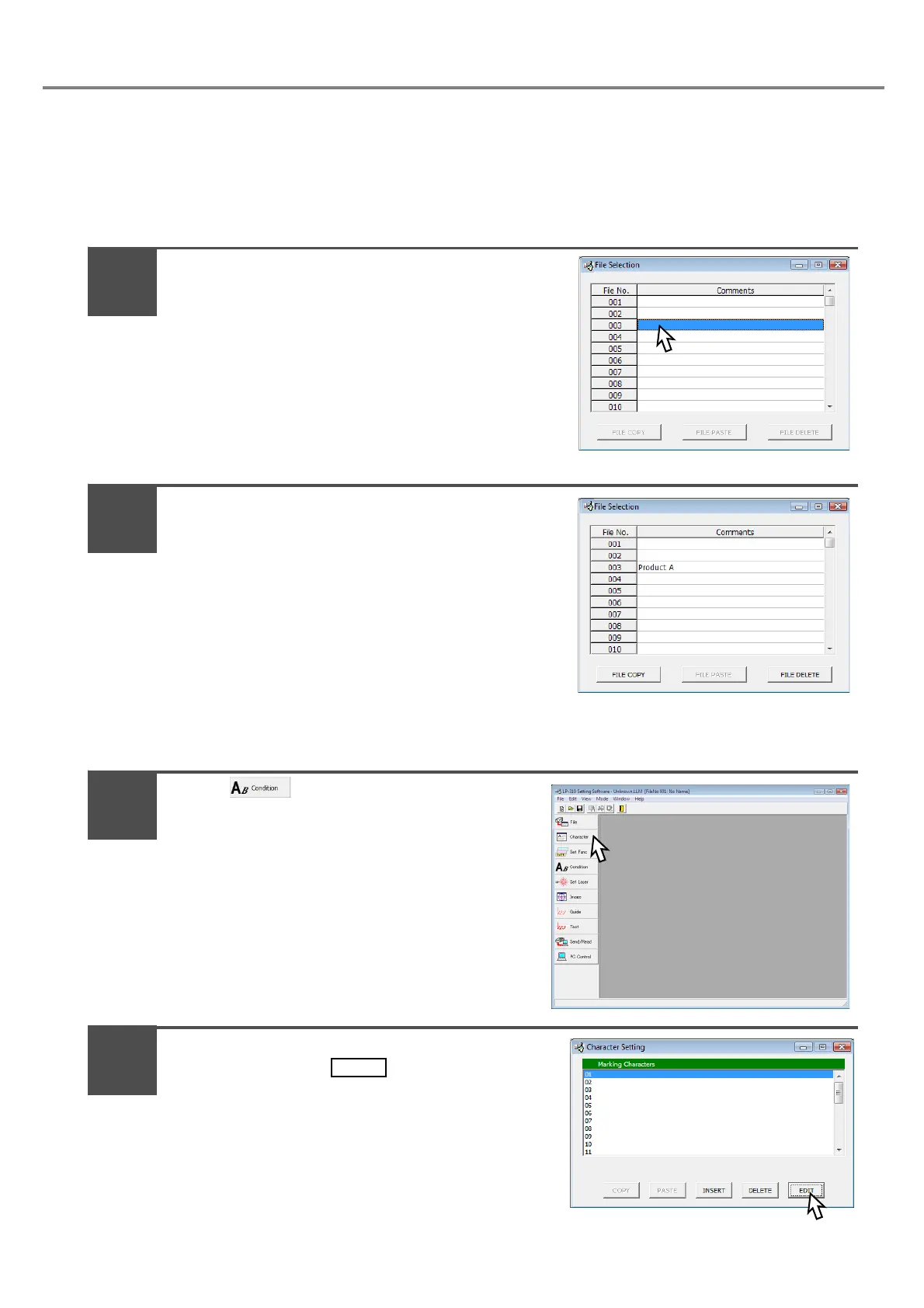
1. Set the file No. to be marked.
The “File Selection” screen is displayed when starting the PC setting software.
Select the File No. “003” on the file selection
screen.
Pressing File No. 003 highlights the comments column,
and “003” is selected.
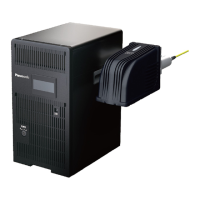
Input the file name into the [Comments].
Here inputs the “Product A” into the comment.
(Input the character using the keyboard of the PC.)
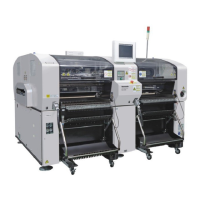
2. Input the character to be marked.
Press .
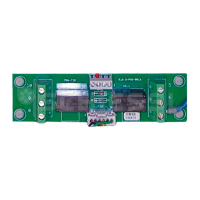
The screen is changed into “Character Setting” one.
Adjust the cursor to the first line “01” of the
screen, and press .
* Re-adjusting the cursor to the first line (01) and
then pressing (double-clicking) the same cursor
performs the same operation.
1
2
1
2


 To Next Page