RealPresence Collaboration Server (RMX) 1500/1800/2000/4000 Getting Started Guide
Polycom®, Inc. 156
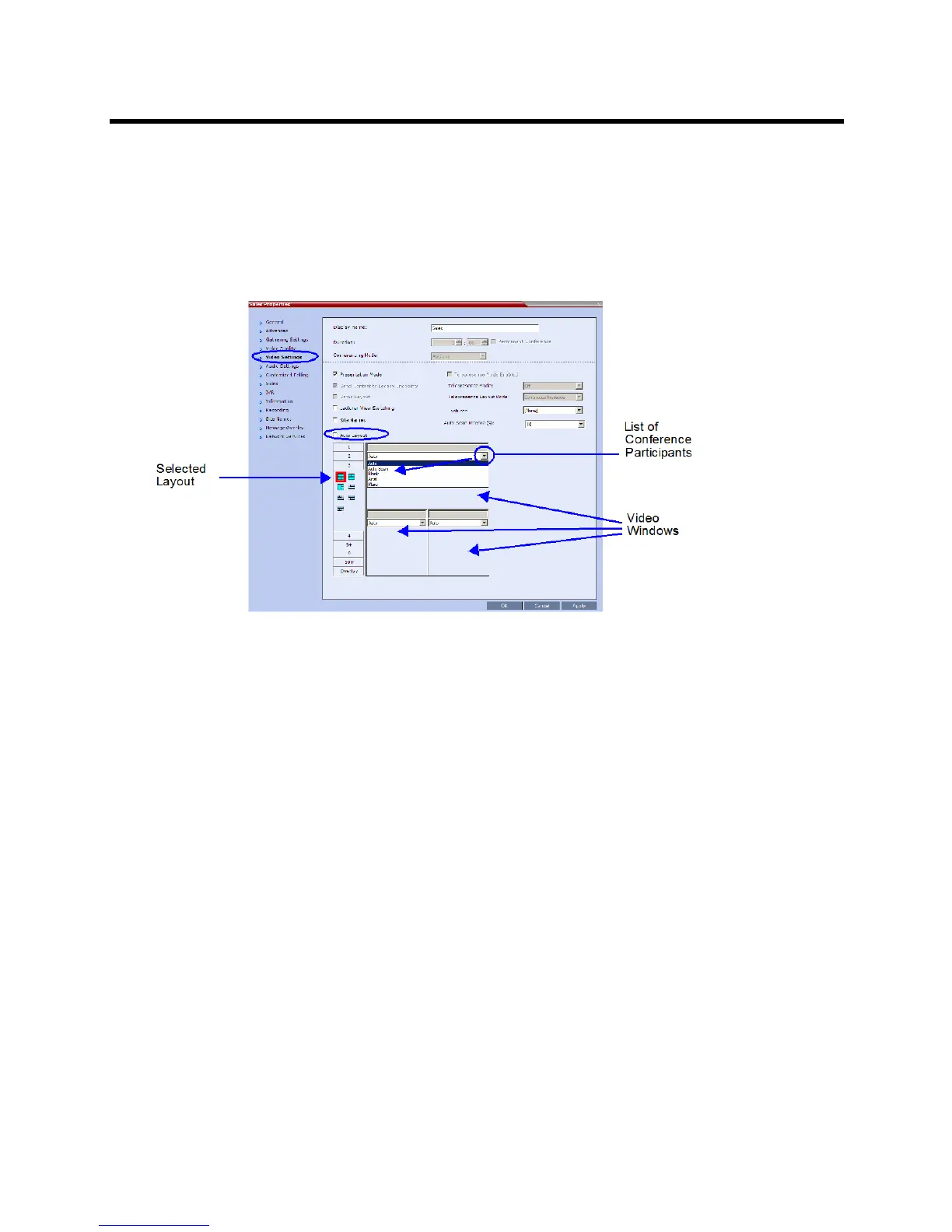
To video force a participant to a window:
1 In the Conference Properties dialog box, select the Video Settings tab.
2 If Auto Layout check box is selected, clear it.
3 Select the required video layout.
4 In the window to which you want to force a participant, select the participant’s name from the list of
conference participants.
5 Repeat step 3 to force participants to other windows.
6 Click OK.
To cancel Video Forcing for a window:
1 In the Conference Properties dialog box, select the Video Settings tab.
2 In the video layout window, in the Participants list, select Auto.
3 Click OK.
4 Switching between participants is renewed and is audio activated.
Force Layout and Preserve Participant Call
Cells in a forced layout that were assigned to endpoints that have disconnected, have paused their video,
or have been deleted from the conference will remain black until the endpoint reconnects, a new layout is
used, or the conference ends.
This version adds the option to prevent the MCU from reassigning cells in a forced layout that were assigned
to endpoints that have disconnected, have paused their video, or have been deleted from the conference.
The cell will remain black until the endpoint reconnects, a new layout is used, or the conference ends.
A new flag, PRESERVE_PARTY_CELL_ON_FORCE_LAYOUT, has been added to control this option.
This flag must be manually added to change its value. The values of this flag are:
● NO (Default) - Cells for dropped endpoints are reassigned. Endpoints that reconnect will be treated
as new endpoints.














 To Next Page